©2021 CAE 905K351052 v1.1 29
Setup
a. Power on the TouchPro computer.
b. Using the mouse, drag the pointer to the bottom of the TouchPro
computer until the Windows taskbar appears.
c. In right corner of the taskbar, click the Network icon to access the
Network window.
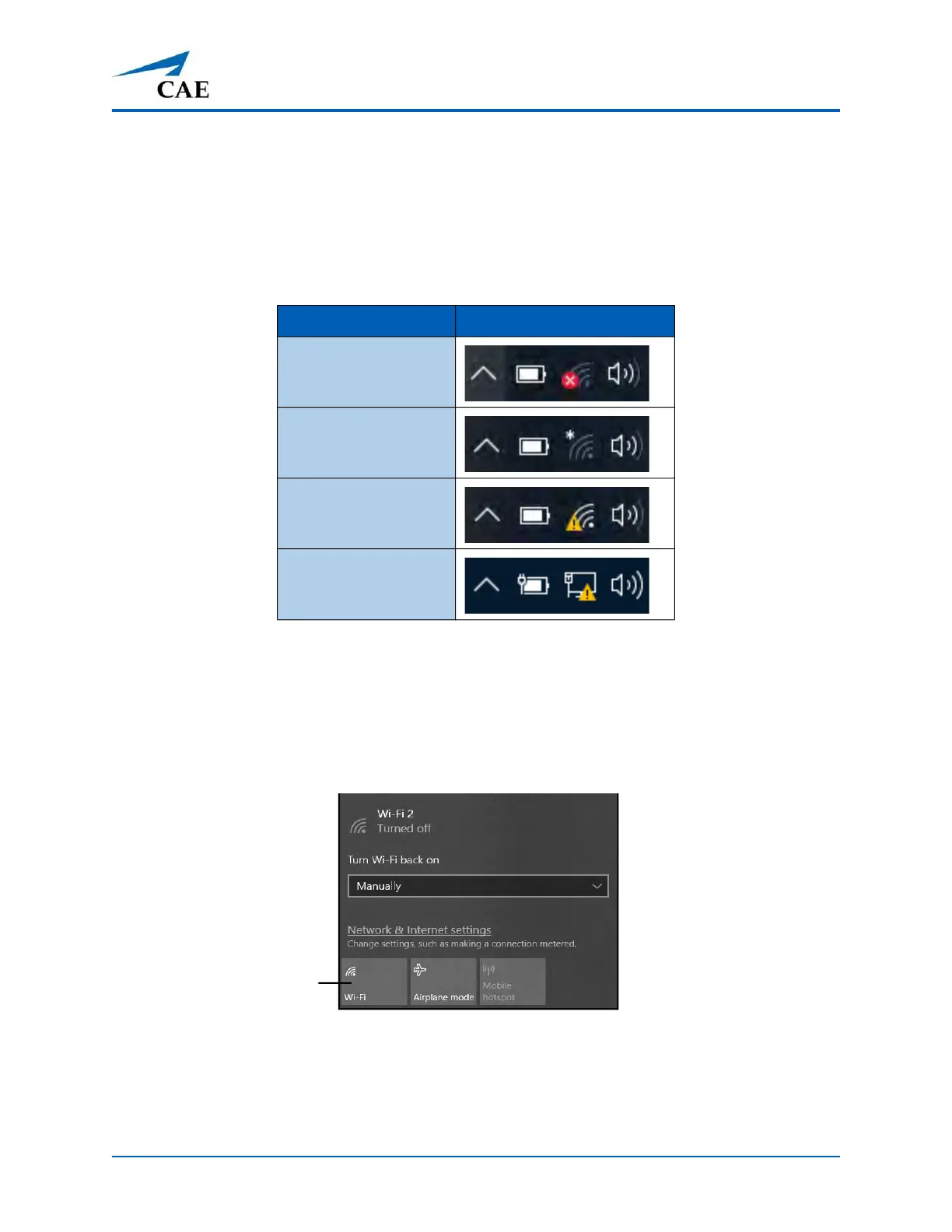
There are four potential network icons that are displayed depending on the status of
connectivity:
No WiFi
If the No WiFi icon appears:
a. Tap the Network icon.
The Network window appears.
The Network Window
b. Tap WiFi button to turn on WiFi (button turns blue).
Connectivity Status Icon Display
No WiFi
WiFi without
Network
Connection
WiFi with Network
Connection
Hardwired
Connection
The WiFi button



 To Next Page