Setup
30 ©2021 CAE 905K351052 v1.1
CAEApollo
Select the Network
To select the proper network for the simulator’s router:
a. In the Network window, locate the simulator network from the list of
available networks.
The simulator networks are named with the simulator prefixes and a number that represents
simulator serial numbers:
º If “Connected” appears next to the simulator network, proceed to Launch TouchPro
on page 10.
º If “Connected” does not appear next to the simulator network, proceed to step b.
b. Click on the simulator network.
The connection options appear.
c. Check the Connect automatically box.
d. Click Connect.
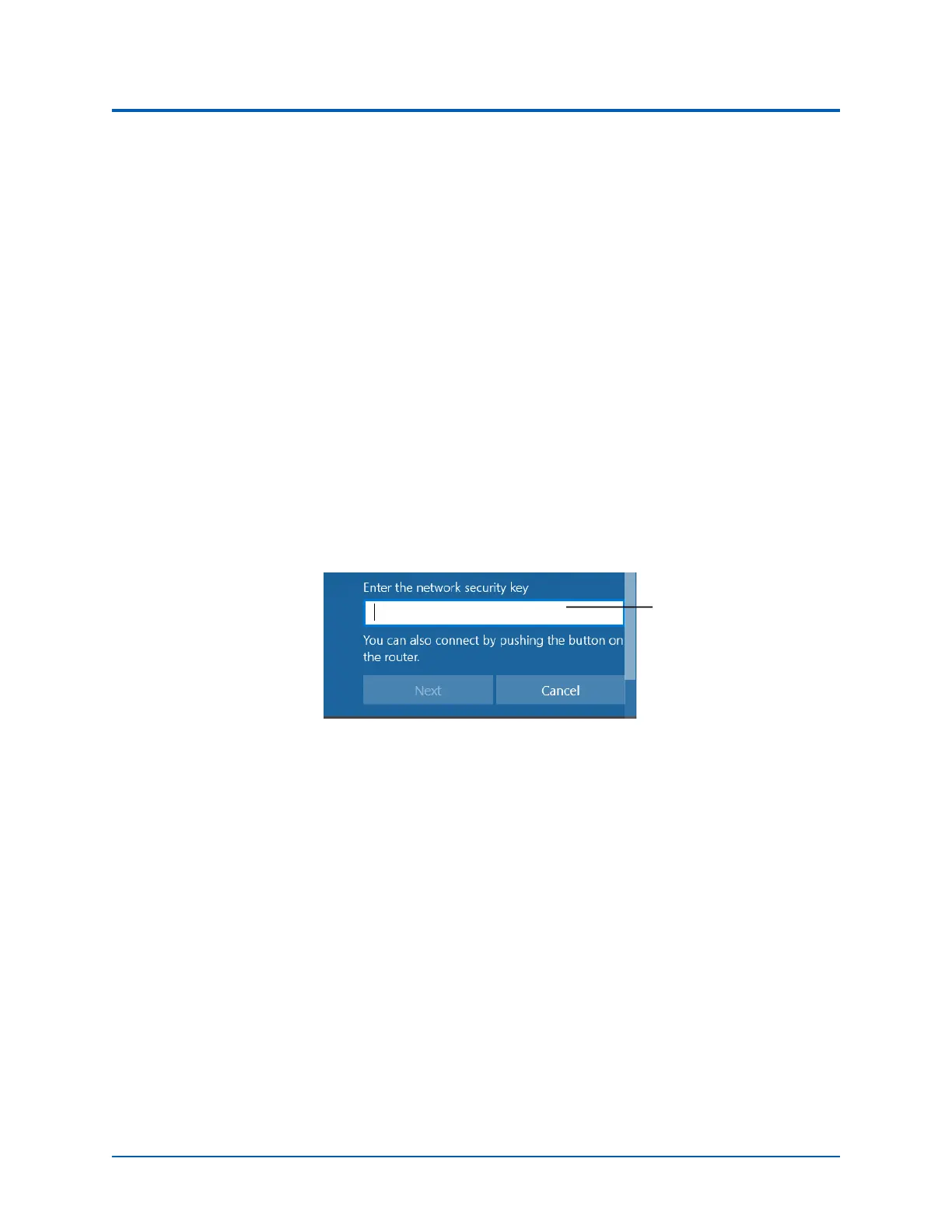
The Enter a network security key window appears.
Entering the Security Key
e. Enter the caeadmin in the Security key field.
f. Click Next.
The Connecting message appears, then disappears when the TouchPro monitor is finished
connecting to the simulator network.
Launch TouchPro
To launch TouchPro:
a. From the desktop screen, tap the Maestro app.
The Maestro start page appears.
b. Tap the CAE TouchPro icon.
The TouchPro application starts and the TouchPro Workstation is ready to be used with the simulator.
It will connect to the simulator automatically in the future.
Security key field



 To Next Page