Using the Simulator
42
CAECathLabVR
PN: 905K400652
4. Click and drag the balls along the wire to the location where would like to move them
5. Once the lower ball has been moved to the desired location, (bending point), use the left
mouse button to shape the wire by dragging distal bending point in space, forming the
desired curve
6. Once the wire’s shape has been changed in 1 set of axis, (XY, YZ or XZ), the user may
accept this change and click Save
The user may choose to change the wire’s shape in a different 2-D view and click on the
desired axis to change.
To view the wire’s shape in 3-D:
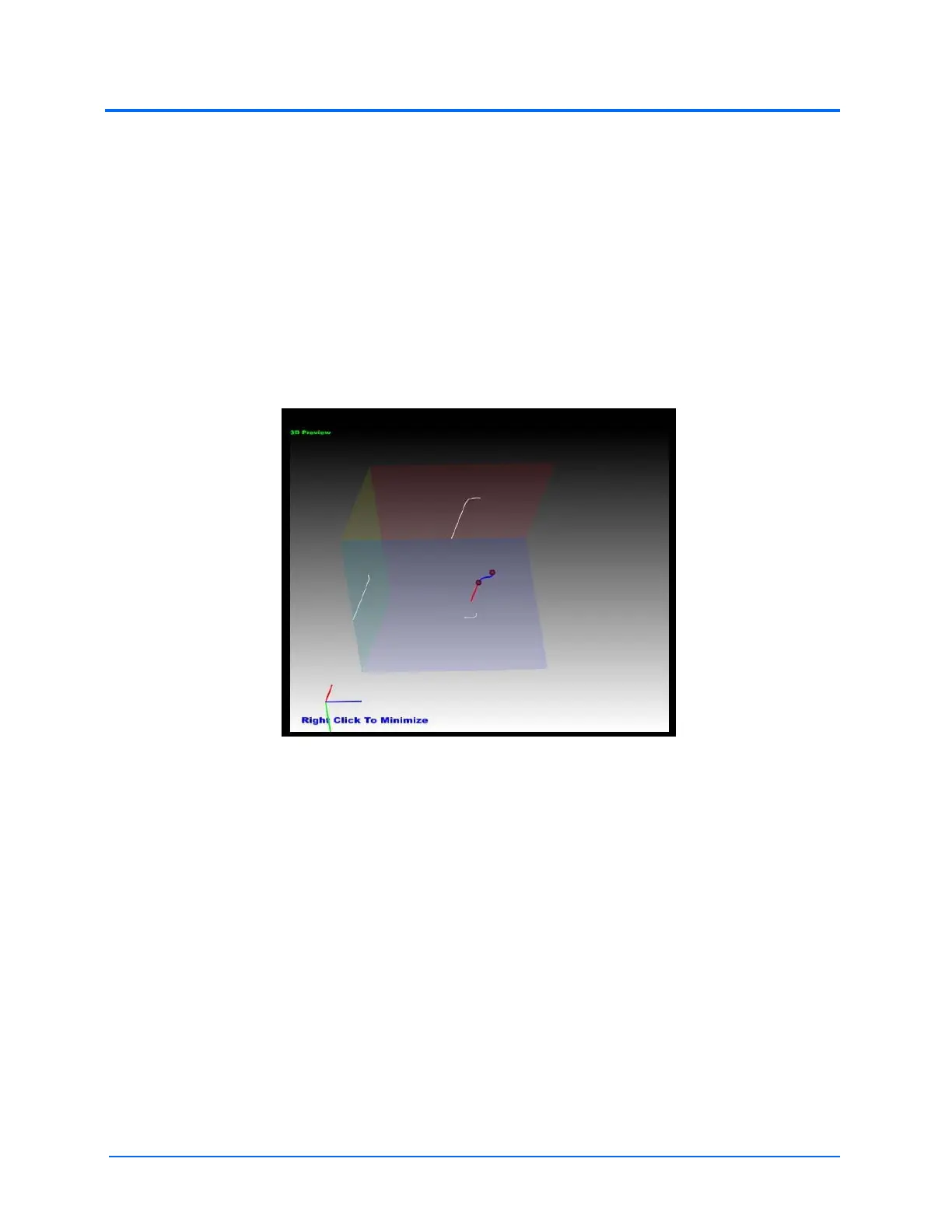
1. Right-click on the small 3-D preview window in the upper right portion of the Customize
screen
The Customize Screen - 3-D Image
To minimize the 3-D view, right-click the screen.
2. Once all changes have been made, and saved, click Accept to close the Customize
window and keep the saved changes
To delete all changes and return to the default curve shape, click Default to return to the
default shape, or click Cancel.
Note: The Customize window will only become available if the wire is captured within
the simulator and fully retracted (in the “home” position).



 To Next Page