Using the Simulator
63
PN: 905K400652
Adjusting the Volume
Learners can adjust the volume of the simulator sounds by using the hotkeys on the simulator
keyboard.
To increase the volume, press the Ctrl key and the Up arrow on the simulator keyboard
simultaneously until the desired volume is achieved.
To decrease, press the Ctrl key and the Down arrow on the simulator keyboard simultaneously until
the desired volume is achieved.
Hiding the Available Tasks Panel
Learners can hide the Available Tasks panel to view the didactic content in full screen mode.
To hide the Available Tasks panel:
1. From the icon dashboard, click the My Tasks icon
2. From the Available Tasks panel, select the desired task
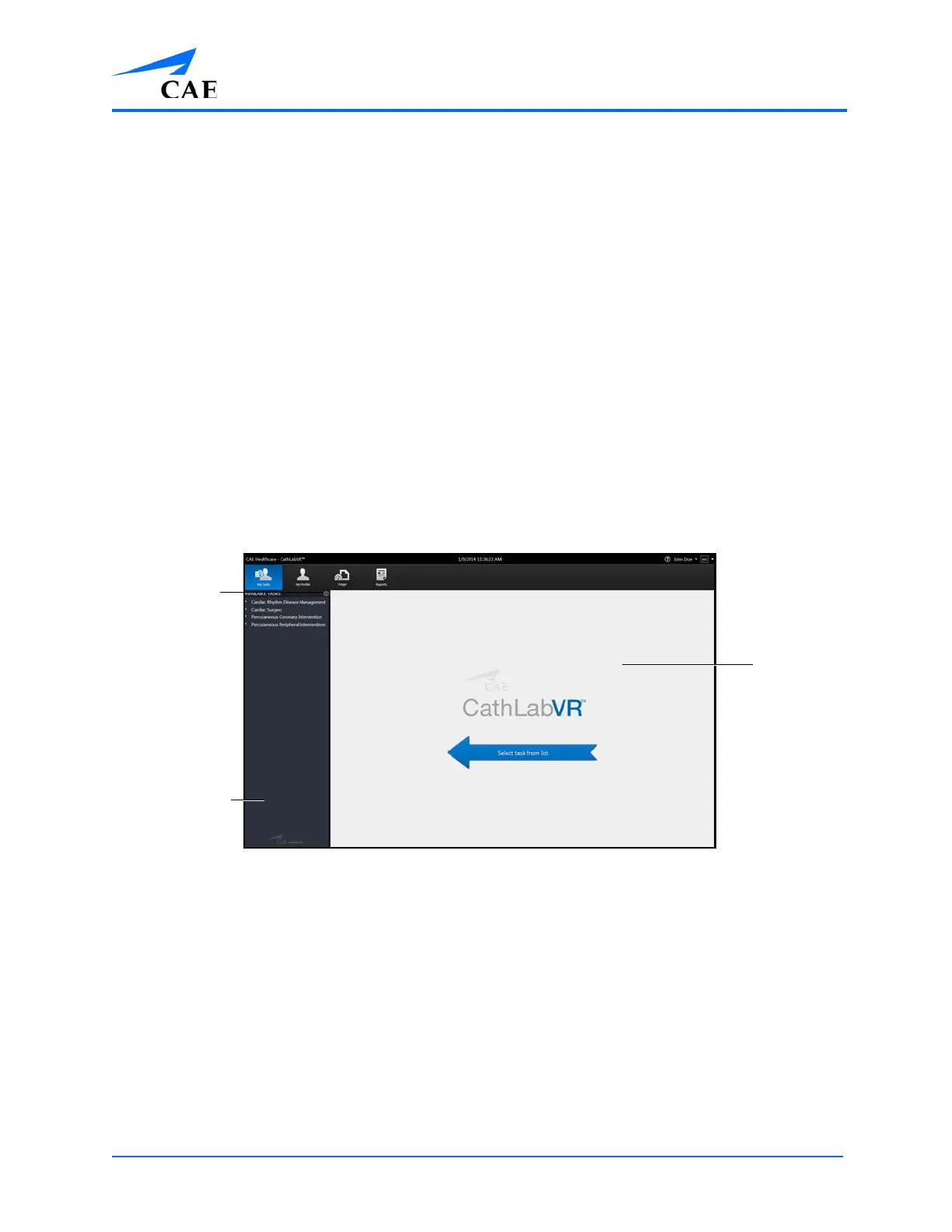
The Home Screen
3. Click the Hide Available Tasks arrow
The didactic content expands to the width of the full main screen.
The Hide
Available
Tasks icon
The main
screen
The Available
Tasks panel



 To Next Page