Using Touch Screen
The HOME screen on the touch screen appears when the
printer is turned on.
Touch the HOME screen on the touch screen with your finger tip to select menus for copying, scanning, and
other functions.
HOME Screen
Basic Operation of the touch screen
HOME Screen
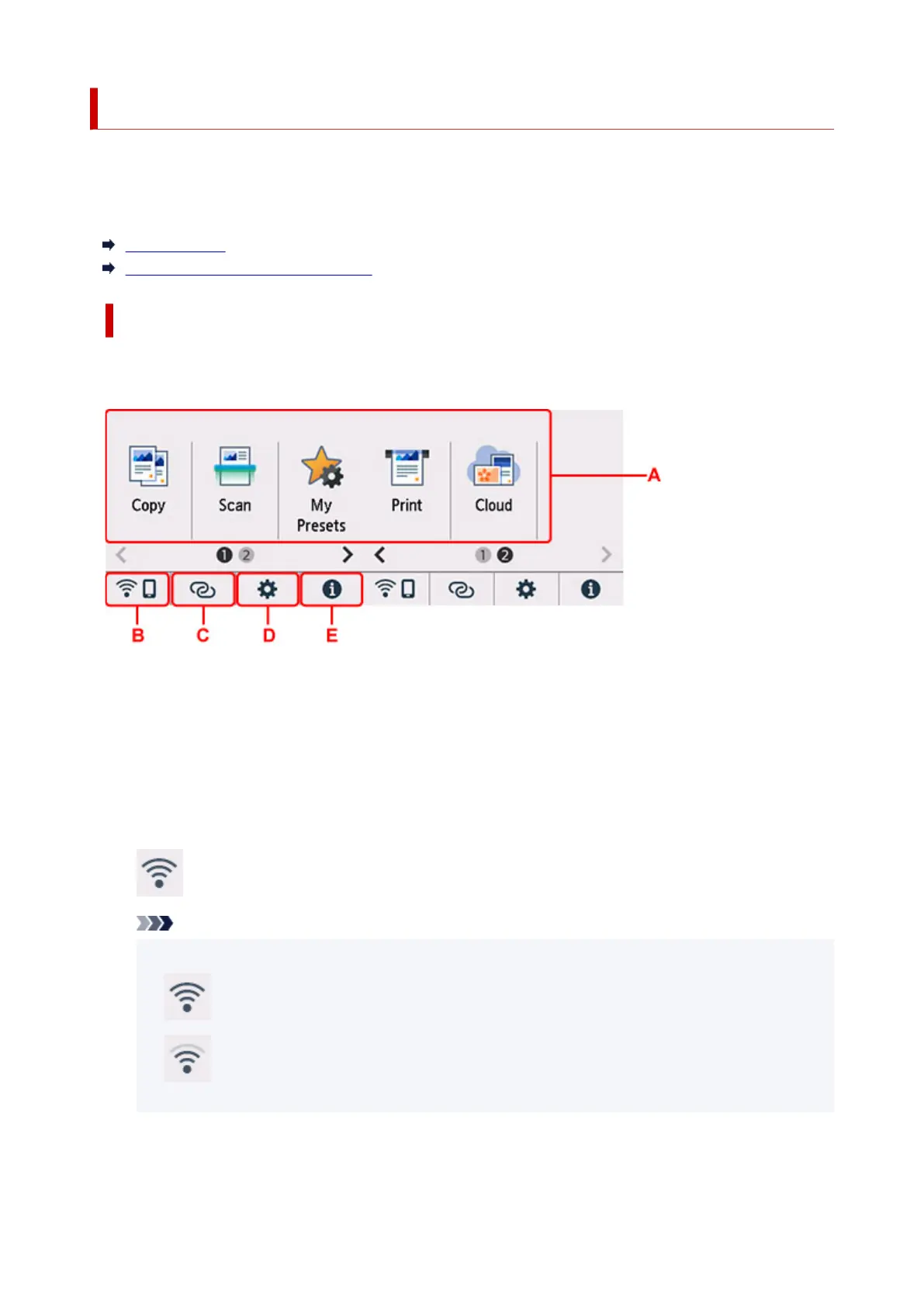
The HOME screen consists of the two screens.
The screen can be switched by flicking left or right.
A: Basic menu
Select to copy or scan using the operation panel
. After selecting a basic menu, the particular menus
are displayed.
B: Network
Displays the current network status. Select to display the basic network information or to change the
network settings.
The icon differs depending on the network of use or the network status.
Wi-Fi is enabled and the printer is connected to the wireless router.
Note
• Depending on the signal state, the icon will change.
(Signal strength: 81 % or more): You can use the printer over Wi-Fi without any problems.
(Signal strength: 51 % or more): The problem such as the printer cannot print may occur
according to the network status. We recommend placing the
printer
near the wireless router.
175










 To Next Page