(Signal strength: 50 % or less): The problem such as the printer cannot print may occur.
Place the printer near the wireless router.
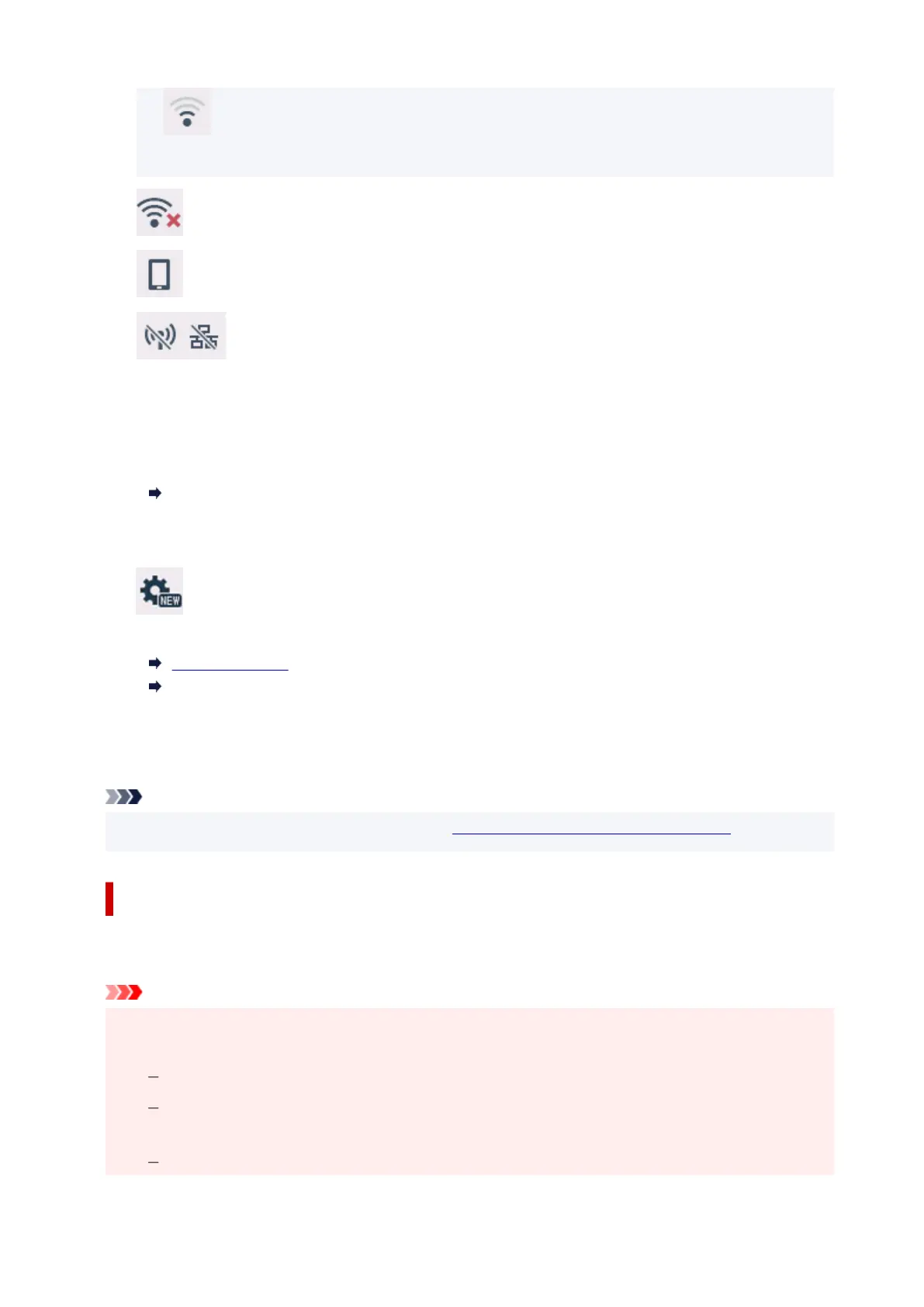
Wi-Fi is enabled but the printer is not connected to the wireless router.
Wireless Direct is enabled.
Network is disabled.
C: Wireless connect
Select to connect the printer to a smartphone/tablet over Wi-Fi through Easy wireless connect
.
Tap this button to display a confirmation screen for starting a connection. Touch and hold this button
to switch to the standby mode for Easy wireless connect.
Easy wireless connect
D: Setup
Displays the printer's setting menus or the maintenance menus.
(NEW) appears when there is an update notification or information from PIXMA/MAXIFY
Cloud Link.
Firmware update
Using PIXMA/MAXIFY Cloud Link
E: Hint
Displays quick guides about such procedures as loading paper and troubleshooting and such
information as estimated ink level and system information.
Note
• For details on how to change settings, refer to Changing Settings from Operation Panel.
Basic Operation of the touch screen
Touch the touch screen
lightly with your finger tip or move your finger to access various functions or
settings.
Important
• When operating the touch screen, make sure to avoid the followings, which may cause the printer to
malfunction or damage the printer.
Strongly pressing the touch screen.
Pressing the touch screen with other than your finger (especially with sharpened tips, such as
on ballpoint pens, pencils, or nails).
Touching the touch screen with wet or dirty hands.
176










 To Next Page