feed position differs depending on Media Type. If
Media Type is set to something other than
plain paper, it cannot be fed from the cassette (main tray).
• If printing paper such as photo paper and postcards that cannot be printed on both sides,
uncheck the Two-Sided checkbox.
Note
• Use the Print dialog to set general print settings such as the layout and the print sequence.
For information about print settings, refer to macOS help.
7. Click Print
The printer
prints according to the specified settings.
Important
• If you are performing large-format printing, make sure that there is plenty of remaining ink.
• If you set a custom paper size in Paper Size and set it to a length longer than the specified length,
the data will be printed with the "Media Type: Plain Paper, Print Quality: Standard" setting.
Note
• It can take the Wi-Fi a few minutes to get connected after the printer turns on. Print after checking
that the printer is connected to the network.
• You cannot print if Bonjour settings of printer are disabled. Check LAN settings of printer and enable
Bonjour settings.
• Refer to "Cannot Print Using AirPrint" for printing problems.
• The display of the settings screen may differ depending on the application software you are using.
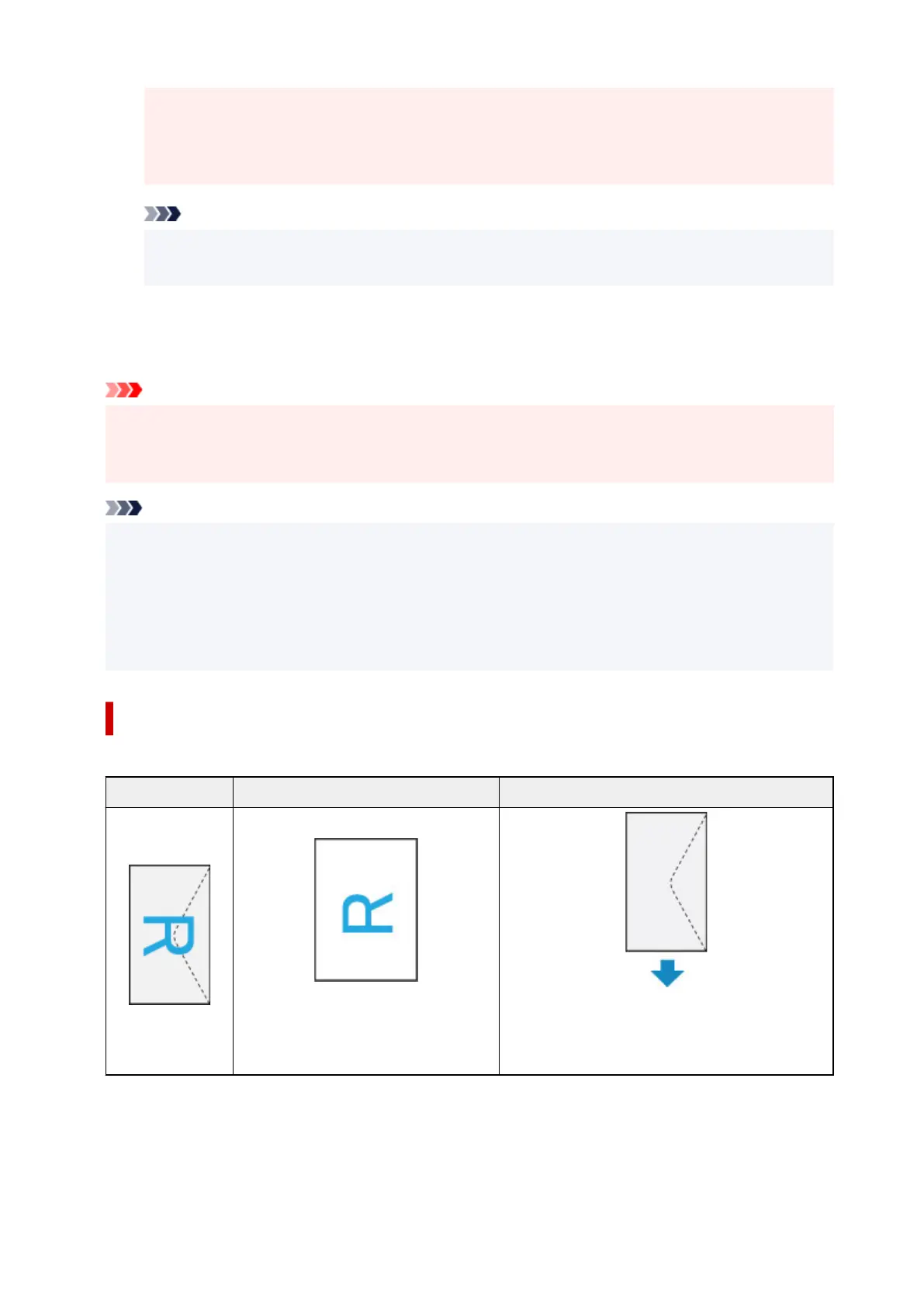
Printing of Envelopes
For printing on the envelope from Mac, refer to the following.
Print result image Orientation of print data Orientation of loading envelope
The print data is rotated by 180 degrees
against the print result image.
Load the envelope in vertically with the address side
facing up so that the folded flap of the envelope will
be faced down on the right side.
233










 To Next Page