130
Using a Memory Card
E
[STORAGE]
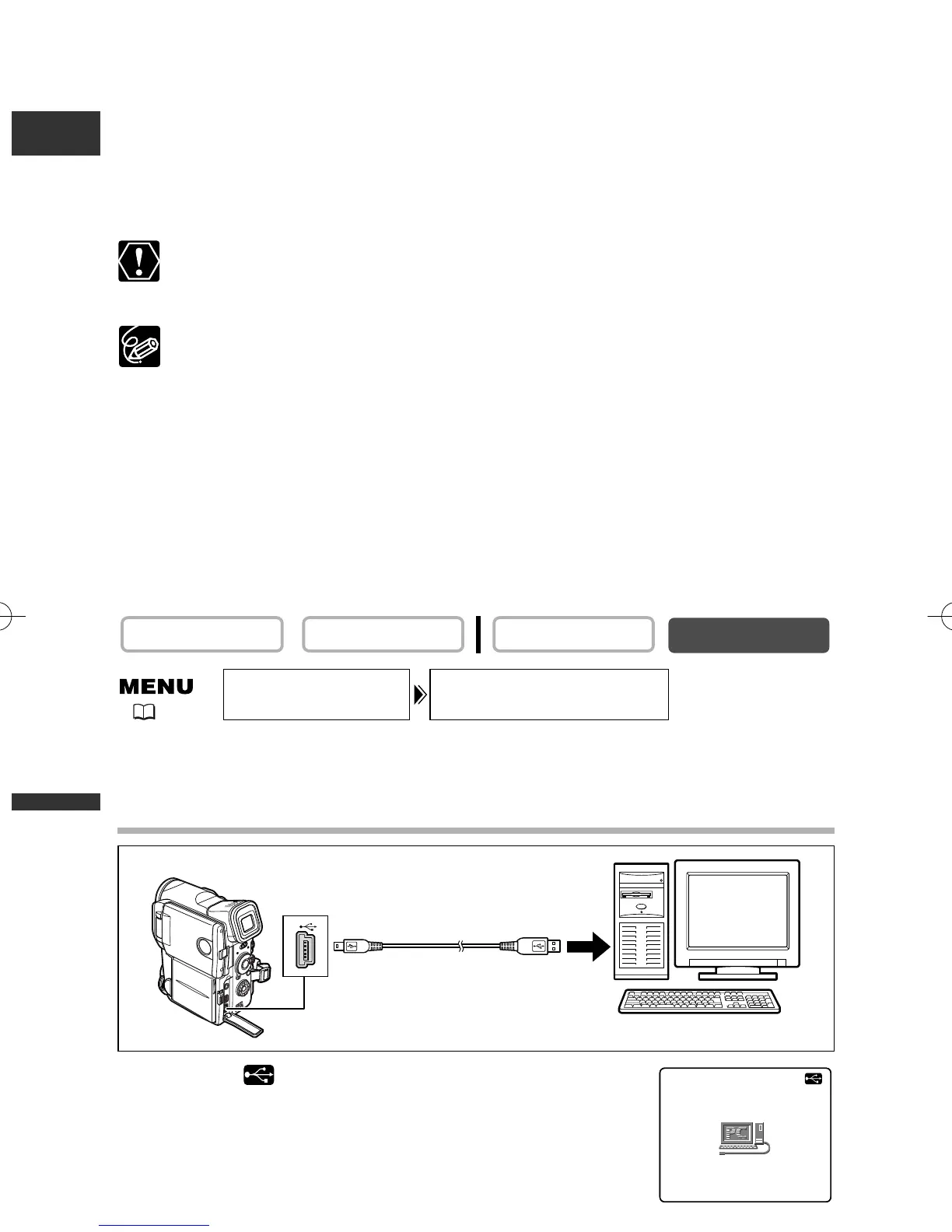
When the camcorder is set to [STORAGE], it will be recognized as [Removable Disk]
(USB mass storage device) by the computer. You can use the camcorder like a card
reader/writer and download/upload still images and movies to/from the computer
without installing the provided software (e.g. using Windows Explorer).
Still Images are saved in the [***CANON] folder of the [DCIM] folder, and movies are
saved in the [PRL***] folder of the [SD_VIDEO] folder.
Do not connect the camcorder to a printer when [USB CONNECT] is set to
[STORAGE], or in movie playback mode even when [USB CONNECT] is set to
[STANDARD] mode.
❍ In [STANDARD] mode, install the software provided on the DIGITAL VIDEO
SOLUTION DISK when downloading still images to a computer. With the
software, you can browse and archive images or arrange still images for
printout.
❍ Users of Windows 98 must install the DVC Storage Driver from the DIGITAL
VIDEO SOLUTION DISK For Windows when downloading movies to a computer
in [STANDARD] mode or when you have set the camcorder to [STORAGE]
mode. With Windows Me/Windows 2000/Windows XP, an OS standard driver
will be installed automatically.
❍ For details on the DIGITAL VIDEO SOLUTION DISK, refer to the Digital Video
Software Instruction Manual.
Open the menu and select [SYSTEM]. Select [USB CONNECT], set it to
[STORAGE] and close the menu.
Connection
“PC CONNECT ” appears to indicate that the camcorder is
connected to the computer via USB cable.
PLAY (VCR)CAMERA
PC CONNECT
USB CONNECT••STANDARD
SYSTEM
( 41)
5_D76PAL_E(99-133) 26/06/03 12:15 Page 130



 To Next Page