67
Using the Full Range
of Features
E
Using the Multi-Image Screen
The multi-image screen captures moving subjects in 4, 9 or 16 sequences of still images
with the Image Capture feature and displays them at one time. Sound will be
recorded normally. This feature can be used in CAMERA and PLAY (VCR) mode.
You can choose the transition speed at which to capture the subject from manual, fast
(every 4 frames), moderate (every 6 frames*) or slow (every 8 frames*).
* In Low Light mode: moderate (every 8 frames), slow (every 12 frames).
Selecting the Multi-Image Screen
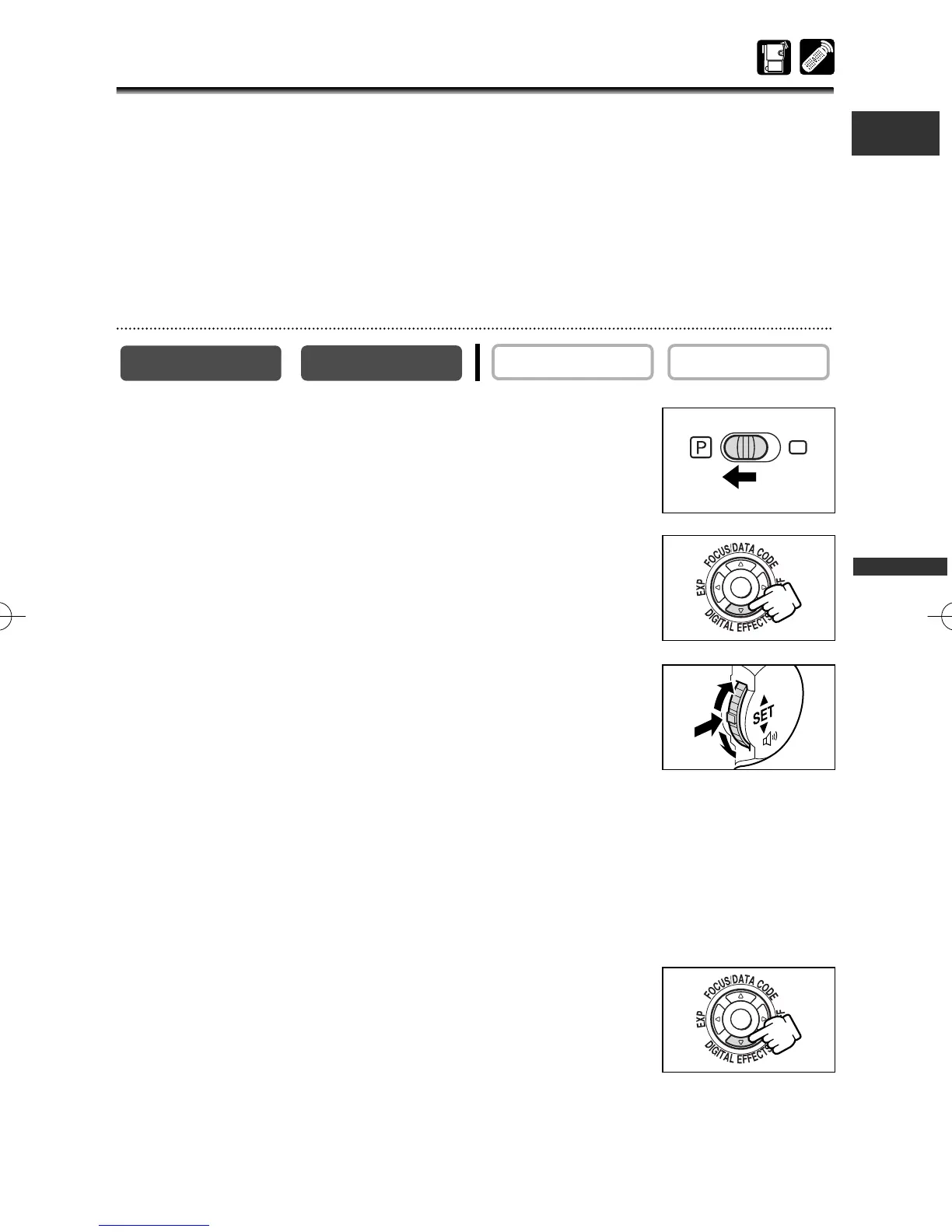
1. In CAMERA mode, set the program selector to Q.
2. Press the DIGITAL EFFECTS button.
[D.EFFECTS |], [FADER], [EFFECT] and [MULTI-S] appear.
3. Select [MULTI-S].
[S.SPEED] and [S.SPLIT] appears.
4. Select [S.SPEED].
[MANUAL], [FAST], [MOD.] and [SLOW] appear.
5. Select the transition speed.
6. Select [MULTI-S] again.
[S.SPEED] and [S.SPLIT] appears.
7. Select [S.SPLIT].
[4], [9], [16] settings appear.
8. Select the number of sequences.
9. Press the DIGITAL EFFECTS button.
[MULTI-S] flashes.
PLAY (VCR)
CAMERA
3_D76PAL_E(41-85) 26/06/03 12:04 Page 67



 To Next Page