137
Direct Printing
E
1. In the print setting menu, press the button to select [STYLE] and
press the P.SET button.
Image Standard Prints 1 still image per page.
Multiple Prints 8 copies of the same still image on one page.
Borders Borderless Prints right to the edges of the page.
Bordered Prints with a border.
• [Multiple] can only be selected when printing on card size paper. The centre
portion of the recorded image is printed at an enlarged size. The image’s top,
bottom and sides may be cropped slightly.
• [Borders] can only be selected when [Image] is set to [Standard].
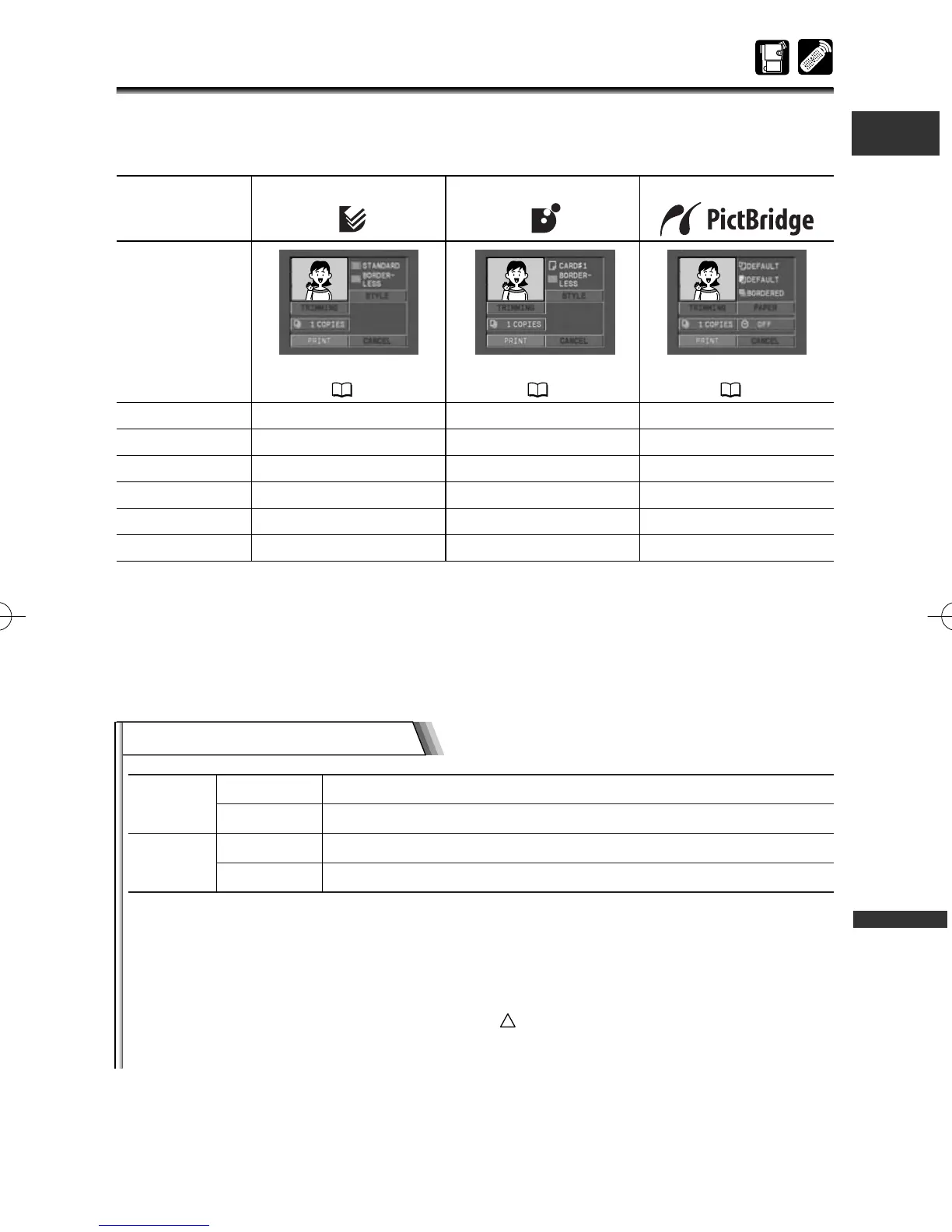
Print Setting Menu 1
Setting Options
Canon Card Photo Printers
Canon Bubble Jet Printers
PictBridge-compliant Printer
Print Setting
Menu
Print Setting Menu q
➞ 137
Print Setting Menu w
➞ 138
Print Setting Menu e
➞ 139
Image Style hii
Paper Size ihh
Paper Type iih
Borders* hhh
Date iih
Trimming hhh
* Bordered: The image area remains relatively unchanged from the recorded image when it is
printed.
* Borderless: The centre portion of the recorded image is printed at an enlarged size. The
image’s top, bottom and sides may be cropped slightly.
Selecting the Print Settings (Style/Paper Settings)
Check which print setting menu your camcorder displays and move to the respective
section. The print setting options vary depending on the printer.
6_D76PAL_E(134-141) 26/06/03 12:19 Page 137



 To Next Page