107
Using a Memory Card
E
Selecting the Focusing Point
The subject you wish to record is not always in the centre of the screen. In the Focus-
Priority mode, you can choose from one of three focusing points to automatically put
the subject you wish into sharp focus.
When the program selector is set to [, the Focus-Priority becomes set to ON (only the
centre focusing point is available).
The focusing frame gives an indication of the focusing point. Depending on the
size of the subject or the distance, the camcorder may focus outside the frame.
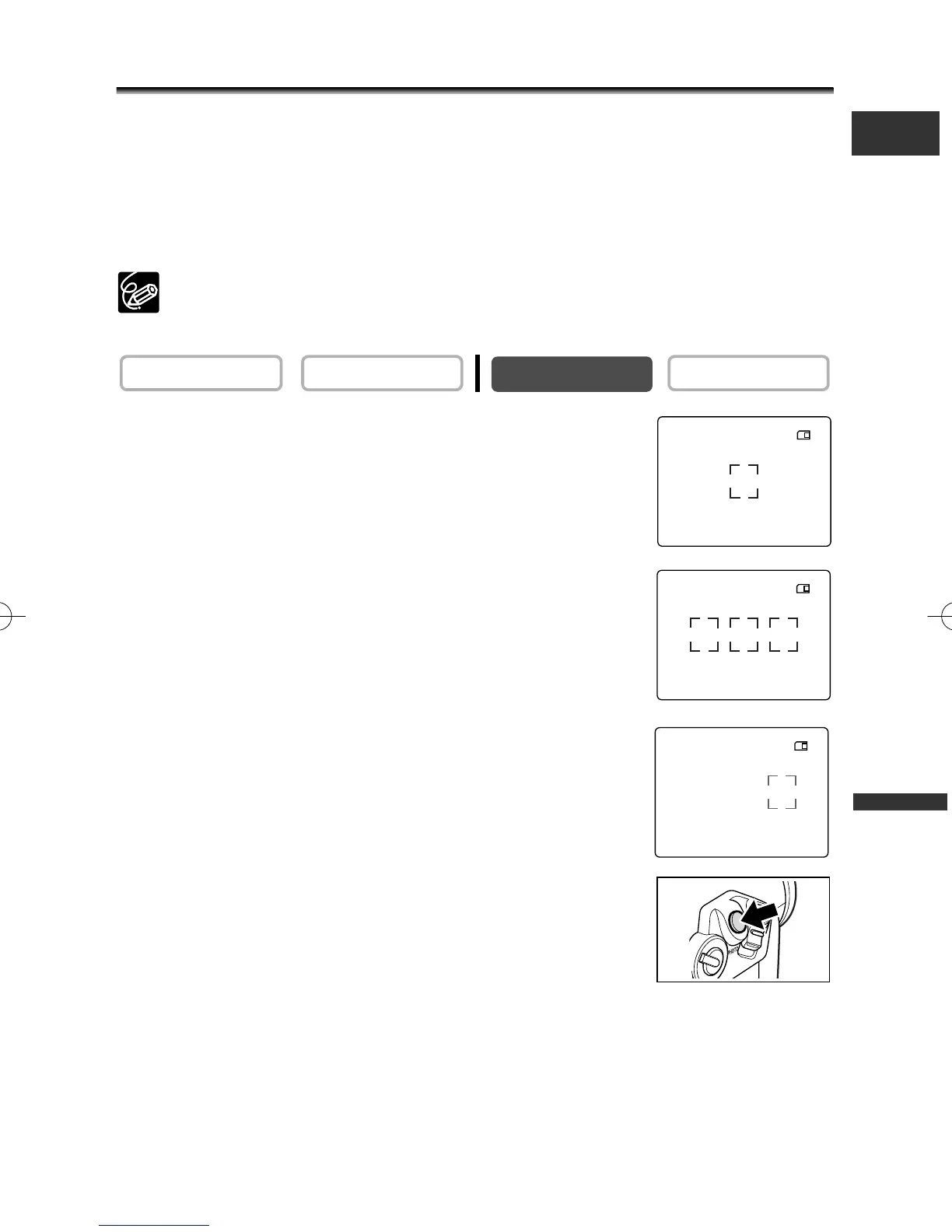
1. Set the camcorder to CARD CAMERA mode.
A white focusing frame appears in the centre of the screen.
2. Set the program selector to Q.
3. Turn the selector dial to display all focusing frames.
Three focusing frames appear on the screen, one of it in
green.
4. Turn the selector dial to select the focusing point.
Turn the selector dial up to select the frame to the right, down
to select the frame to the left.
5. Press the PHOTO button halfway.
• F and focusing frame turn green when focus is adjusted.
The beep sounds twice. The picture may appear out of focus
for a moment while the camcorder is focusing.
• Focus can be adjusted manually with the selector dial when
the PHOTO button is pressed halfway.
• Exposure is locked.
• When you press the PHOTO button on the wireless controller, recording starts
immediately.
PLAY (VCR)CAMERA
FINE
50
FINE
50
FINE
50
5_D76PAL_E(99-133) 26/06/03 12:14 Page 107



 To Next Page