136
E
Direct Printing
❍ Cancel Printing
Press the P.SET button while "NOW PRINTING" is displayed. A confirmation
dialog appears. Select [OK] and press the P.SET button. Printing stops even if it
is incomplete and the paper is fed through.
❍ Printing Errors
- If an error occurs during the printing process, an error message appears
( 149).
- Bubble Jet Printer: With most errors, printing resumes automatically after
you correct the error. If the error persists, press the P.SET button to cancel
printing. Refer also to the printer manual for details.
- Card Photo Printer: Select [STOP] or [RESTART] and press the P.SET button.
(The [RESTART] setting may not appear with some error messages. In that
case, select [STOP].) Refer also to the printer manual for details.
- If the error still persists and printing does not restart, follow below
procedure:
1. Disconnect the cable.
2. Turn the POWER switch of the camcorder to OFF and back to PLAY (VCR).
3. Reconnect the cable.
❍ When you have finished printing:
1. Disconnect the cable from the camcorder and printer.
2. Turn off the camcorder.
Selecting the Number of Copies
A maximum of 9 copies can be selected for one still image.
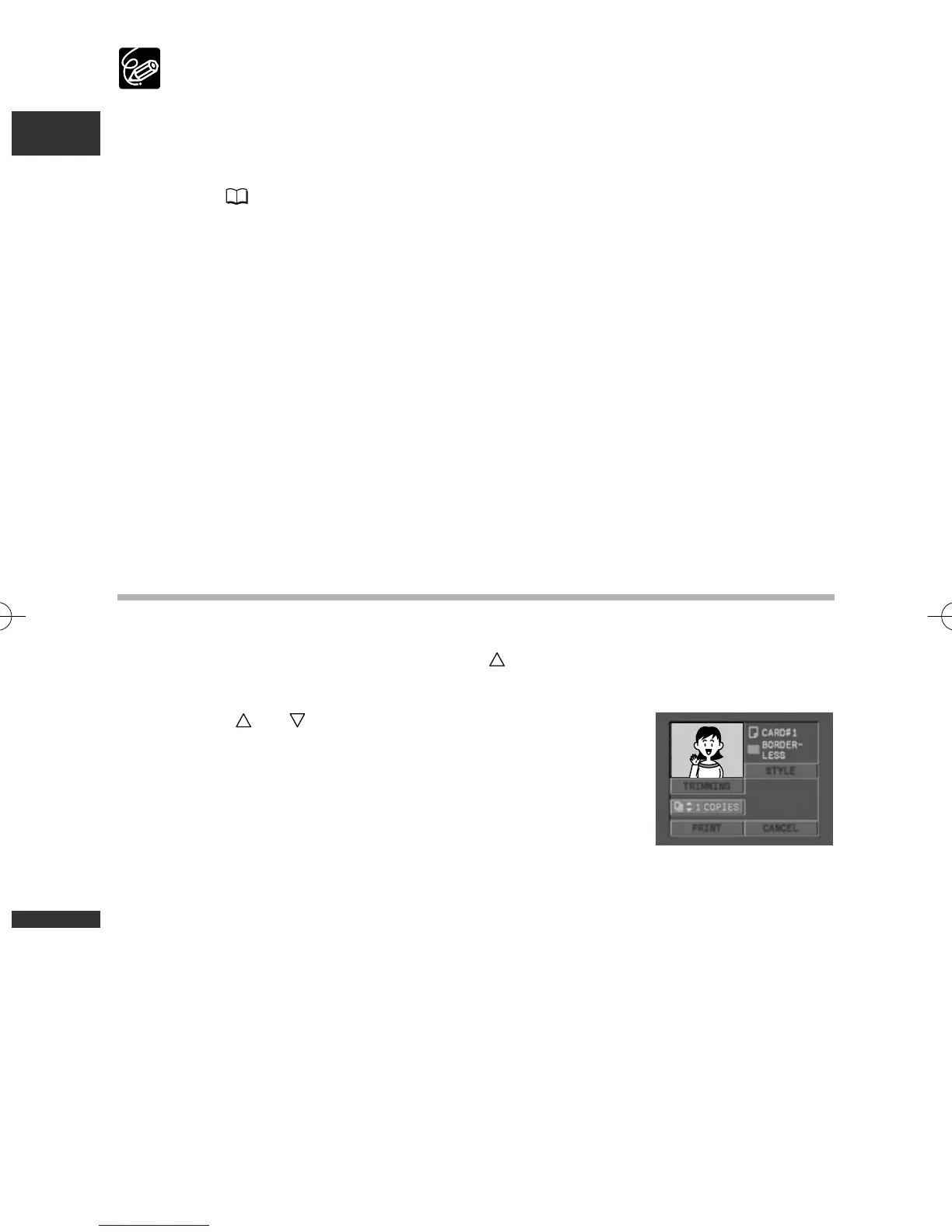
1. In the print setting menu, press the button to select [COPIES] and
press the P.SET button.
2. Press the or button to select the number of
copies and press the P.SET button.
6_D76PAL_E(134-141) 26/06/03 12:19 Page 136



 To Next Page