37
Mastering
the Basics
E
Playing Back on a TV Screen
You can connect the camcorder to a TV or VCR to play back your recordings on a TV
screen.
❍ Make sure that “H” is not displayed on the screen. If “H” is displayed, change
the setting ( 73).
❍ When you use the TV as a monitor during recording, keep the TV volume
turned down as long as the camcorder’s audio terminals are connected. An
unpleasant high-pitched squeal, called feedback, may be produced if sound
from the TV speakers is picked up by the microphone.
For high picture quality, we recommend using a TV with an S (S1) terminal.
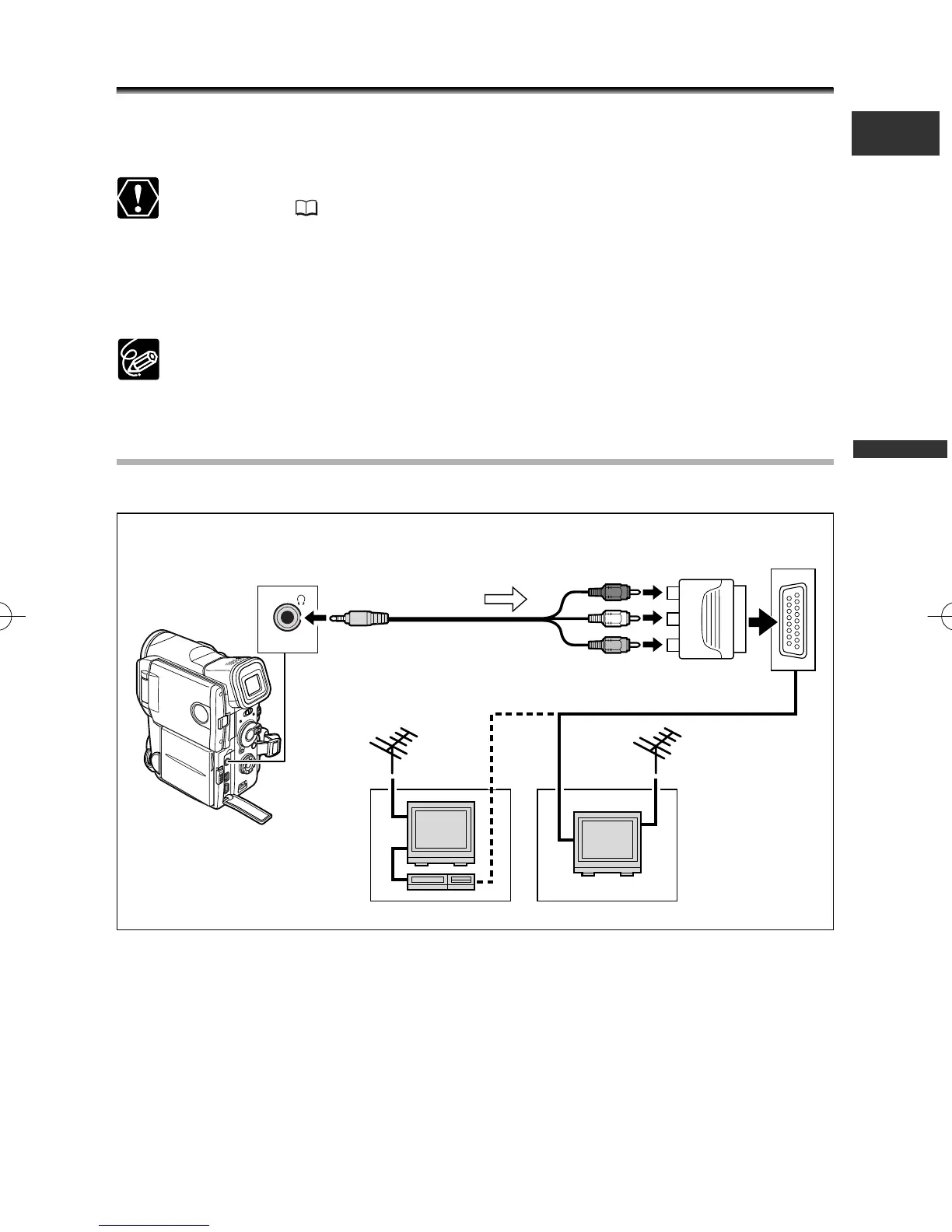
TVs with SCART Terminal
Refer also to the TV or VCR instruction manual.
1. Turn off all devices before starting the connections.
2. Connect the PC-A10 SCART Adapter to the TV or VCR’s SCART terminal.
3. Connect the STV-250N Stereo Video Cable to the camcorder’s AV
terminal and the audio/video terminals on the SCART Adapter.
Connect the white plug to the white AUDIO terminal L (left), and the red plug to the
red AUDIO terminal R (right) and the yellow plug to the yellow VIDEO terminal.
AV IN/OUT
AUDIO
(L/MONO)
AUDIO
(R)
VIDEO
STV-250N Stereo Video Cable
(supplied)
Signal flow
PC-A10 SCART
Adapter
2_D76PAL_E(13-40) 26/06/03 12:00 Page 37



 To Next Page