(3) Configure the PC Network Settings
9
1
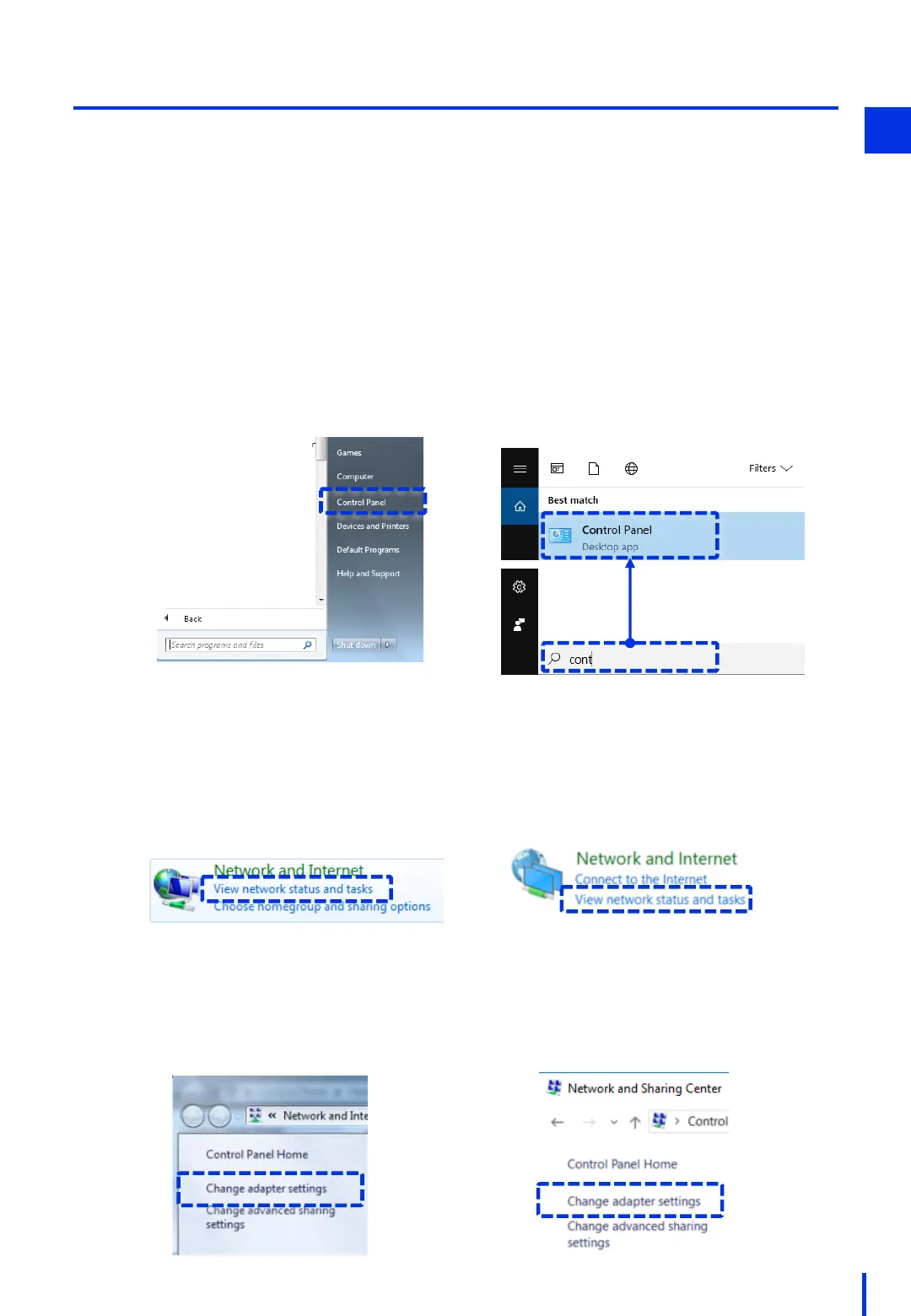
Open the Control Panel.
1
Click [Change adapter settings].
3
Configure the Windows PC's network settings in order to configure the network camera
settings. Change the PC's IP address to "192.168.100.100" (*).
* Although the IP address can be changed to a value that is appropriate for the
environment (192.168.100.xx: xx=1 to 254), avoid using "192.168.100.1" because that is the
default value for the network camera.
[Windows 7]
[Windows 10]
Click [View network status and tasks].
2
[Windows 7]
[Windows 10]
[Windows 7]
[Windows 10]



 To Next Page