12
(4) Register a Camera Administrator, and Configure an IP Address
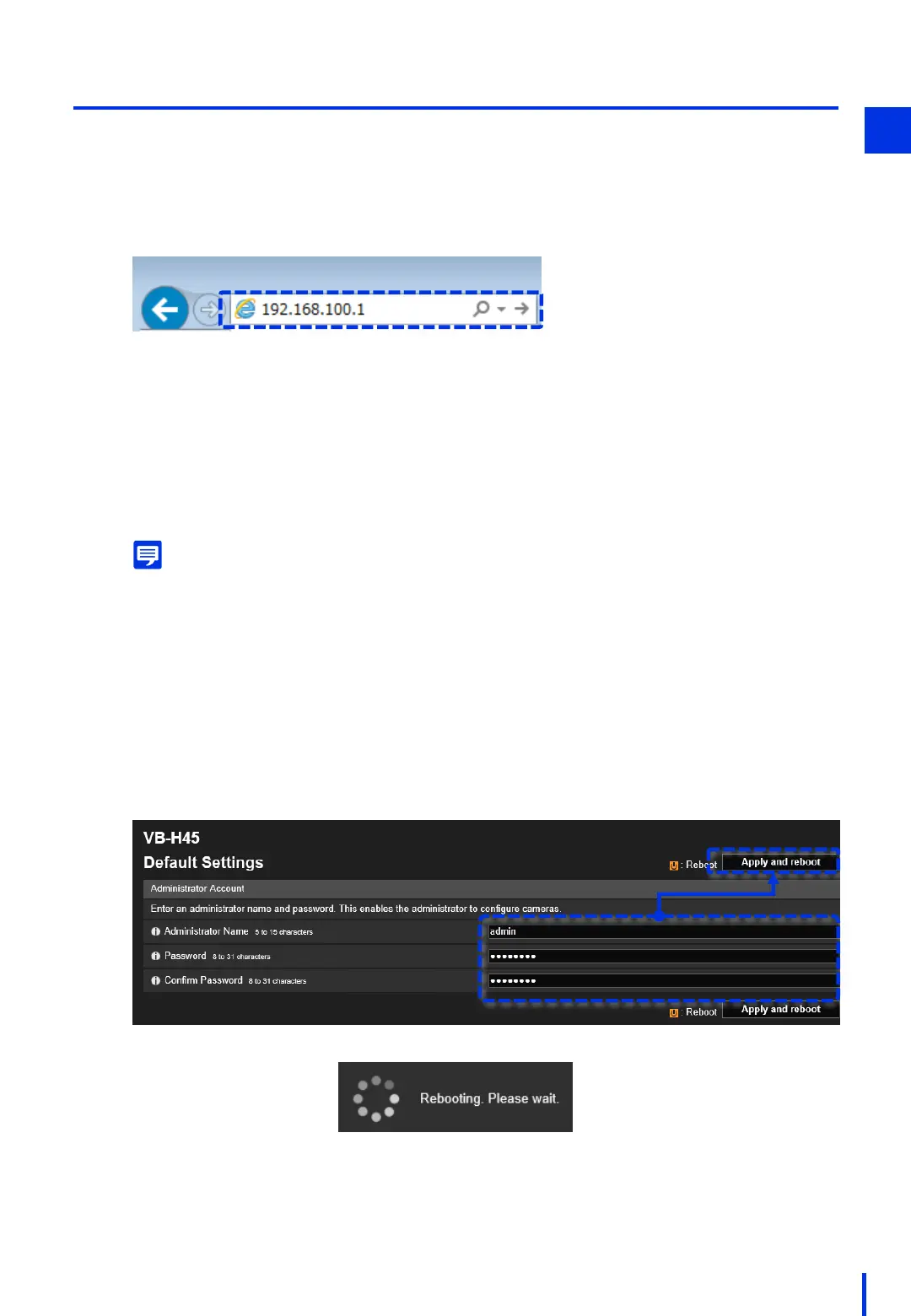
Open a browser, and enter "192.168.100.1" in the address bar.
1
* If the window for setting the camera does not open, try the following steps.
(1) Check if the LAN cable is disconnected.
(2) Restart the PoE hub.
(3) Use the following procedure to check if the PC's IP address is the same as the
one set in "(3) Configure the PC Network Settings".
<1> Type "cmd" in the search field in the Start menu to open the command prompt.
<2> Type "ipconfig" in the command prompt, and press the Enter key.
<3> Check the IPv4 address.
Enter the administrator name and password that you want to set, and then click
[Apply and reboot].
Administrator Name (example): admin
Password (example): password
2
Memo
The factory default setting for the camera is DHCP. However, if there is no DHCP server on the network,
30 seconds after the power is turned ON you can connect to 192.168.100.1 from the browser in order to
configure the initial settings.
Please note that "Auto (DHCP)" in the camera's Network Settings menu must be changed to "Manual" in
Step 3 below.
Register an administrator and configure an IP address for the network camera.
1



 To Next Page