(5) Configure the PC Network Settings
15
1
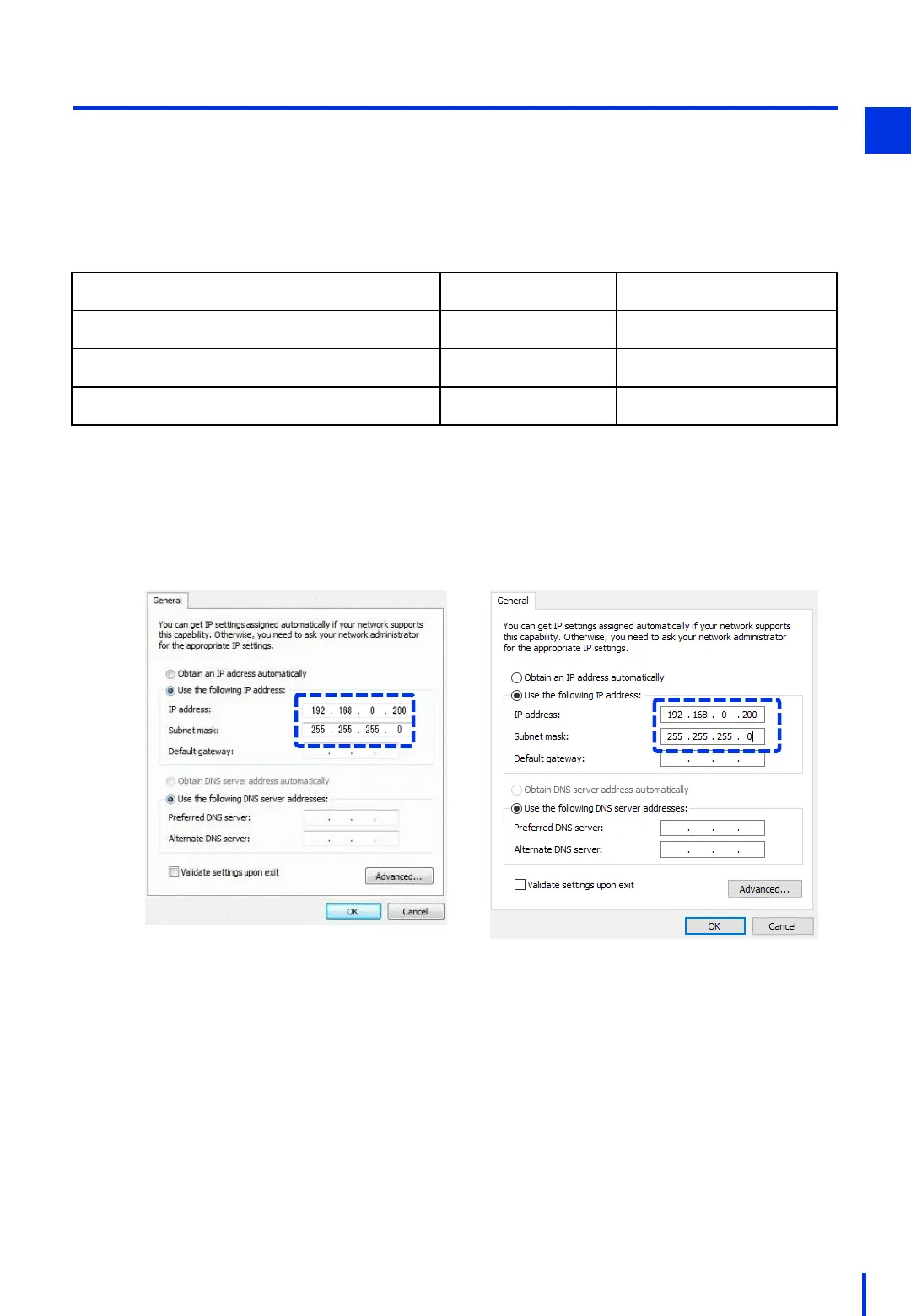
Change the Windows PC's IP address.
For detailed steps, refer to "(3) Configure the PC Network Settings".
1
Change the IP address of the Windows PC to "192.168.0.200" (*) so that it is on the same
network as the network camera.
* Although the IP address can be changed to a value that is appropriate for the
environment (192.168.0.xx: xx=1 to 254), be careful to avoid using the same IP address as
any other device on the network. In particular, do not use the following default IP
addresses of the related devices.
Network Device
IP Address Subnet Mask
Image processing controller (IPC427E)
192.168.0.100 255.255.255.0
Collaborative robot (COBOTTA)
192.168.0.1 255.255.255.0
Optional camera (N10-W02)
192.168.0.90 255.255.255.0
[Windows 7]
[Windows 10]



 To Next Page