Chapter 12: Program Application 204
4. Tap [OK].
• This will cause the Define command to be executed in accordance with
your specifications, which will save user-defined function “f2”.
Tip: For information about the syntax of the Define command, see “Define” in the “Command List” (page 208).
Executing a User-defined Function
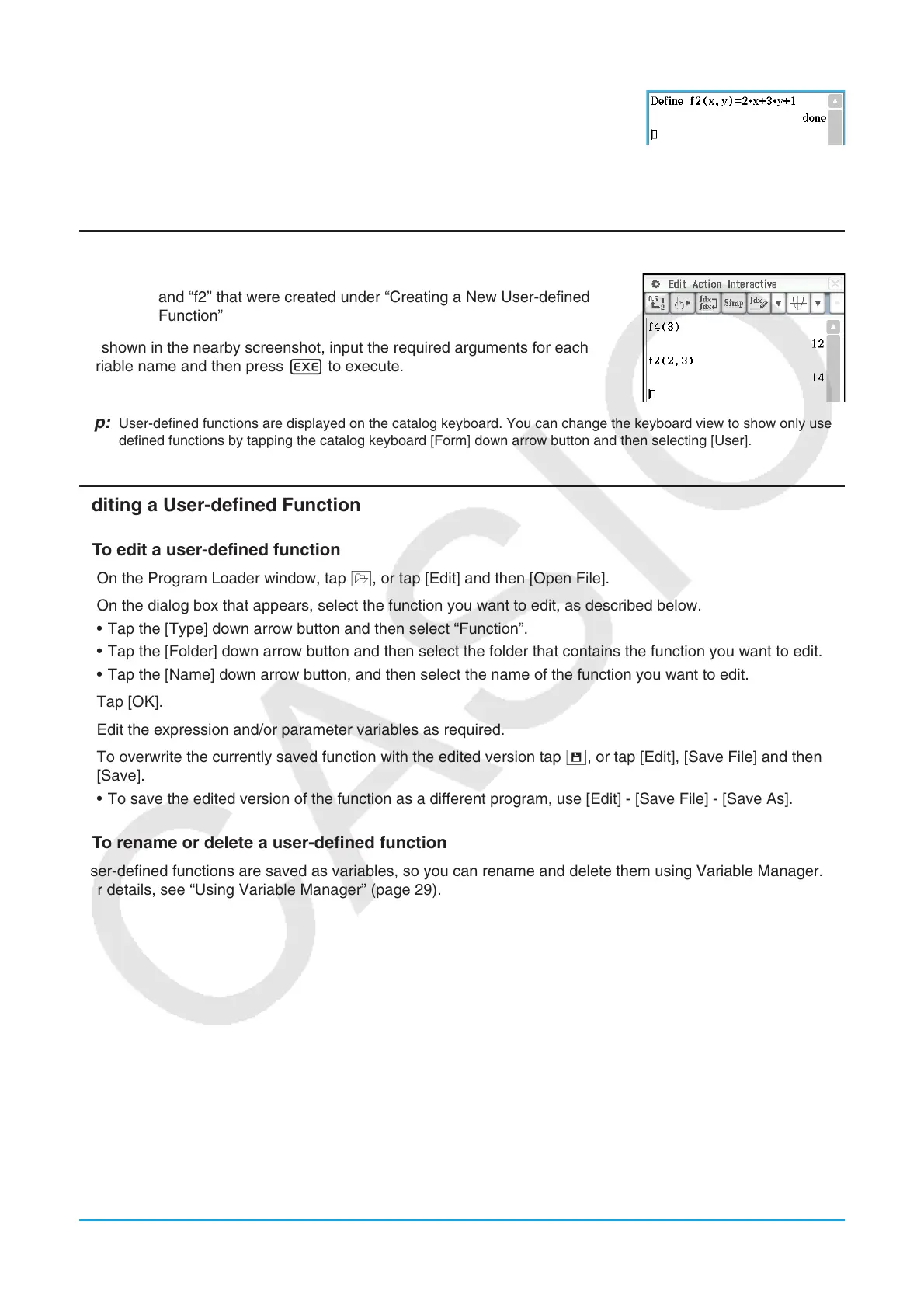
Example: To use the Main application to execute user-defined functions “f4”
and “f2” that were created under “Creating a New User-defined
Function”
As shown in the nearby screenshot, input the required arguments for each
variable name and then press E to execute.
Tip: User-defined functions are displayed on the catalog keyboard. You can change the keyboard view to show only user-
defined functions by tapping the catalog keyboard [Form] down arrow button and then selecting [User].
Editing a User-defined Function
u To edit a user-defined function
1. On the Program Loader window, tap ~, or tap [Edit] and then [Open File].
2. On the dialog box that appears, select the function you want to edit, as described below.
• Tap the [Type] down arrow button and then select “Function”.
• Tap the [Folder] down arrow button and then select the folder that contains the function you want to edit.
• Tap the [Name] down arrow button, and then select the name of the function you want to edit.
3. Tap [OK].
4. Edit the expression and/or parameter variables as required.
5. To overwrite the currently saved function with the edited version tap {, or tap [Edit], [Save File] and then
[Save].
• To save the edited version of the function as a different program, use [Edit] - [Save File] - [Save As].
u To rename or delete a user-defined function
User-defined functions are saved as variables, so you can rename and delete them using Variable Manager.
For details, see “Using Variable Manager” (page 29).



 To Next Page
 Loading...