Chapter 12: Program Application 206Chapter 12: Program Application 206
Symbols
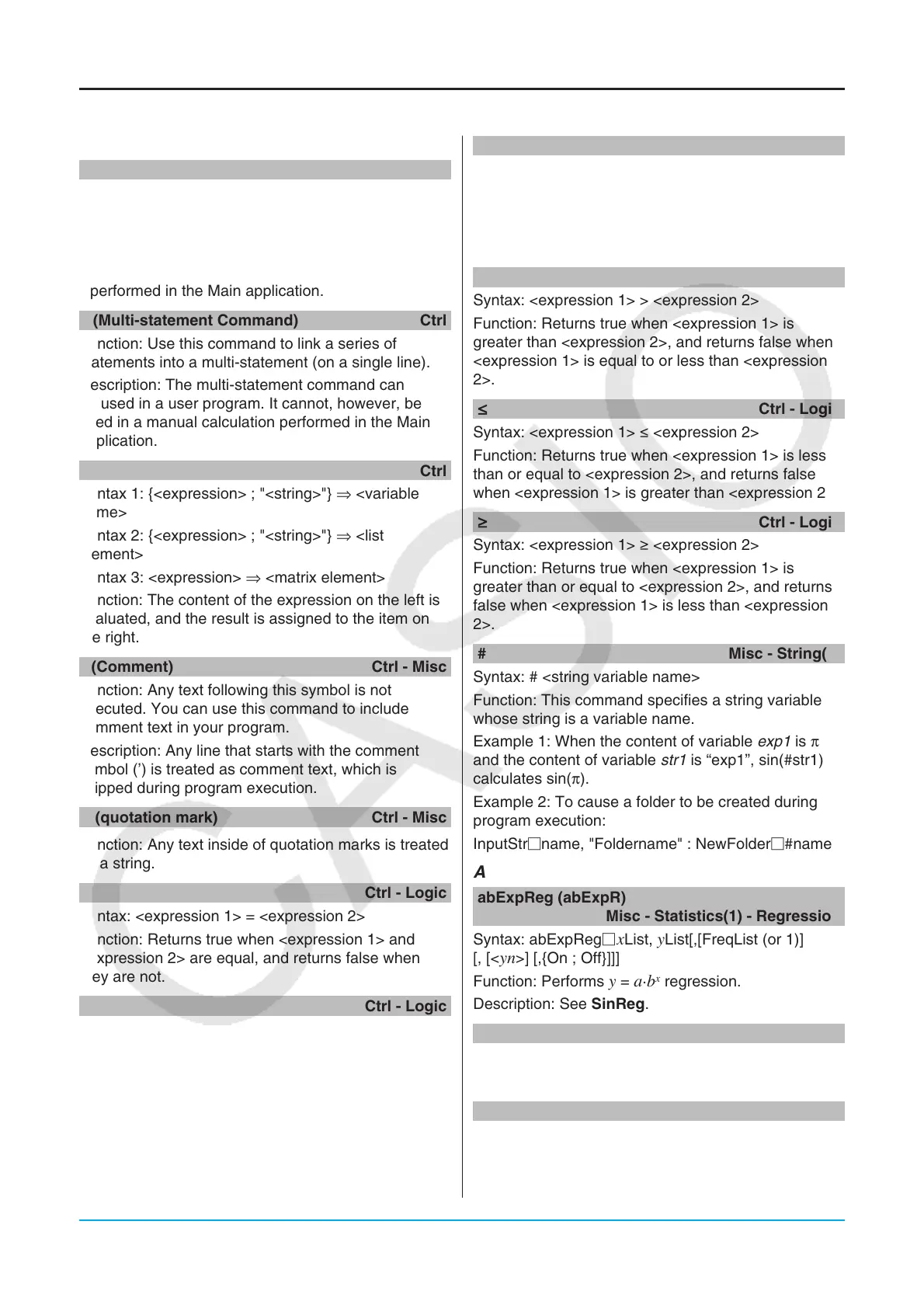
(Carriage Return) k
Function: Performs a carriage return operation.
Description: In Program Editor, press the E key to
input a carriage return.
• The carriage return can be used in a user program.
It cannot, however, be used in a manual calculation
performed in the Main application.
: (Multi-statement Command) Ctrl
Function: Use this command to link a series of
statements into a multi-statement (on a single line).
Description: The multi-statement command can
be used in a user program. It cannot, however, be
used in a manual calculation performed in the Main
application.
Ctrl
Syntax 1: {<expression> ; "<string>"} ⇒ <variable
name>
Syntax 2: {<expression> ; "<string>"} ⇒ <list
element>
Syntax 3: <expression> ⇒ <matrix element>
Function: The content of the expression on the left is
evaluated, and the result is assigned to the item on
the right.
’ (Comment) Ctrl - Misc
Function: Any text following this symbol is not
executed. You can use this command to include
comment text in your program.
Description: Any line that starts with the comment
symbol (’) is treated as comment text, which is
skipped during program execution.
" (quotation mark) Ctrl - Misc
Function: Any text inside of quotation marks is treated
as a string.
= Ctrl - Logic
Syntax: <expression 1> = <expression 2>
Function: Returns true when <expression 1> and
<expression 2> are equal, and returns false when
they are not.
Ctrl - Logic
Syntax: <expression 1> ≠ <expression 2>
Function: Returns true when <expression 1> and
<expression 2> are not equal, and returns false when
they are.
< Ctrl - Logic
Syntax: <expression 1> < <expression 2>
Function: Returns true when <expression 1>
is less than <expression 2>, and returns false
when <expression 1> is equal to or greater than
<expression 2>.
> Ctrl - Logic
Syntax: <expression 1> > <expression 2>
Function: Returns true when <expression 1> is
greater than <expression 2>, and returns false when
<expression 1> is equal to or less than <expression
2>.
Ctrl - Logic
Syntax: <expression 1> s <expression 2>
Function: Returns true when <expression 1> is less
than or equal to <expression 2>, and returns false
when <expression 1> is greater than <expression 2>.
Ctrl - Logic
Syntax: <expression 1> t <expression 2>
Function: Returns true when <expression 1> is
greater than or equal to <expression 2>, and returns
false when <expression 1> is less than <expression
2>.
# Misc - String(2)
Syntax: # <string variable name>
Function: This command specifies a string variable
whose string is a variable name.
Example 1: When the content of variable exp1 is π
and the content of variable str1 is “exp1”, sin(#str1)
calculates sin(π).
Example 2: To cause a folder to be created during
program execution:
InputStrname, "Foldername" : NewFolder#name
A
abExpReg (abExpR)
Misc - Statistics(1) - Regression
Syntax: abExpReg
xList, yList[,[FreqList (or 1)]
[, [<yn>] [,{On ; Off}]]]
Function: Performs
y = a·b
x
regression.
Description: See SinReg.
and Ctrl - Logic
See “Bitwise Operations” (page 60).
B
BinomialPD k
Syntax: BinomialPD
x value, Numtrial value, pos
value
Function: See “Binomial Distribution Probability”
(page 152).
Command List






 To Next Page