MANUALPC-2010 CHAPTER V – COMMUNICATIONS Page 51
CHAPTER V - COMMUNICATIONS
The CHEMTROL® PC controller features remote operation
with PC-compatible computer using the CHEMCOM
™
software program for Windows.
The CHEMCOM
™
program is a proprietary program that
allows true duplex operation. This means that any action on
the remote computer is immediately implemented on the
screen of the controller, and vice versa.
CHEMCOM
™
P
rogram
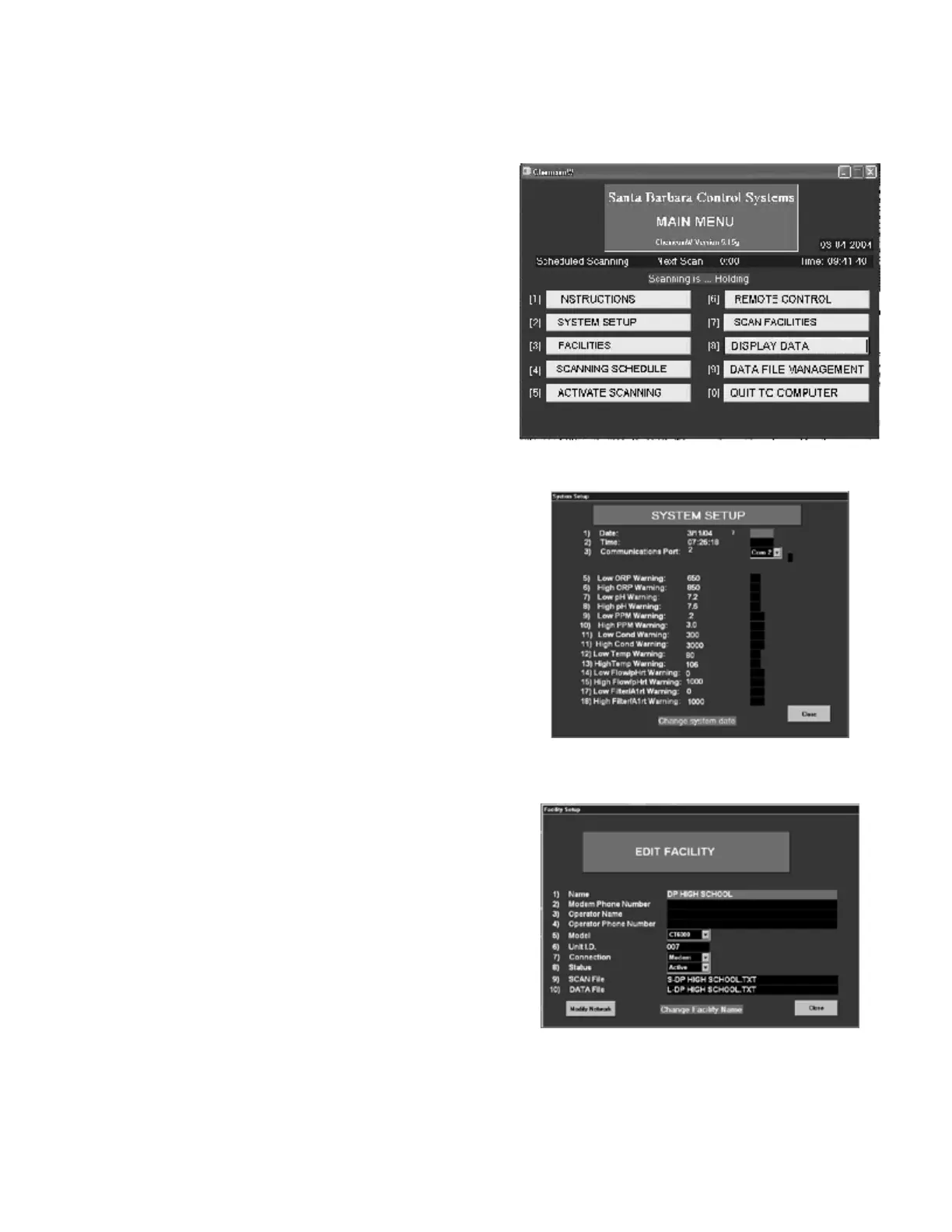
The menu screen on Figure 31 shows that the CHEMCOM
™
program is fully menu-driven and easy to use, even by staff
without computer experience.
Menu 1 INSTRUCTIONS shows basic operating information.
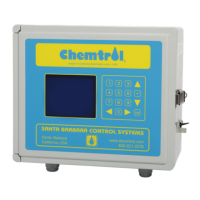
Menu 2 SYSTEM (Figure 32) is used to customize the
communications options for the remote computer. If
unsure about the communication port setting, try
COM1. If you get an error message when trying
remote communications, try COM2, etc.
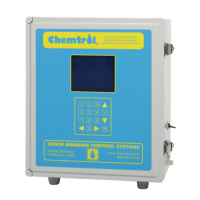
Menu 3 FACILITIES (Figure 33) is used to enter the name
and phone number of each facility. It is important to
specify the model number of the controller, i.e.
PC6000 or other.
The unit I.D. number is used for secondary units that
are connected to a phone line through a primary unit.
Set the facility to “Active” for automatic scanning.
Upon entering the “NAME” of the facility, the program
creates automatically, two storage files:
- a scan file called S-“NAME”. Text on line 9,
- a datalog file called L-“NAME”.txt on line 10.
These files can later be accessed through Menu 8 -
DISPLAY DATA.
Menu 4 SCANNING SCHEDULE specifies the automatic
scanning mode. It does not affect Remote Operation.
Menu 5 ACTIVATE SCANNING is used to initiate automatic
scanning of remote facilities.
Menu 6 REMOTE CONTROL is used to access and operate
the remote facilities.
Menu 7 SCAN FACILITIES allows direct scanning of multiple
facilities.
Menu 8 DISPLAY DATA is for display of downloaded data
either in graphical ot text format.
Menu 9 FILE MANAGEMENT is used to manage downloaded
data files including selective copying and erasing.
Menu 10 QUIT is used to exit the CHEMCOM
™
program and
return to Windows.
Figure 31 - CHEMCOM
™
Program Menu
Figure 32 - CHEMCOM
™
System Setup
Figure 33 - CHEMCOM
™
Facility Menu



 To Next Page