MANUALPC-2010 CHAPTER V - COMMUNICATIONS Page 52
Modem Connections
On CHEMTROL® PC controllers with the REM option, the
data/voice/communications modem is mounted on the Mother
Board and is connected to a standard US-type RJ11 phone
jack located on the lower right hand side of the Mother Board
(see schematic in Error! Reference source not found.).
Using the phone extension cable, connect the jack on the
CHEMTROL® PC to a telephone line. The phone line does
not have to be a dedicated line and it can be used for other
communications when not in use for the controller. When
called by a remote computer, the controller answers on the first
ring, unless somebody else answers the call.
The modem on the remote computer is connected to one of the
communication ports. The CHEMCOM
™
program will need to
know which one is used. It is usually COM1 or COM2, and
more rarely COM3 or COM4.
Computer Software Installation
T
he CHEMCOM
™
computer software program used for
remote operation is supplied on a CD-ROM. It is self installing
under Windows.
To install the program on the remote computer, click on Run on
the Desktop screen and select the drive where the
CHEMCOM
™
program disk is located. Then click on Setup.
To start the program, go to the Start/Program menu or click on
the CHEMCOM icon.
Remote Operation
T
o establish connection from a remote computer, select Menu
6 - REMOTE CONTROL on the CHEMCOM
™
menu screen.
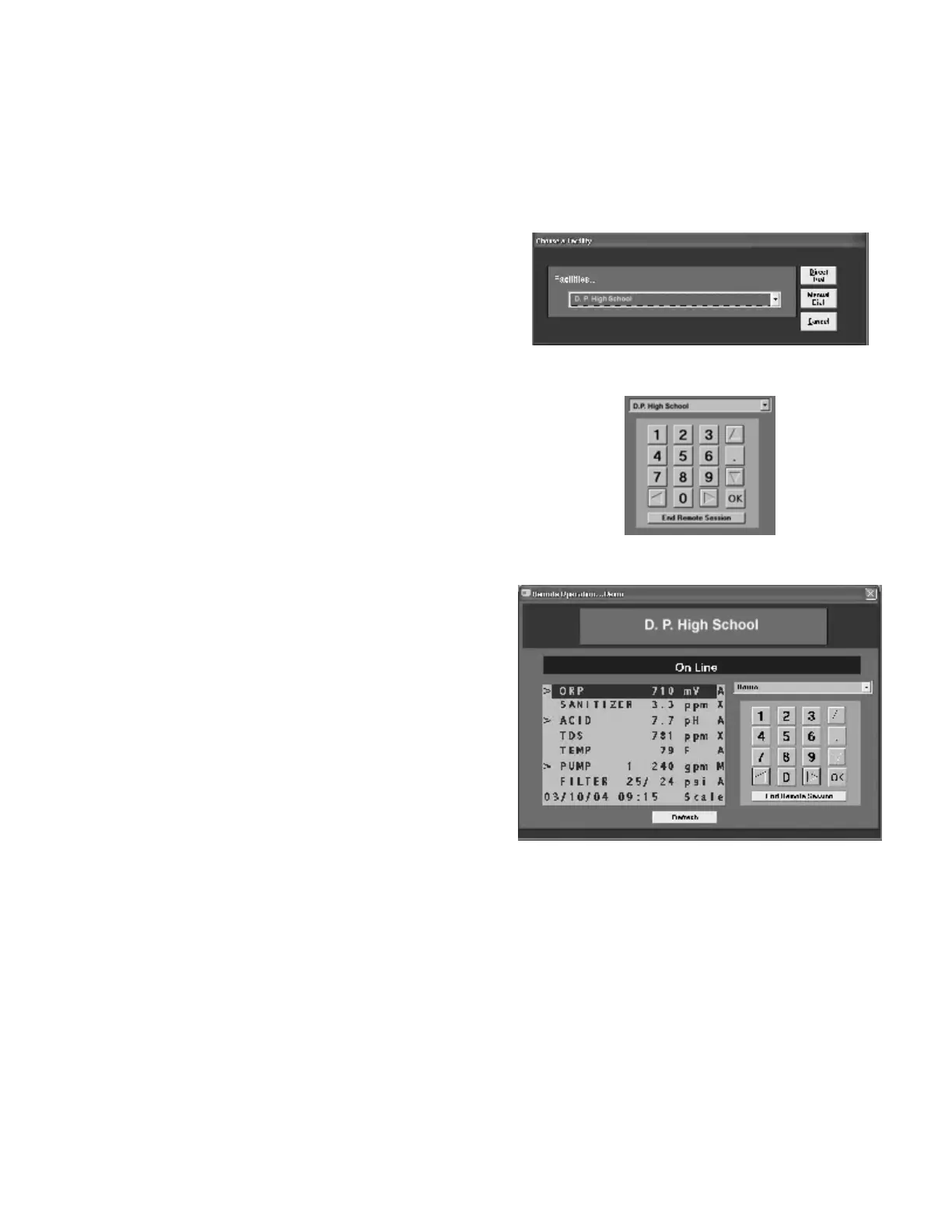
The Facility Selection menu (Figure 34) appears. Scroll down
to the name of the facility and click on “Direct Dial” or “Manual
Dial” (to enter the phone number manually).
The computer dials the telephone number of the facility, to
connect to the controller. There is no dialing for RS-485 and
Ethernet connections since these are direct connections.
Secondary Units
If secondary units are connected to a phone line through a
primary unit, they can be selected by clicking the mouse on the
pulldown menu that appears directly above the numeric key on
the remote computer screen (Figure 35).
Duplex Operation
Upon connection, the program displays an image of the actual
controller screen in true duplex representation, as shown on
Figure 36.
True duplex operation means that all the moves and
operations on the remote computer screen are simultaneously
executed in real time on the controller screen, and vice versa.
This allows 100% remote control of all operating functions.
Navigation through the menus and submenus on the remote
computer is done exactly as with the actual controller, by using
the computer arrow keys or, under Windows, by clicking on the
arrows shown on the computer screen with the mouse.
With CHEMCOM
™
, the remote operator can verify all the
operating conditions at a glance.
Figure 34 - CHEMCOM
™
Facility Selection
Figure 35 - CHEMCOM
™
Secondary Units
Figure 36 - CHEMCOM
™
Remote Operation Screen
Line 1 shows an ORP reading of 710 mV with the sanitizer
pump feeding (>) in the Automatic mode (A).
Line 2 shows a Sanitizer level of 3.3 ppm with the feed
mode OFF (X).
Line 3 shows a pH reading of 7.7 with the Acid pump
feeding (>) in the Automatic mode (A).
Line 4 shows the Total Dissolved Solids readings at 781
ppm with the automatic bleed control off (X). Will
display Conductivity if so configured.
Line 5 shows a Temperature reading of 82 F with the
heater control on Automatic (A).



 To Next Page