MANUALPC-2010 CHAPTER V - COMMUNICATIONS Page 53
Line 6 shows the Pump running on Manual (M) with a flow
rate of 240 gpm and a Bypass flow of 1 gpm.
Line 7 shows that the Filter Backwash is in the Automatic
mode (A) with influent and effluent pressures of 25
and 24 psi respectively.
Line 8 shows the Date and Time and the saturation
condition as OK. This last line also gives access to
the Configuration Menu.
Data Collection
T
est data for operating parameters can be collected in two
different ways:
1. By data logging in the controller internal memory
(available on all CHEMTROL® PC controllers),
2. By scanning with a remote computer using the
CHEMCOM
™
program.
Automatic Scanning
Automatic scanning is used to scan all facilities defined as
“Active” in Menu 3 - FACILITIES according to the schedule
defined in Menu 4 – SCANNING SCHEDULE on the
CHEMCOM
™
Main Menu.
To start automatic scanning, select Menu 5 - ACTIVATE
SCANNING on the CHEMCOM
™
Main Menu.
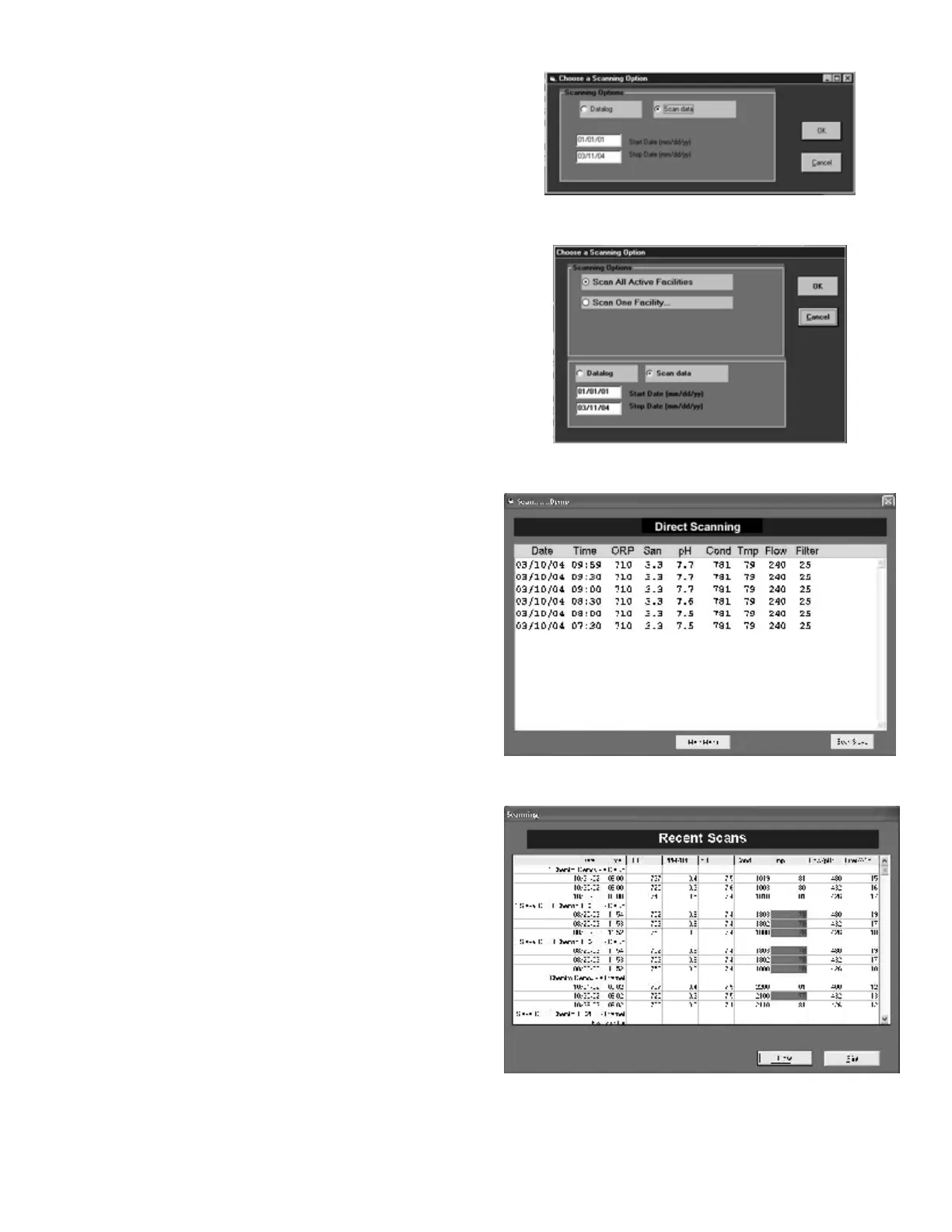
The menu for Automatic Scanning (Figure 37) offers two
options:
- “Scan data” to activate automatic scanning. Upon
activation, the scanning line below the header on the Main
Menu changes from “Holding” to “Active”.
- “Datalog” to retrieve previously collected data with
selection of start and end dates.
Direct Scanning
Menu 7 – SCAN FACILITIES allows direct scanning and
retrieving of data log for one or all the active facilities.
To start manual scanning, select Scan Facilities Menu 7 –
SCAN FACILITIES on the CHEMCOM
™
Main Menu. Then
the display will appear as shown in Figure 38.
When the remote controller is contacted, the test data is
displayed on the computer screen, as shown in Figure 39 and
stored on disk file for later retrieval.
For unattended monitoring, a dedicated computer is
recommended. However, the computer can also be used for
other tasks under Windows while the CHEMCOM
™
program
runs in the background.
To see all recent scanned data, click on “Recent scans”. It
allows selection of the facilities and directories for the data
files. As shown in Figure 40, the operator can monitor several
remote facilities on a computer screen. In automatic mode, it
scans all the facilities that have been set up as “Active” in
Menu 3 - FACILITY Menu. Alarm conditions are shown in red.
Figure 37 - CHEMCOM
™
Automatic Scanning
Figure 38 - CHEMCOM
™
Scan Facilities
Figure 39 - CHEMCOM
™
Manual Scanning
Figure 40 - CHEMCOM
™
Recent Scans


 To Next Page