28 DVD+VCR User’s Guide
Video Settings
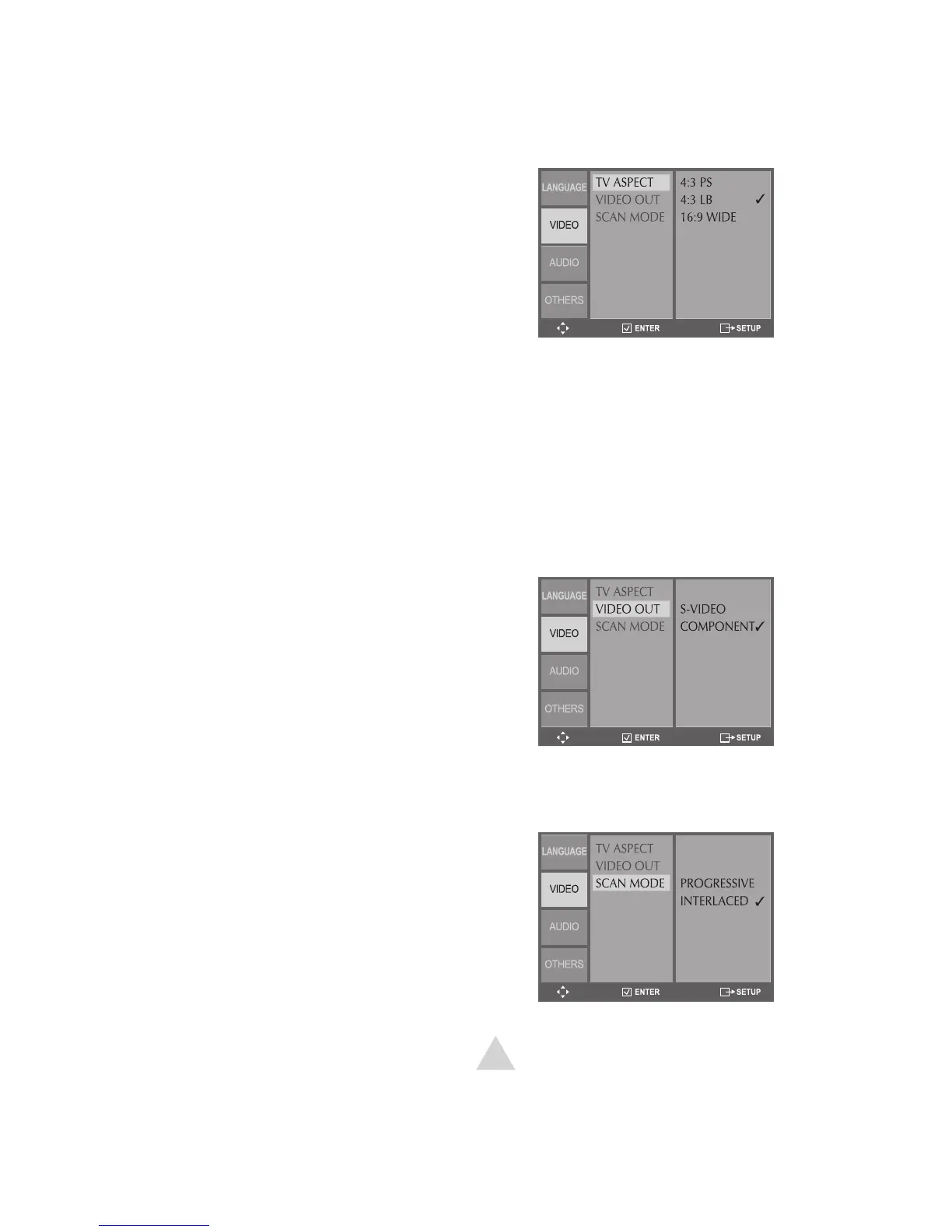
TV Aspect Ratio
Sets your preferred aspect ratio for DVD
movies.
1 In DVD Stop mode, press SETUP.
2 Select Video > TV Aspect.
3 Choose from the following:
4:3 PS - Select if you have a standard
TV and prefer to have widescreen
movies cropped to fit the screen.
4:3 LB - Select if you have a standard
TV and prefer to watch widescreen
movies with black bars above and
below the picture.
16:9 Wide - Select if you have a wide-
screen TV.
Video Output
Enables the Component Video or
Progressive Scan output to your TV.
1 In DVD Stop mode, press SETUP.
2 Select Video > Video Out.
3 Choose from the following:
S-Video - Enables the S-Video output.
Component - Enables the Compo-
nent Video output.
Scan Mode
Sets the Component Video output to
Interlace or Progressive Scan.
1 In DVD Stop mode, press SETUP.
2 Select Video > Scan Mode.
3 Choose from the following:
Progressive - Select if your TV sup-
ports Progressive Scan.
Interlace - Select if your TV supports
standard Interlace Scan.
NOTE:
• You can also press and hold the P.SCAN
button for 5 seconds in Stop mode to
switch between Interlace & Progressive
Scan modes.



 To Next Page