37
Recording from TV
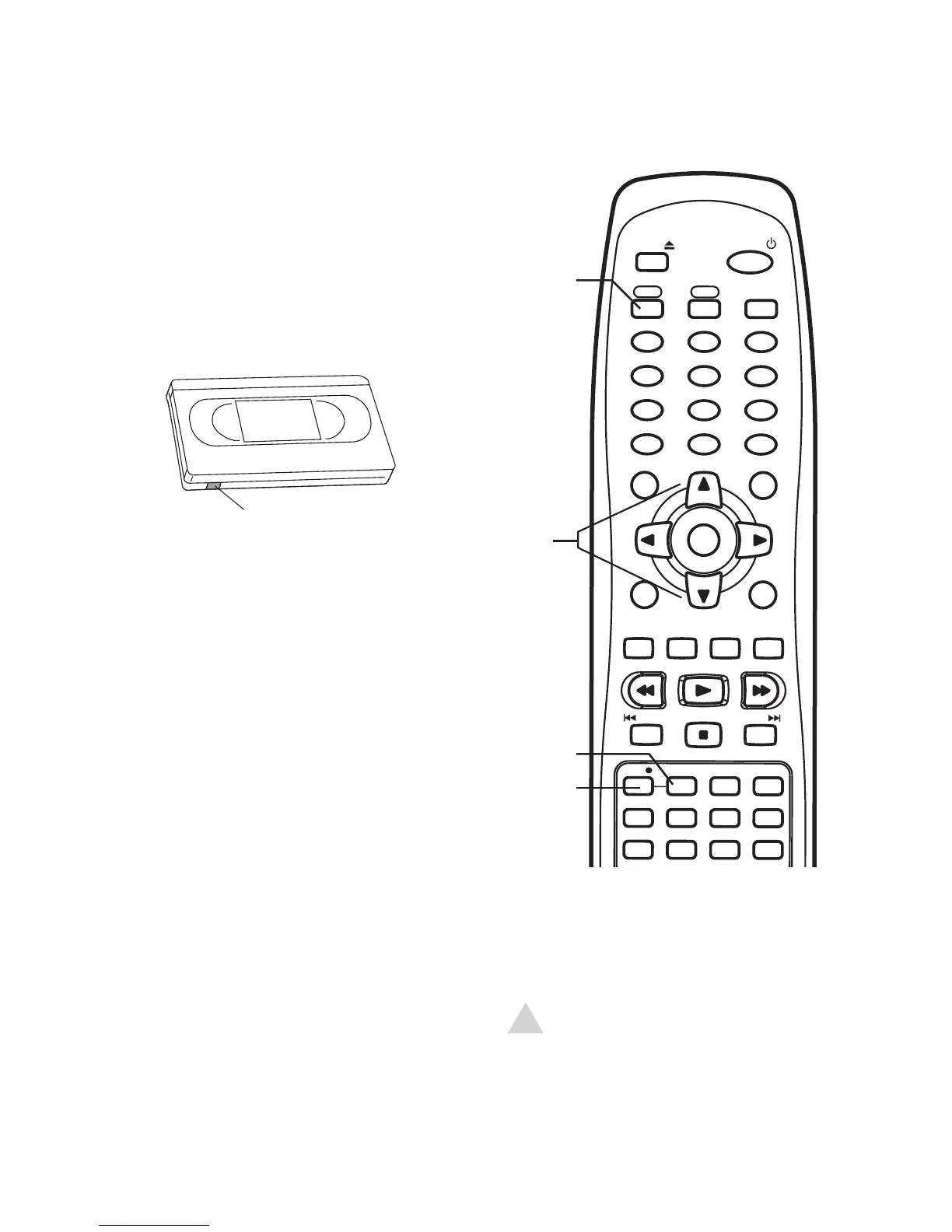
Follow these steps to record a TV show to
a VHS tape.
1 Press POWER to turn on the
DVD+VCR.
2 Press VCR to control the VCR deck.
3 Insert a recordable tape (a tape with
the record safety tab intact).
4 Use the CH+/- or 0-9 buttons to select
the channel you want to record.
• If you are using a cable box/satellite
receiver, set the DVD+VCR to the
receiver’s output channel and select
the channel to record on the cable
box/receiver.
5 Press SPEED to select the desired
recording quality:
SP - High quality.
SLP - Average quality, but allows you
to record 3 times longer than SP.
6 Press REC to start recording.
• To pause recording, press PLAY.
• To resume recording, press PLAY or
REC.
• To view the status of your recording,
press DISPLAY.
• To add recording time in fixed incre-
ments, see One-Touch Recording on
page 38.
7 When finished, press STOP to stop
recording.
Basic Recording
NOTE:
• If the DVD+VCR is left in Pause mode
for five minutes, the recording is
stopped automatically.



 To Next Page