31 3 - Setup
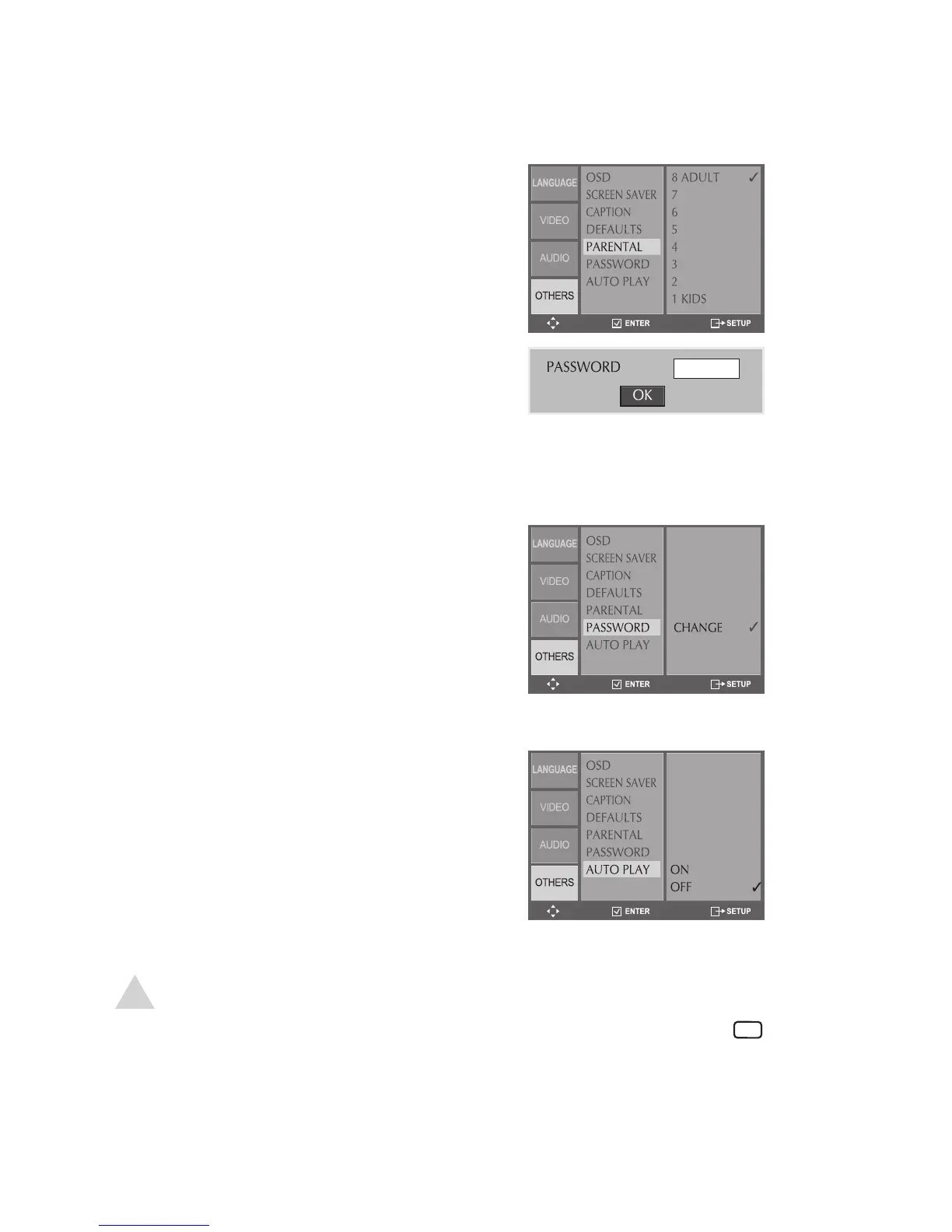
Parental Control
Blocks playback of rated DVDs based on
their content. Not all discs are rated.
1 In DVD Stop mode, press SETUP.
2 Select Others > Parental.
3 Select the desired Parental Control
rating from “1 Kids” to “8 Adult”, then
press ENTER.
4 Enter your password using the 0-9
keys, then press ENTER.
• The factory default password is
3308. If you forget your password,
this will always work.
Password
Changes the Parental Control password.
1 In DVD Stop mode, press SETUP.
2 Select Others > Password.
3 Enter your old password using the 0-9
keys.
4 Enter your new password.
5 Re-enter your new password and
press ENTER.
AutoPlay
AutoPlay skips the ads and trailers and
starts DVD playback automatically when
you load a disc.
1 In DVD Stop mode, press SETUP.
2 Select Others > AutoPlay.
3 Turn AutoPlay on or off.
Other DVD Settings (continued)
NOTE:
• Even if AutoPlay is turned off in the menu system, you can still skip the
ads and trailers on most discs by pressing the AUTO PLAY button on
the remote control after the disc has loaded.
• The AUTO PLAY button will not work on some DVDs when a Disc Menu
or Warning screen is displayed.



 To Next Page