EasyManua.ls Logo

Cisco 8821 - User Manual

Cisco 8821
116 pages
Print Icon
To Next Page IconTo Next Page
Loading...
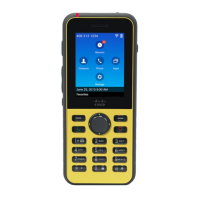
Cisco Wireless IP Phone 8821 and 8821-EX User Guide
First Published: 2016-06-29
Last Modified: 2017-08-04
Americas Headquarters
Cisco Systems, Inc.
170 West Tasman Drive
San Jose, CA 95134-1706
USA
http://www.cisco.com
Tel: 408 526-4000
800 553-NETS (6387)
Fax: 408 527-0883

Table of Contents

Other manuals for Cisco 8821

Questions and Answers

  • R
    Robert WilliamsonSep 8, 2025
    How to display missing softkey on Cisco 8821 IP Phone?
    • D
      david04Sep 8, 2025
      If the softkey you want to use does not appear on your Cisco IP Phone, try pressing the 'More' button to reveal additional functions. Also, ensure you change the line state by placing a call or having a connected call. If the issue persists, your phone may not be configured to support the feature associated with that softkey.
  • D
    Dennis PerrySep 12, 2025
    What happens when I'm disconnected from a barged call on Cisco 8821?
    • A
      Ariel TorresSep 12, 2025
      If you are disconnected from a call that you joined using Barge on your Cisco IP Phone, it occurs when the call is put on hold, transferred, or turned into a conference call.
  • H
    Haley PinedaSep 12, 2025
    Why is the main screen not active on my Cisco 8821?
    • J
      Jennifer HicksSep 12, 2025
      If the main screen of your Cisco IP Phone is not active, it could be due to several reasons. The network might be busy due to insufficient bandwidth; try again later. Your phone might be out of range of its access point. The phone could also be searching for a wireless network access point or experiencing authentication failure. Lastly, it might be waiting for DHCP to assign an IP address.
  • R
    Rachel SanchezSep 15, 2025
    Why does Barge fail on my Cisco 8821 IP Phone?
    • S
      Sarah FischerSep 15, 2025
      If Barge fails and results in a fast busy tone on your Cisco IP Phone, it could be due to a couple of reasons. You cannot barge an encrypted call if your phone is not configured for encryption. Also, you cannot barge a call on another Cisco Wireless IP Phone.
  • A
    Amber ThomasSep 16, 2025
    Why does conference fail on Cisco 8821?
    • A
      Ashley MillsSep 17, 2025
      If the conference fails on your Cisco IP Phone, ensure that you have selected at least one call in addition to the active call, which is selected automatically. Also, verify that the selected calls are on the same line.

Summary

Your Phone

Getting Started

Instructions for initial setup, including reading safety information and charging.

Phone Setup

Phone Hardware Installation

Procedure for installing and charging the phone's battery before use.

Phone Battery Charging

Information on charging the phone battery using various methods.

Phone Configuration

Methods for configuring the phone for network and call control system connection.

Add the Phone to the Wi-Fi Network

Steps to connect the phone to a Wi-Fi network.

Calls

Make Calls

Instructions on how to make calls from the phone.

Answer Calls

Procedures for answering incoming calls.

Transfer a Call to Another Person

Steps to transfer an active call to another party.

Settings

Access Bluetooth Settings

Connecting and managing Bluetooth headsets and speakers.

Troubleshooting

General Troubleshooting

Common phone problems and their potential causes and solutions.

Perform WLAN Diagnostics

Checking and viewing details of the Wi-Fi connection and access points.

Product Safety and Security

Safety and Performance Information

Essential safety notices before installing or using the wireless IP phone.

Safety Guidelines

General safety guidelines for using the phone in various environments.

Battery Safety Notices

Important safety notices and warnings related to phone batteries.

Hazardous Environments

Information on operating the phone in potentially explosive atmospheres.

Cisco 8821 Specifications

General IconGeneral
Wi-FiYes
Ethernet LANNo
Wi-Fi standards802.11a, Wi-Fi 5 (802.11ac), 802.11b, 802.11g, Wi-Fi 4 (802.11n)
Bluetooth version3.0+HS
Security algorithmsEAP-FAST, EAP-TLS, PEAP, WPA
Networking standardsIEEE 802.11a, IEEE 802.11ac, IEEE 802.11b, IEEE 802.11d, IEEE 802.11e, IEEE 802.11g, IEEE 802.11n, IEEE 802.11r
USB 2.0 ports quantity1
Voice codecsG.711, G.711a, G.722, G.729, G.729ab, iLBC
Volume controlDigital
Product typeIP mobile phone
Product colorBlack
Input frequency50 - 60 Hz
AC adapter input voltage100 - 240 V
AC adapter output current0.2 A
Display diagonal2.4 \
Display resolution240 x 320 pixels
Frequency band2.412, 2.472, 5.180, 5.240, 5.260, 5.320, 5.500, 5.700, 5.745, 5.825 GHz
Lines quantity- lines
Phonebook capacity- entries
Storage temperature (T-T)-30 - 60 °C
Operating temperature (T-T)-10 - 50 °C
Operating relative humidity (H-H)10 - 95 %
SafetyUL 60950-1, CAN/CSA 60950-1, EN 60950-1, IEC 60950-1, AS/NZS 60950.1, IEC 60529 (IP 67)
Certification● 47 CFR 15 B ● ICES-003 B ● EN 55022 B ● AS/NZS CISPR 22 B ● CISPR 22 B ● VCCI B ● EN 61000-3-2 ● EN 61000-3-3 ● KN 22 B ● EN 55024 ● EN 50082-1 ● EN 61000-6-1 ● EN61000-6-3 ● EN 300386 ● EN 60601-1-2 ● KN
Number of handles included1 pc(s)
Harmonized System (HS) code85171800
Weight and Dimensions IconWeight and Dimensions
Depth17 mm
Width56 mm
Height132 mm
Weight126 g

Related product manuals