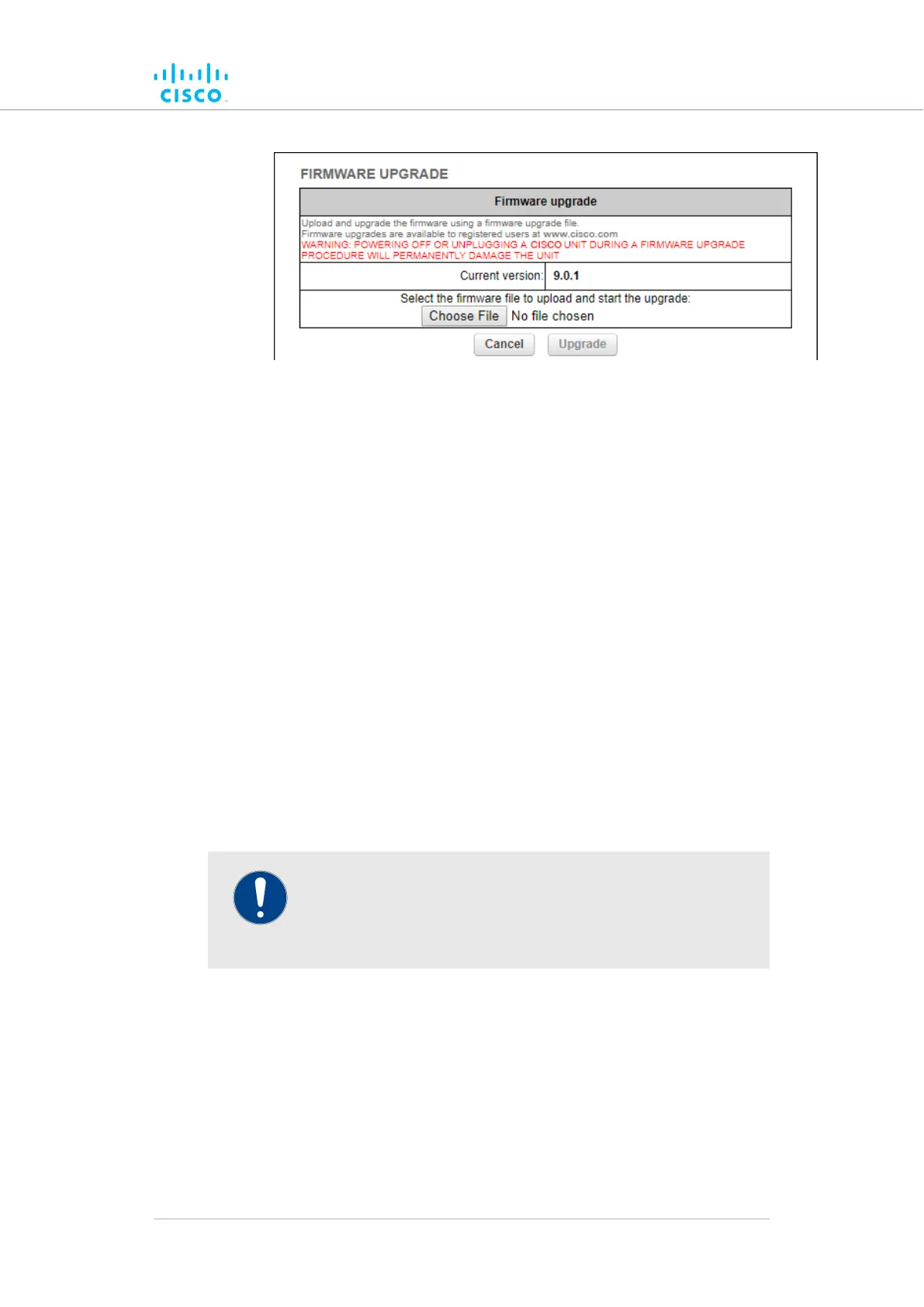
FIRMWARE(typicalGUIFigure 58. Configurator
UPGRADE dialog)
7. Upload the firmware image file to the unit by clicking the Choose
File button and following the software prompts.
• The Upgrade button will become available.
8. Click the Upgrade button. Follow the software prompts until the
firmware overwrite is complete.
• When the overwrite is complete, the unit will automatically
reboot.
If the previous firmware was overwritten with a newer version of firmware,
check that the firmware upgraded correctly by doing the following steps:
• When the overwrite is complete, make sure that the upgraded
firmware has a greater version number than the firmware that
was previously installed.
• If the firmware version has not changed, the firmware
upgrade has failed. Repeat the overwrite from step Step 1
above.
7.7.4. Plug-In management
IMPORTANT
For a complete list of software plug-ins that are currently
available for the Cisco FM4200 Fiber, refer to “Available plug-
ins” (page 157).
The MANAGE PLUG-INS page shows which software plug-ins are
currently active on the unit, and contains controls that allow you to do the
following functions:
• Upload activation codes that allow the unit's accessory software
plug-ins to function.
• Activate uploaded software plug-ins for use with the unit.
• Deactivate uploaded software plug-ins so they can be used on
other Cisco units.
Device configuration using the configurator interface
© 2021 Cisco and/or its affiliates. All rights reserved. Page 146 of 189


 To Next Page