Version Computer
operating systems
Compatibility Reason
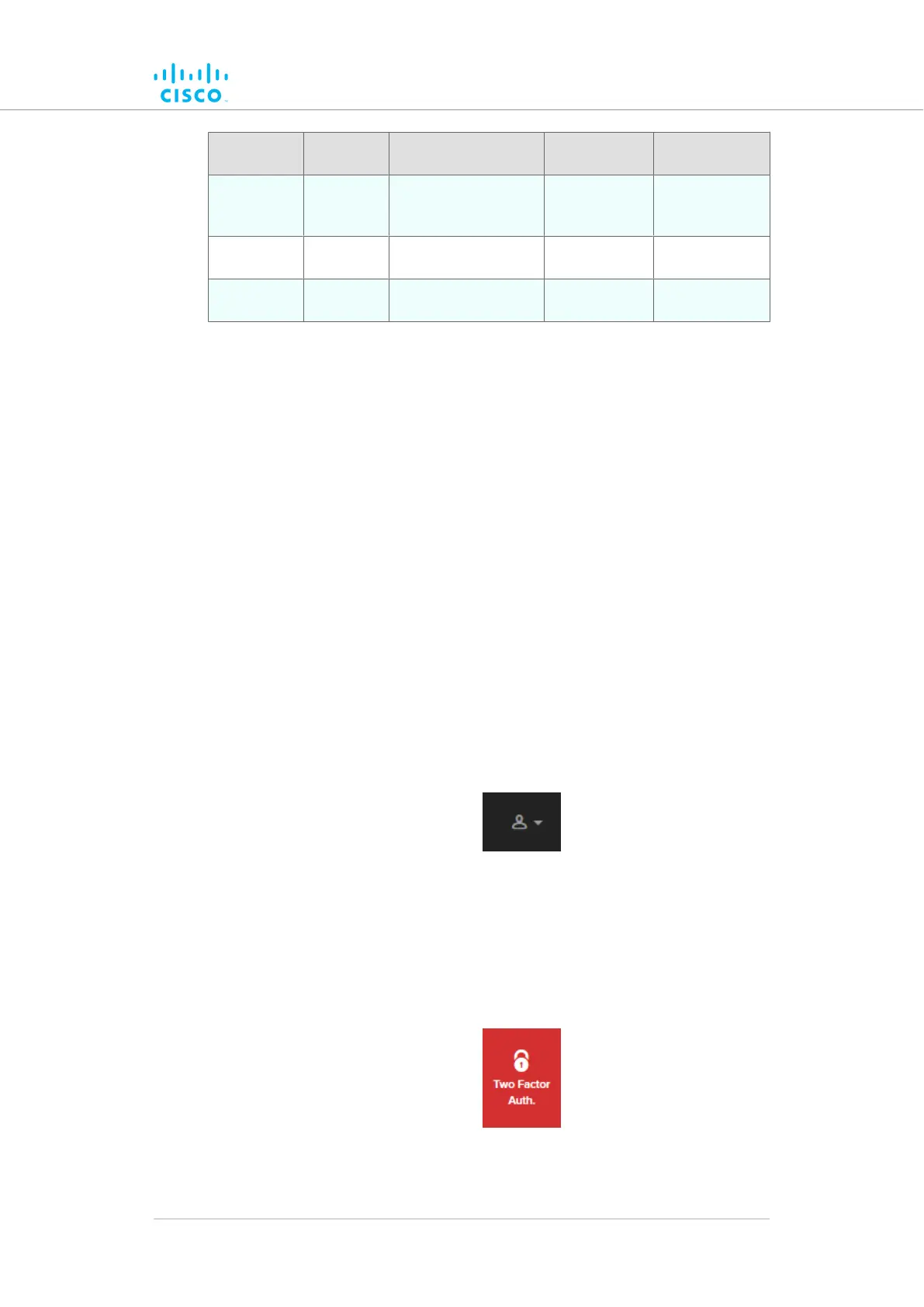
Microsoft
Internet
Explorer
11 onward Windows 7, 8 and 10 Full -
Microsoft
Edge
13 onward Windows 7, 8 and 10 Full -
Apple
Safari
8 onward OS X Yosemite or
later
Full -
6.2. Enabling Two-Factor Authentication for security
To enhance cyber-security on the Partner Portal, Cisco uses two-
factor authentication (2FA).
2FA works by providing an extra security layer that works independently of
your Partner Portal login password. With 2FA activated, you will be asked
to provide a secure one-time password (OTP) for each login.
To set up two-factor authentication, do the following steps:
1. Install an app capable of generating authentication codes on your
mobile phone. Apps recommended for specific platforms are:
• Google Authenticator or Authy (iPhone, Android)
• Microsoft Authenticator (Windows Mobile)
2. Log into the Cisco Partner Portal using your normal access
password.
3. Hover the mouse cursor over the Profile icon in the upper right-
hand corner of the web page (Figure 10 (page 52)). Click the
Account option.
Figure 10. Partner Portal (Profile icon)
• Your portal account page will be shown.
4. Click the Two Factor Auth. link on the left-hand side of the web
page (Figure 11 (page 52)).
Figure 11. Partner Portal (Two Factor Auth. icon)
Using the Cisco Partner Portal
© 2021 Cisco and/or its affiliates. All rights reserved. Page 52 of 189


 To Next Page