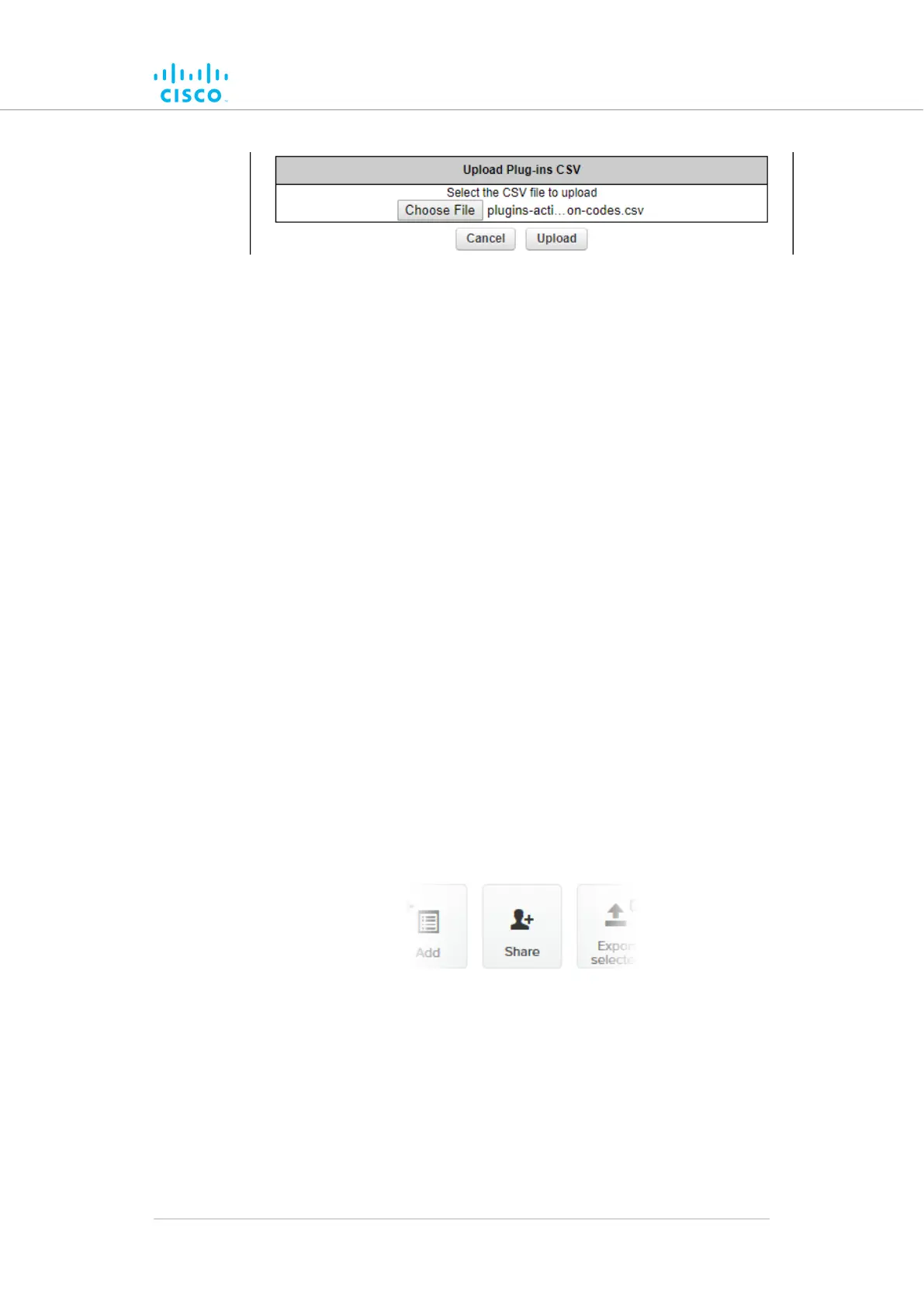
Figure 75. MANAGE PLUG-INS DIALOG (Upload Plug-ins
CSV section)
• The chosen *.CSV file will be listed to the right of the
Choose File button.
Click the8. Upload button.
• The plug-ins will be uploaded to the unit and activated, and
the relevant functionality can be used.
8.2.5. Sharing License codes and accepting shared License codes
If needed, you can share license codes with other Cisco device
users, and also have other Cisco device users share their license
codes with you.
To share one or more license codes with another Cisco device user,do
the steps that follow:
1. Log on to the Cisco Partner Portal.
Click the2. Plug-ins link.
• The Plug-ins web page will be shown.
3. Check the selection check-boxes to the left of the plug-ins that
must be shared.
4. Click the Share button in the upper left-hand corner of the Plug-
ins web page (Figure 76 (page 168)).
Figure 76. Plug-ins web page (Share button)
• The Share License Codes dialog will be shown.
5. Enter one or more E-mail addresses to which the License codes
must be sent. Click the Share button.
• An E-mail containing the selected License codes will be
sent to the specified E-mail addresses.
Software Plug-Ins
© 2021 Cisco and/or its affiliates. All rights reserved. Page 168 of 189


 To Next Page