2
O
v
e
r
v
i
e
w
and
C
o
n
tr
o
l
s
This section provides information about front panel and rear panel. When you install this series
DVR for the first time, please refer to this part first.
2
.
1
Front
Pa
n
e
l
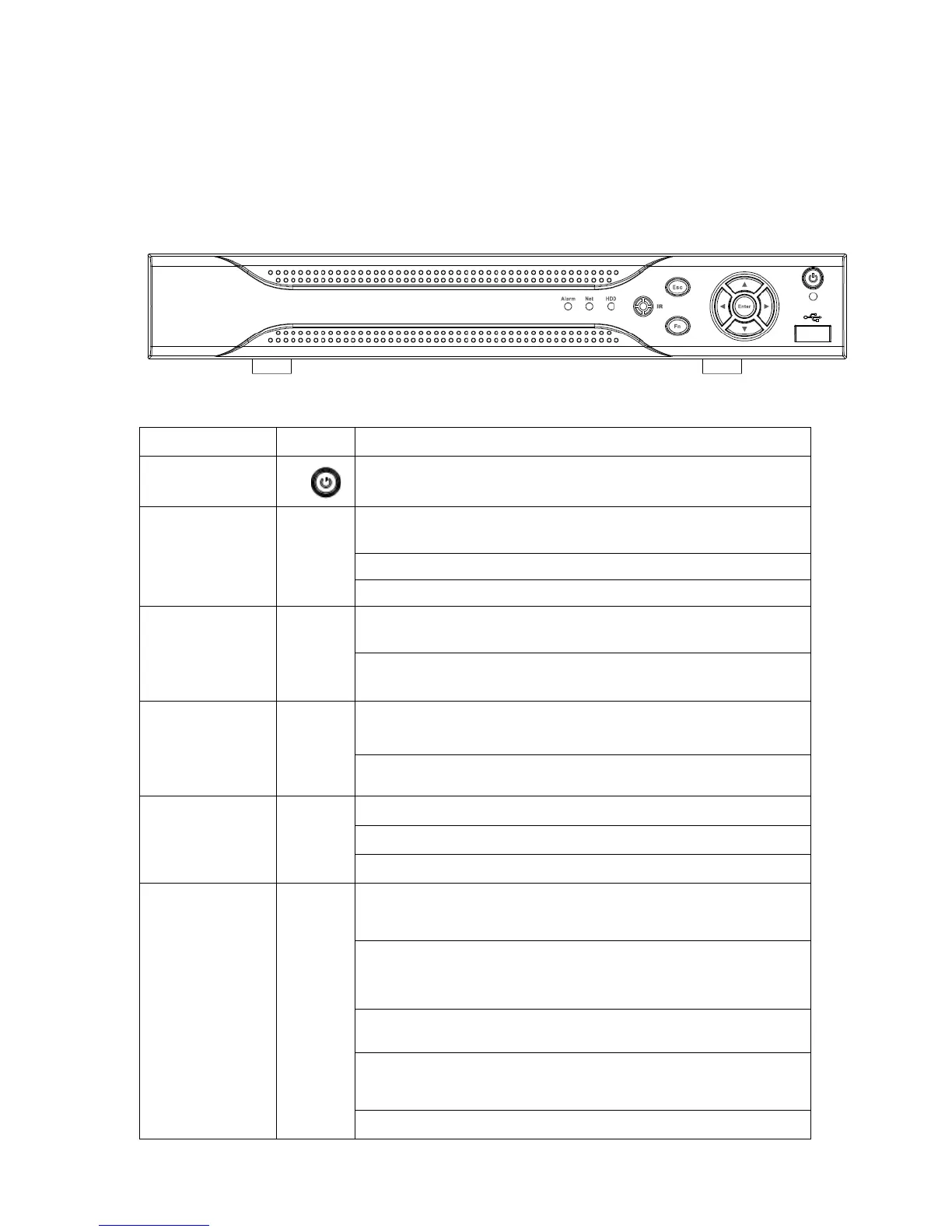
The front panel is shown as in Figure 2-1.
Figure
2-1
Please refer to the following sheet for detailed information.
Name Icon Function
Power button, press this button for three seconds to boot up
or shut down DVR.
Activate current control, modify setup, and then move up
Increase/decrease numeral.
Assistant function such as PTZ menu.
Shift current activated control,
When playback, click these buttons to control playback bar.
Go to previous menu, or cancel current operation.
When playback, click it to restore real-time monitor mode.
ENTER
Confirm current operation
Go to default button
Go to menu
One-window monitor mode, click this button to display
assistant function: PTZ control and image color.
Backspace function: in numeral control or text control, pr
it for 1.5seconds to delete the previous character before t
In motion detection setup, working with Fn and direction
In text mode, click it to switch between numeral, English
character(small/capitalized) and etc.
Realize other special functions.


 To Next Page