4
O
v
e
r
v
i
e
w
of Navigation
and
C
o
n
tr
o
l
s
Important
•
Slight difference may be found in the interface. All the interfaces listed below are based on
the 4-channel series product.
Before operation, please make sure:
•
You have properly installed HDD and connect all the cable connections.
•
The provided input power and the device power are matched.
•
The external power shall be DC +12V.
•
Always use the stable current, if necessary UPS is a best alternative measure.
4
.
1
L
og
i
n
,
Logout
&
Ma in
Menu
4.1.1 Login
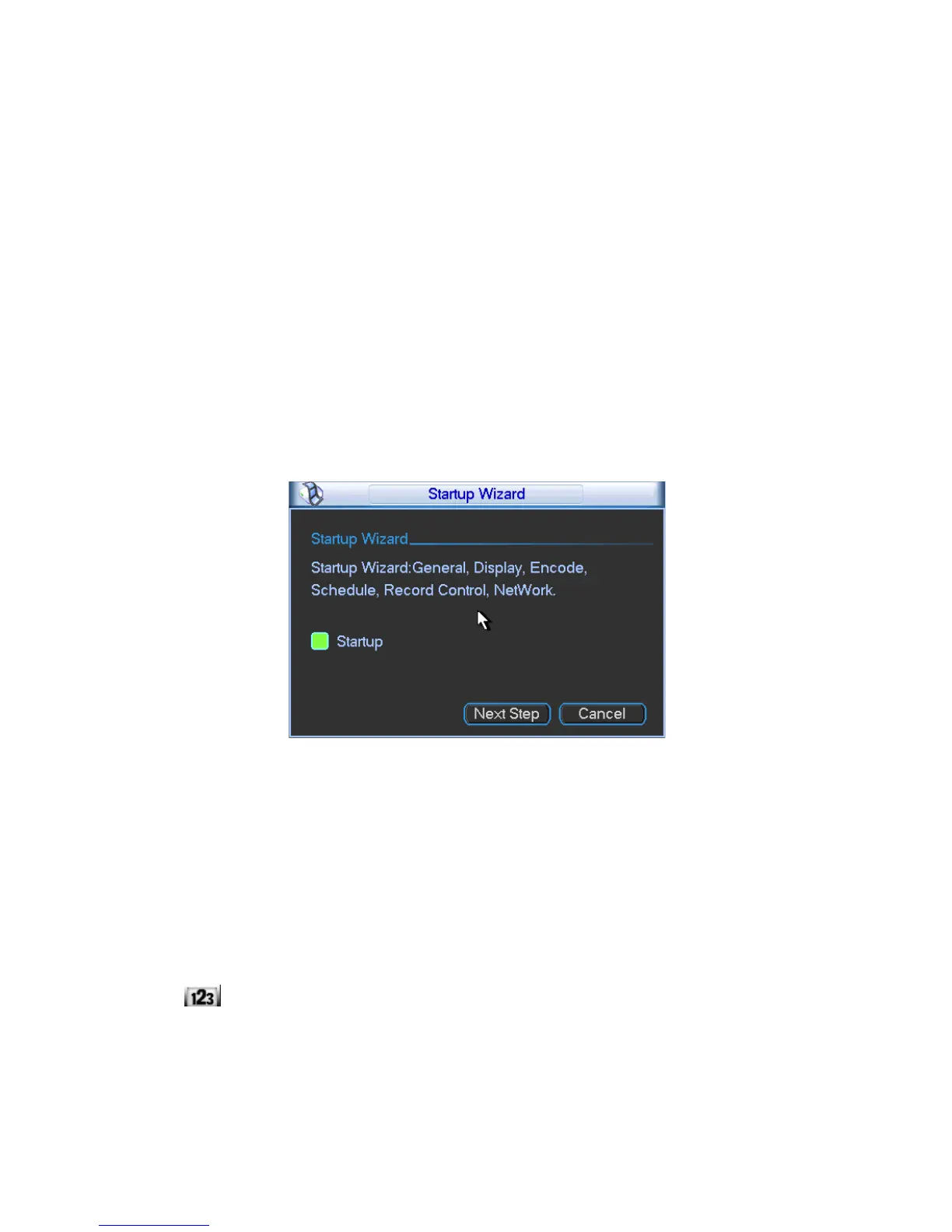
After system booted up, system pops up the startup wizard.
Click the Cancel button; you can go to the system login interface.
Click the Next Step button; you can go to the startup wizard interface. Here you can set the
system basic information. See Figure 4-1.
Figure
4-1
The system login interface is shown as in Figure 4-2.
System consists of four accounts:
•
Username: admin. Password: admin. (administrator, local and network)
•
Username: 888888. Password: 888888. (administrator, local only)
•
Username: 666666. Passwords: 666666(Lower authority user who can only monitor, playback,
backup and etc.)
•
Username: default. Password: default(hidden user)
You can use USB mouse, front panel, remote control or keyboard to input. About input method:
Click
to switch between numeral, English character (small/capitalized) and denotation.
Note:
For security reason, please modify password after you first login.
Within 30 minutes, three times login failure will result in system alarm and five times login failure
will result in account lock!


 To Next Page