We recommend replace battery regularly (such as one-year) to guarantee system time
accuracy.
Note:
Before replacement, please save the system setup, otherwise, you may lose the data
completely!
4.1.6 Preview Zoom Function
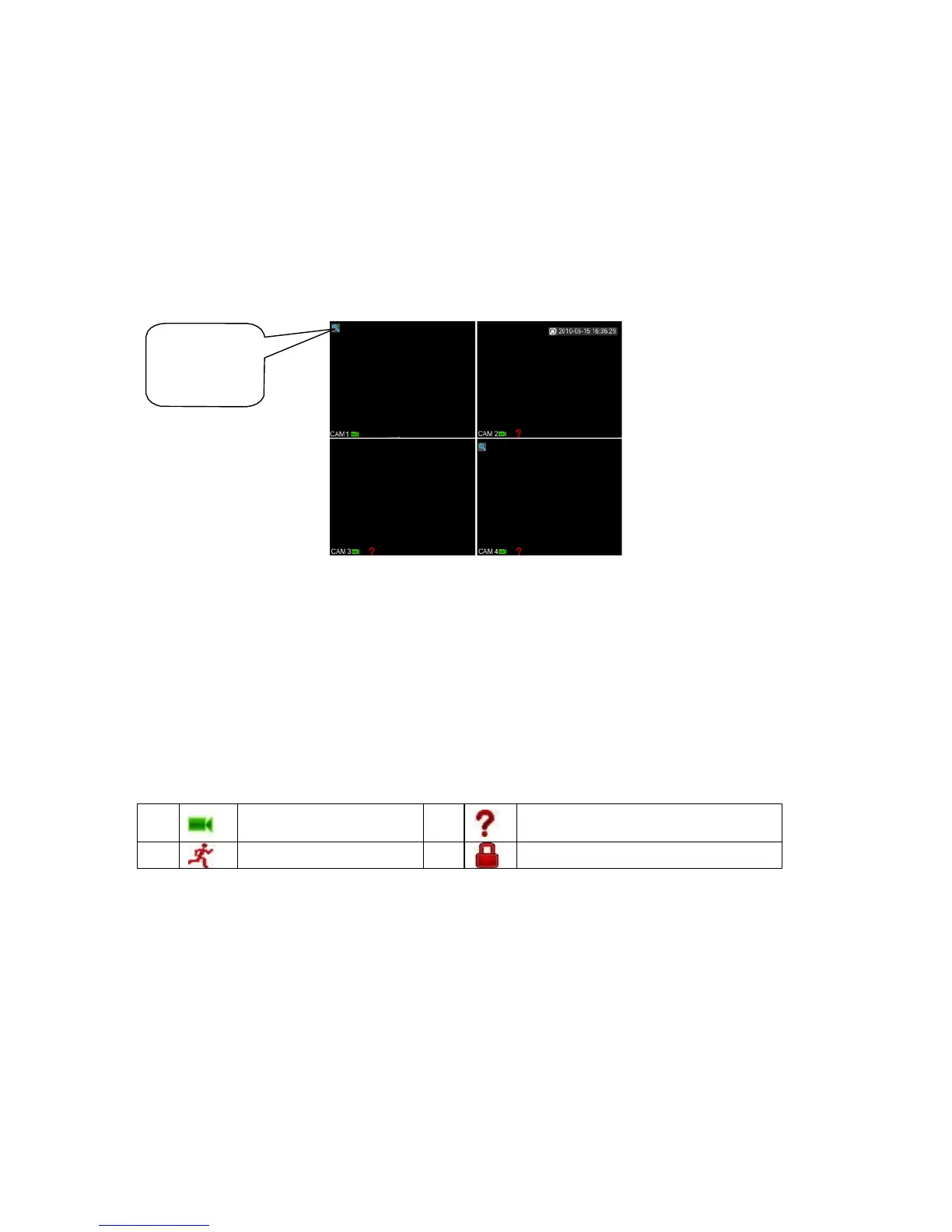
Move your mouse to the left top corner of the preview interface; you can see the preview
zoom button. See Figure 4-5. Left click the icon; you can see a hook icon. Now you have
enabled the preview zoom function. You can drag the mouse to zoom in the image.
Preview
zoom button
Figure
4-5
4
.
2
R
e
c
o
r
d
4.2.1 Live Viewing
After you logged in, the system is in live viewing mode. You can see system date, time and
channel name. If you want to change system date and time, you can refer to general settings
(Main Menu->Setting->General). If you want to modify the channel name, please refer to the
display settings (Main Menu->Setting->Display)
Camera lock
4.2.2 Record
Note:
You need to have proper rights to implement the following operations. Please make sure the
HDD has been properly installed.
4.2.2.1 Record menu
Right click mouse or in the main menu, Advanced->Manual Record. You can see the manual
record interface is shown as in Figure 4-6.
4.2.2.2 Basic operation
There are three statuses: schedule/manual/stop. Please highlight icon “○” to
select corresponding channel.


 To Next Page