3
Installation
and
C
o
nn
e
c
ti
o
n
s
Note: All the installation and operations here should conform to your local
electric safety rules.
3
.
1
Check Unpacked
D
V
R
When you receive the DVR from the forwarding agent, please check whether there is any visible
damage. The protective materials used for the package of the DVR can protect most accidental
clashes during transportation. Then you can open the box to check the accessories.
Please check the items in accordance with the list on the warranty card (Remote control is
optional). Finally you can remove the protective film of the DVR.
Note
Remote control is not a standard accessory and it is not included in the accessory bag.
3
.
2
About Front
Pa
n
e
l
and
R
ea
l
Pa
n
e
l
For detailed information of the function keys in the front panel and the ports in the rear panel,
please refer to the appendix for detailed information.
The model in the front panel is very important; please check according to your purchase order.
The label in the rear panel is very important too. Usually we need you to represent the serial
number when we provide the service after sales.
3
.
3
HD D
I
n
s
t
a
ll
a
ti
o
n
This series DVR has only one SATA HDD. Please use HDD of 7200rpm or higher.
You can refer to the Appendix for recommended HDD brand.
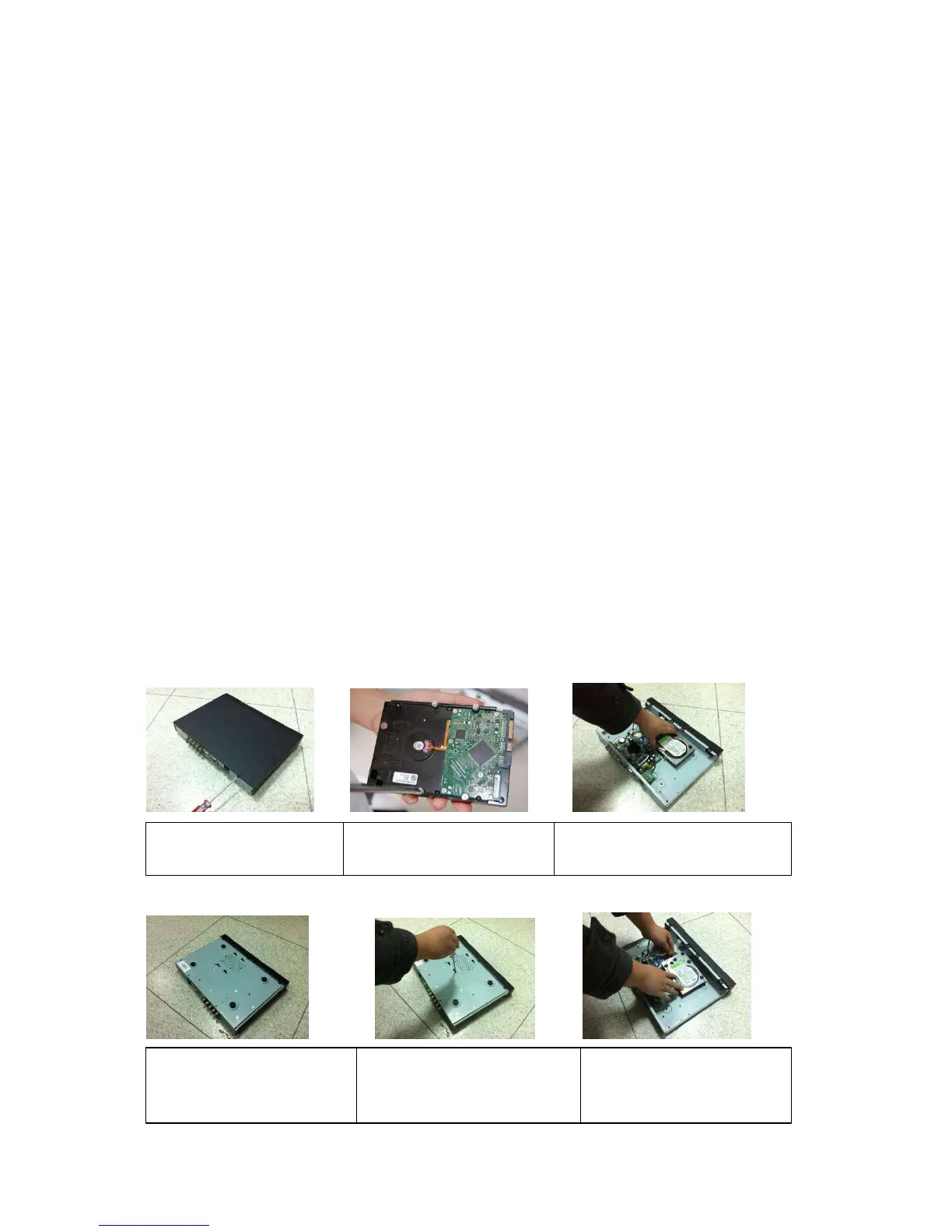
Please follow the instructions listed below to install hard disk.
1. Loosen the screws of the
upper cover and side panel.
2. Fix four screws in the HDD
(Turn just three rounds).
3. Place the HDD in accordance with
the four holes in the bottom.
4. Turn the device upside down
and then turn the screws in
firmly.
5. Fix the HDD firmly.
6. Connect the HDD cable and
power cable.


 To Next Page