6
About Auxiliary
Menu
6
.
1
Go
to
Pa
n
/
T
ilt
/
Z
oo
m
M enu
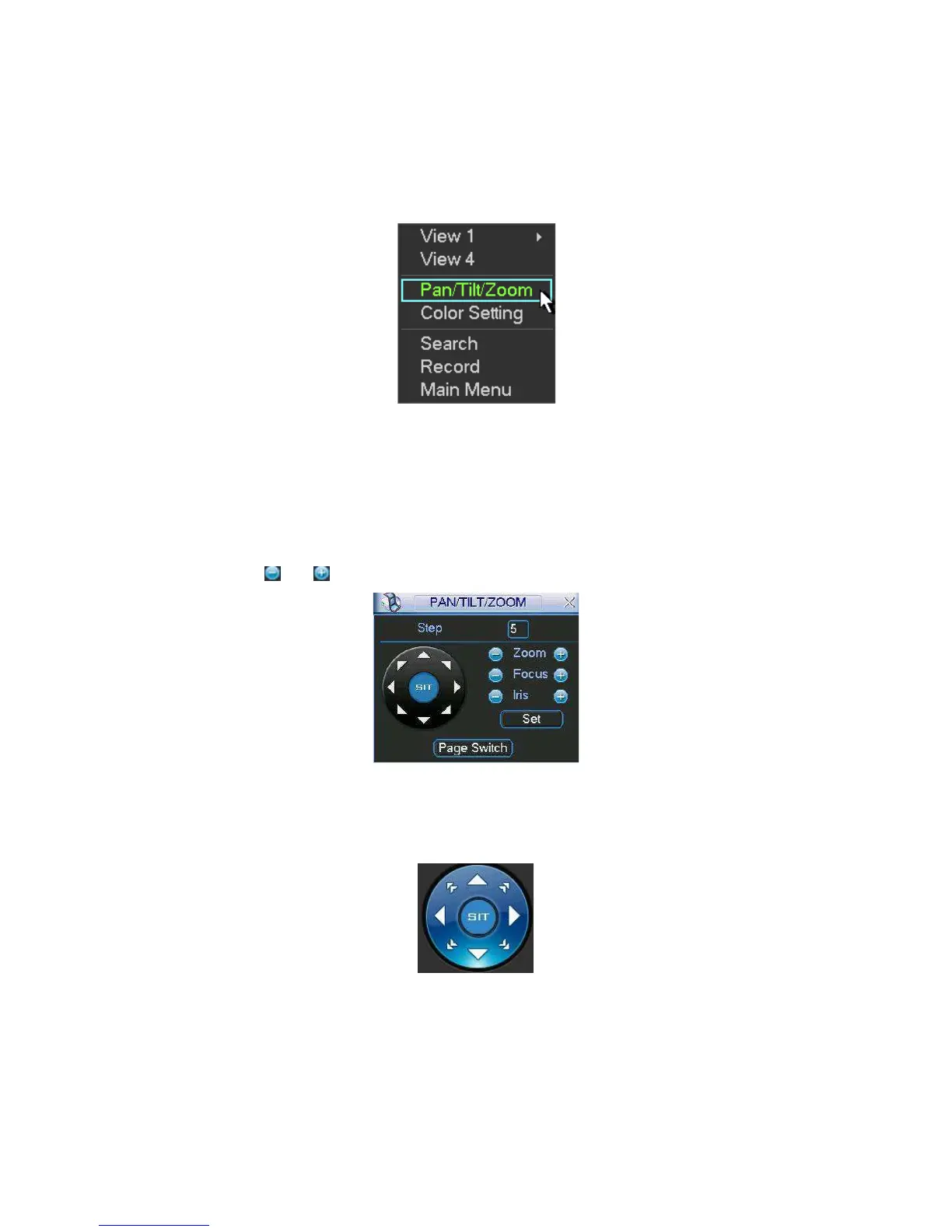
In the one-window surveillance mode, right click mouse (click “fn” Button in the front panel or
click AUX key in the remote control). The interface is shown as below: See
X397H397H397 HFigure 6-1X.
Figure
6-1
Click Pan/Tilt/Zoom, the interface is shown as in X398H398H398HFigure 6-2X.
Here you can set the following items:
•
Zoom
•
Focus
•
Iris
Please click icon
and to adjust zoom, focus and Iris.
Figure
6-2
In
X399H399H
399HFigure 6-2X, please click direction arrows (See
X400H400H400H
Figure 6-3X ) to adjust PTZ position. There
are totally eight direction arrows. (Please note there are only four direction arrows in DVR front
panel.)
6.1.1 3D Intelligent Positioning Key
Figure 6-3
In the middle of the eight direction arrows, there is a 3D intelligent positioning key. See X401H401 H401 HFigure
6-4
X . Please make sure your protocol supports this function and you need to use mouse to
control.
Click this button, system goes back to the single screen mode. Drag the mouse in the screen to
adjust section size.


 To Next Page