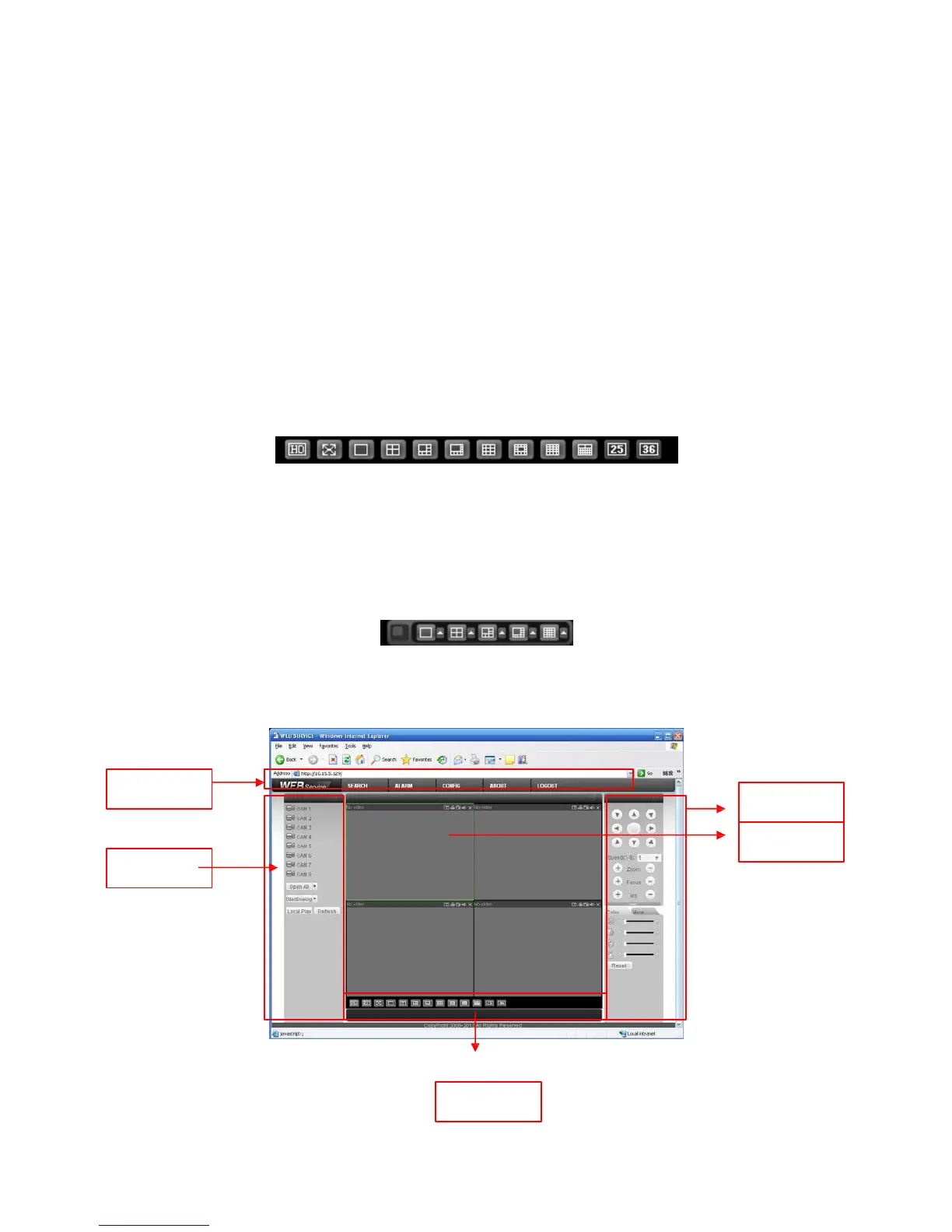
For the LAN mode, after you logged in, you can see the main window. See X431H431H431H Figure 7-6X.
This main window can be divided into the following sections.
•
Section 1: there are five function buttons: configuration (chapter 7.3), search (chapter 7.4),
alarm (chapter 7.5), about (chapter 7.6), log out (chapter 7.7).
•
Section 2: there are channel number and three function buttons: start dialog and local play,
refresh.
•
Section 3: there are PTZ (chapter 7.2.2), color (chapter 7.2.3) button and you can also select
picture path and record path.
•
Section 4:real-time monitor window. Please note current preview window is circled by a
green rectangle zone.
•
Section 5: Here you can view window switch button. You can also select video priority
between fluency or real-time.
� System monitor window switch supports full screen/1-window/4-window/6-window/8-
window/9-window/13-window/16-window/20-window/25-window/36-window. See
X432H432 H43
2HFigure 7-4X.
Figure
7-4
� Preview window switch. System support 1/4/8/9/16-window real-time preview. Please you
need to have the proper rights to implement preview operation. You can not preview if you
have no right to preview the either channel. See Figure 7-5. Please note this series device
does not support this function.
Figure
7-5
Section1
Section 3
Section 2
Section 4
Section
5
Figure
7-6


 To Next Page