Menus and Functions
32 P2398PM | 2018-12 Apex Tool Group GmbH
3
EN
Changing a PIN
> > >
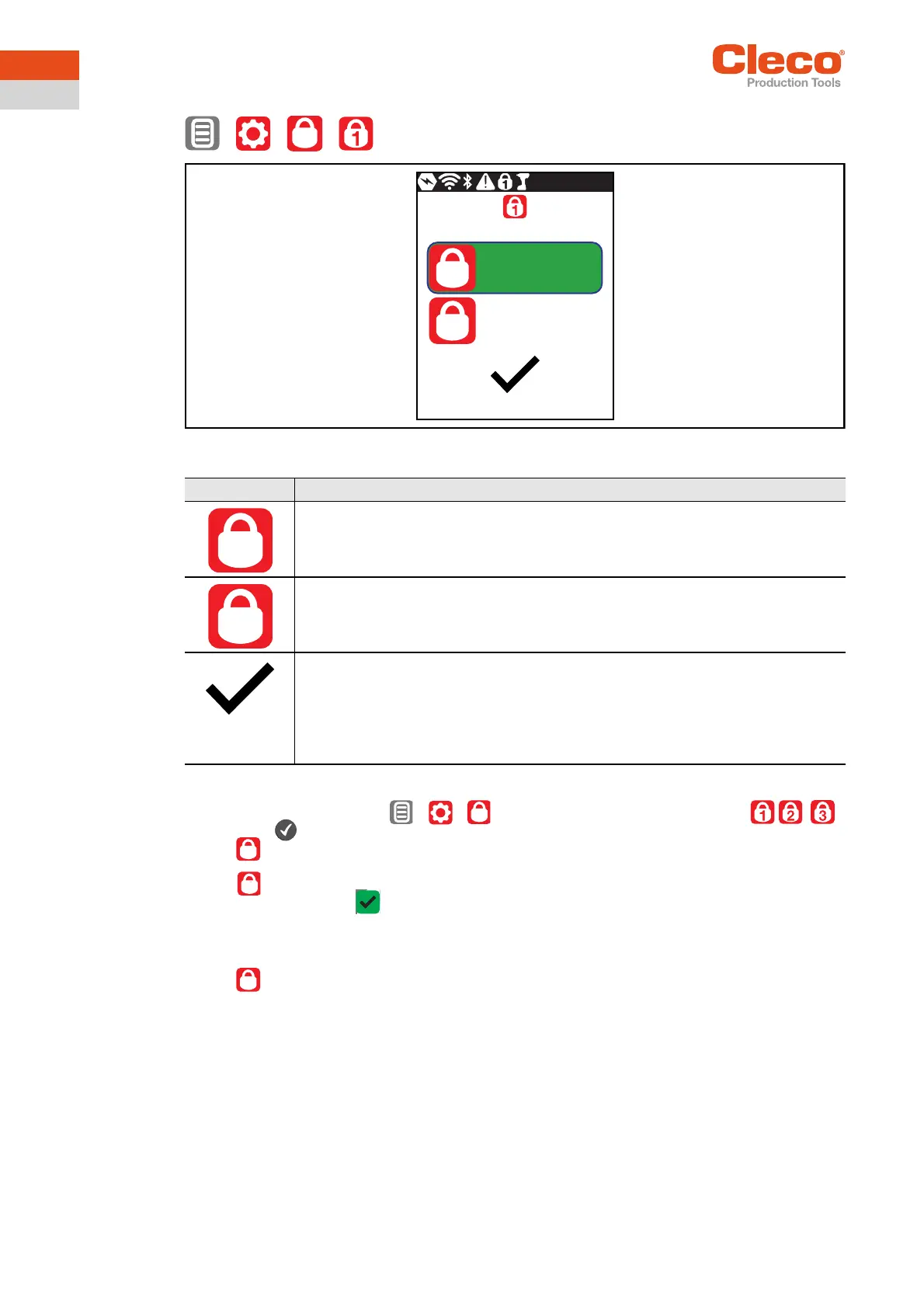
Abb. 3-20: Submenu – Changing a PIN
To change a PIN:
1. Navigate to Changing a PIN >
> and select one of the three access levels .
2. Press the button to activate the input box. The numbers are entered individually.
3. For , enter the old PIN. If no PIN was previously defined, enter 0000.
4. For , enter the new PIN. The PIN must not be 0000.
5. To save the PIN, press .
→ The new PIN is activated and the menu is exited.
Deactivating a PIN
For , enter 0000 to deactivate a PIN.
Button Description
Entering an old PIN.
Entering a new PIN.
Saving a PIN.
After a PIN is entered, the background color of the input box and the checkmark
changes:
• Red: The input of the old PIN is incorrect. The change can not be saved.
• Green: The input is permissible. The change can be saved.
Old
New
1000
----
Old
New
Old
New
New



 To Next Page