e-mark create marking device Chapter 5 Operation
CODI Standard 1.0 28/60
Operating and Maintenance Manual
5 OPERATION
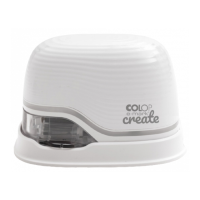
The product is designed for printing stamp templates and marking.
Online mode: The e-mark create is controlled using software. Imprints can be loaded or created via the software,
transferred to the e-mark create and then printed. The software application (app) displays status symbols for the e-
mark create, including battery charge level, ink level, cleaning cycle request etc. Details can be found in the software
description.
In offline mode the e-mark create is ready to print previously uploaded images at any time. Every printing operation
follows these steps in the sequence below:
1. Switch on and wait until e-mark create is ready
2. Take the e-mark create out of the docking station.
3. Wait until completion of the automatic self-cleaning cycle (see chapter 5.4).
4. Place onto the paper (or the printable surface) and slide to the right or left.
5. Printing starts and a signal sounds when the end position is reached.
ALWAYS place the e-mark create in the docking station after use.
Otherwise, the ink cartridge head dries out, affecting print quality.
If the e-mark create is not placed in the docking station immediately:
- switched on: a warning signal sounds (return to docking station!)
- switched off: NO warning signal sounds
6. Return the e-mark create to the docking station immediately.
If the print quality is unsatisfactory, complete a manual cleaning cycle or clean the print head with a damp cloth
(see chapter 5.5).
Sleep mode:
If the e-mark create is switched on and is not used for 3 minutes, the device goes into sleep mode. In the app this
time can be set up to 15 minutes or turned off. The e-mark create is not going into sleep mode as long as it is
connected to the app.
Warning mode:
If the e-mark create is not in the docking station and is not used for one minute, a warning signal sounds to prevent
the print head from drying out. The Light Guide flashes red and has a warning signal sounds. Please return the device
to the docking station immediately.
5.1 Image transfer
To transfer standard templates or customized imprints to the e-mark create, refer to the software description.
Prerequisites:
If not connected by the USB cable:
1. The e-mark create is connected via WIFI to the mobile device.
2. The Light Guide displays a steady blue light confirming a WIFI connection.


 To Next Page