e-mark marking device Chapter 4 Initial operation
CODI Standard 1.0 Page 27 of 61
Operating and Maintenance Manual
Set up the WIFI connection, see below.
Performance test:
Is the battery properly inserted and can the battery be charged with the external charger (for more
details on charging, see chapter 6.1)?
Does the LED light work (color code see chapter 5.3)?
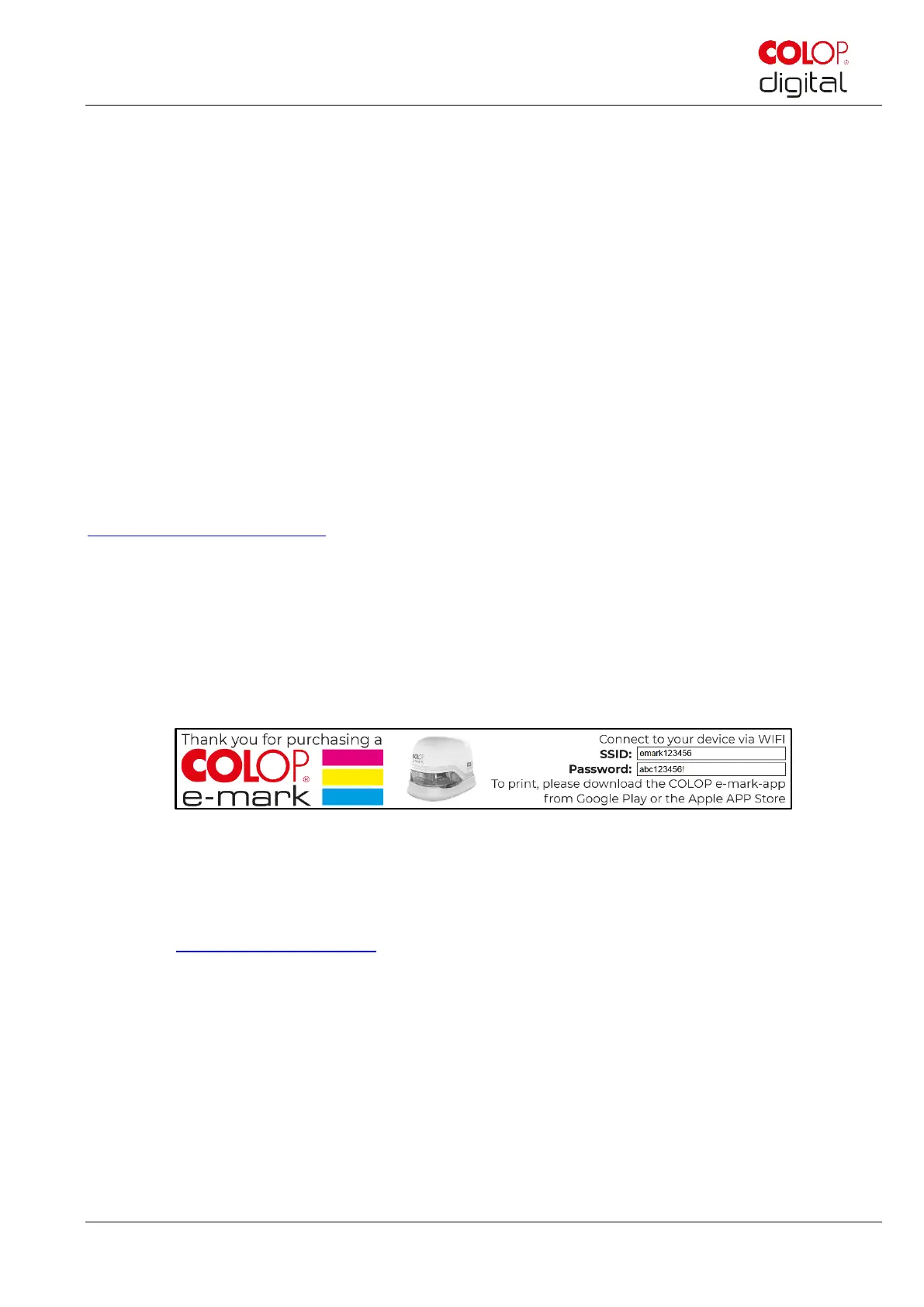
SSID and password for establishing the WIFI connection are displayed on the Quick Setup Guide and
are saved as image on the e-mark.
Does the print function work?
For more details on making a test imprint, see chapter 5.2.
4.3 Software
Download the App and install on the mobile device or computer, see chapter 5.6.
https://getemarkapp.colop.com/
4.4 WIFI connection
Setting up the connection using the App wizard, see chapter 5.7.
The SSID and password are automatically saved as an image on the e-mark and can be found in the
Quick Setup Guide (remember the password or save it in a secure location. The password can be
changed in the software).
Fig. 16: Example test imprint with SSID and password
If you are having trouble in setting up a connection, refer to the troubleshooting chapter (see chapter 6.4)
or visit our homepage and see the FAQ (Frequently Asked Questions).
Homepage www.emark.colop.com/faq



 To Next Page