e-mark marking device Chapter 5 Operation
CODI Standard 1.0 Page 42 of 61
Operating and Maintenance Manual
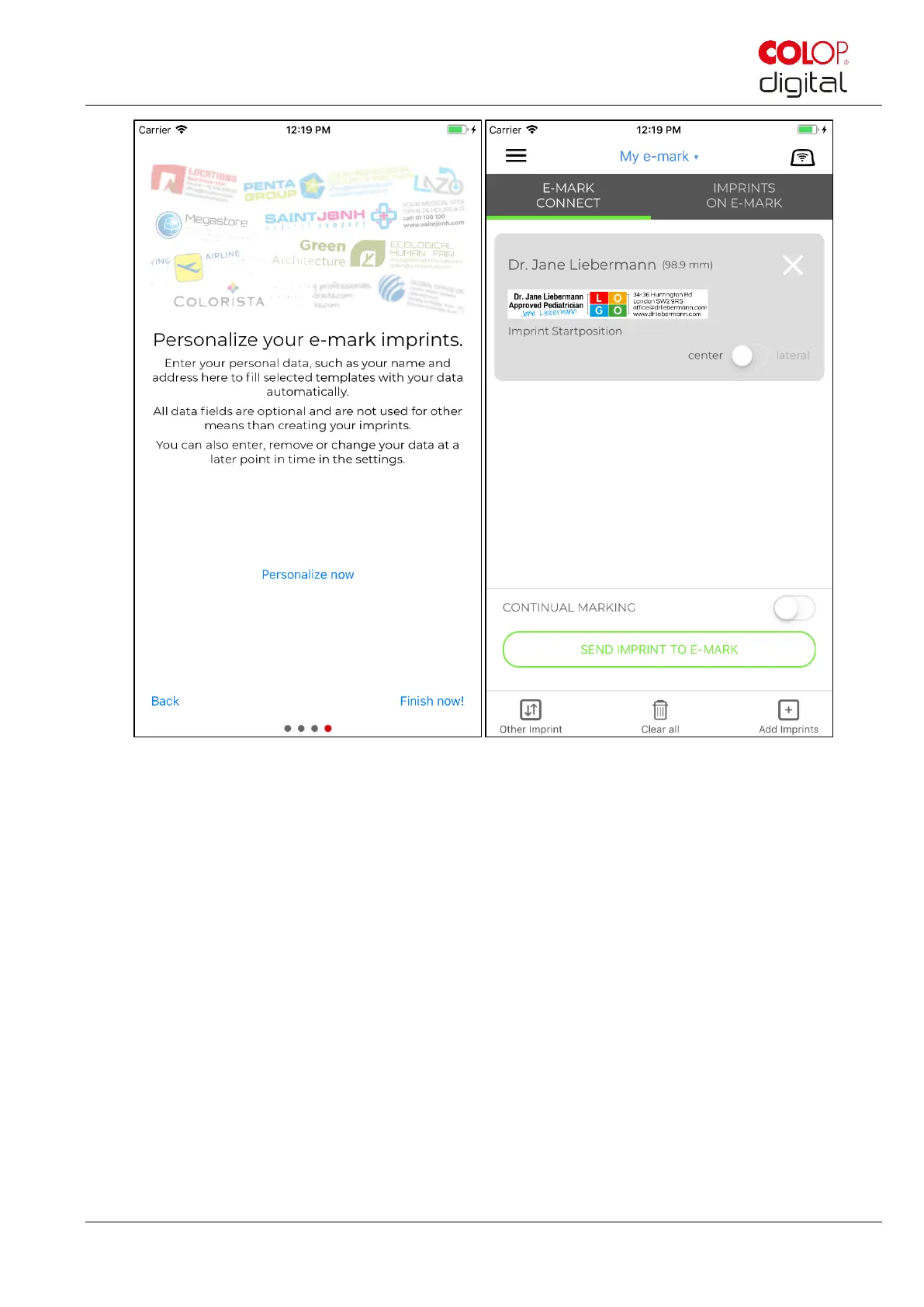
Fig. 35: Software wizard – personalization option
Imprints can automatically be prefilled with your information. Enter names, addresses or other information
to customize your stamp imprints. This information is not passed on to third parties and is used exclusively
to customize your imprints.
To continue without entering information, press "Finish without personalization!".
The "e-mark connect" page is the App homepage. Imprints can be sent to the e-mark from here.
The "e-mark connect" tab shows the queue of markings which are ready to be sent to the e-mark.
Press "Send Imprint to e-mark" to send the imprint to the e-mark.
Press "Add Imprints" to add other markings to the queue.
Press "Clear all" to delete all markings from the view.
Press "Other Imprint" to replace the imprint(s) in the queue with another imprint.
The "Imprints on e-mark" tab contains the images saved on the e-mark and/or you can save up to 3
markings on the e-mark, which are then available in offline mode.



 To Next Page