ComNav T300 + CGSurvey User Guide
19
There could be two types of cables can be used to export raw data in the memory of
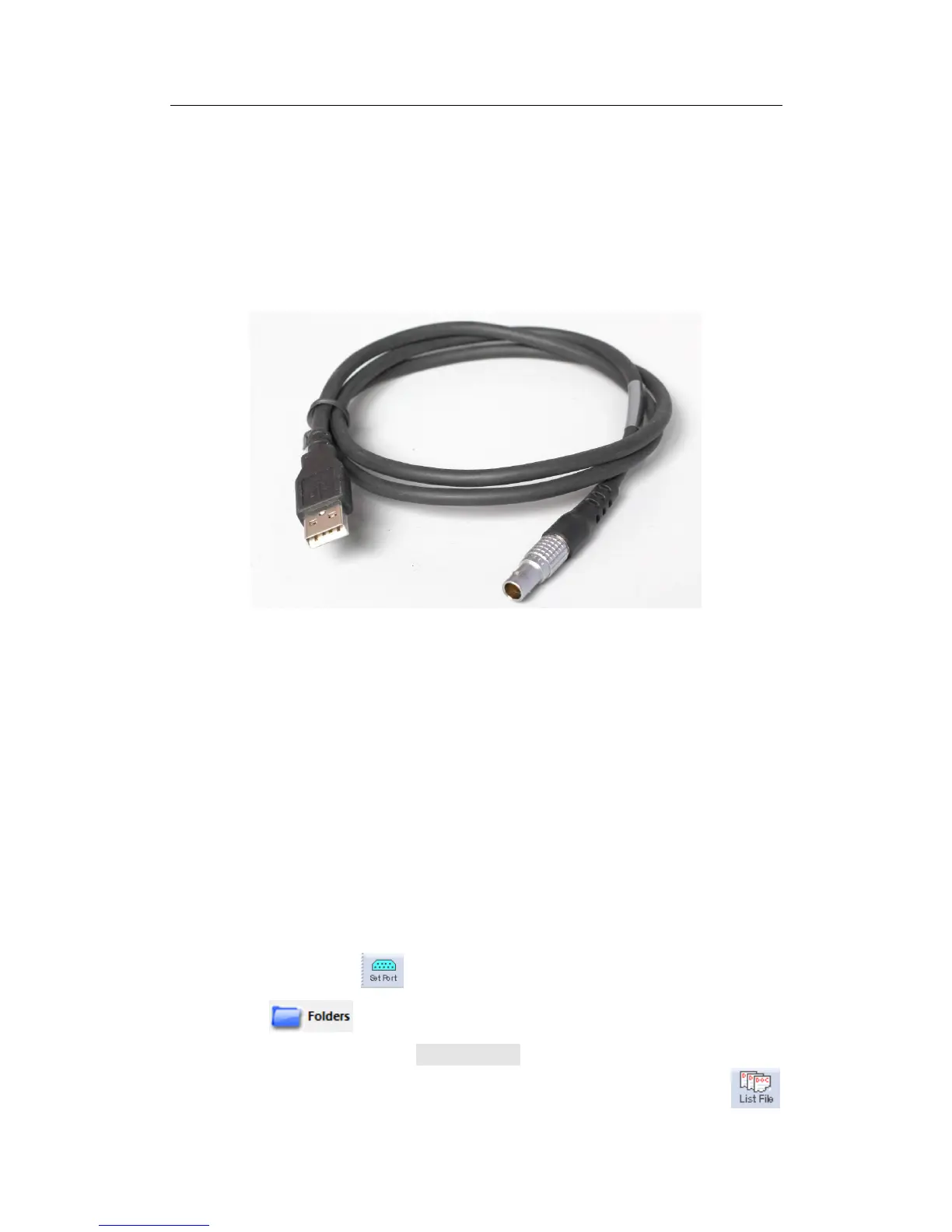
T300. 7-pin Lemo to RS232 cable can be used to link T300 to your office computer
and with which CRU (Compass Receiver Utility) can perform full function (including
downloading, setting and other serial port communication). But ComNav highly
recommends 7-pin Lemo to USB cable (as shown below) which is designed especially
for data download so that the speed is faster.
Firstly, connect T300 to your PC with Lemo to USB cable and power on receiver. PC
will detect T300, but cannot recognize it at the first time. Use Device Manager
(depending on your operating system) to update the driver of it, by choosing the
path where there is driver we provided (in the path of CRU software, a folder
named dirver). Once the driver is installed, PC can automatically recognize T300.
Tips, if nothing happened after PC linked to T300 by USB cable, press the function key
two times rapidly and continuously, the DatalinK LED (yellow color) will always be
lighting, in this mode Bluetooth and internal radio will stop working, and receiver is
only used for downloading data. Then, you can download data as following steps:
Please follow the steps below
1. Run CRU and click . Choose USB in the Serial Settings and click OK.
2. Use to choose the download path.
3. Click the function button File Download in the Project, then you can see the
raw data on the right. If no data appear, you may click the button



 To Next Page