106D-Link DIR-895L User Manual
Section 4 - Conguration - Extender Mode
Settings
Extender
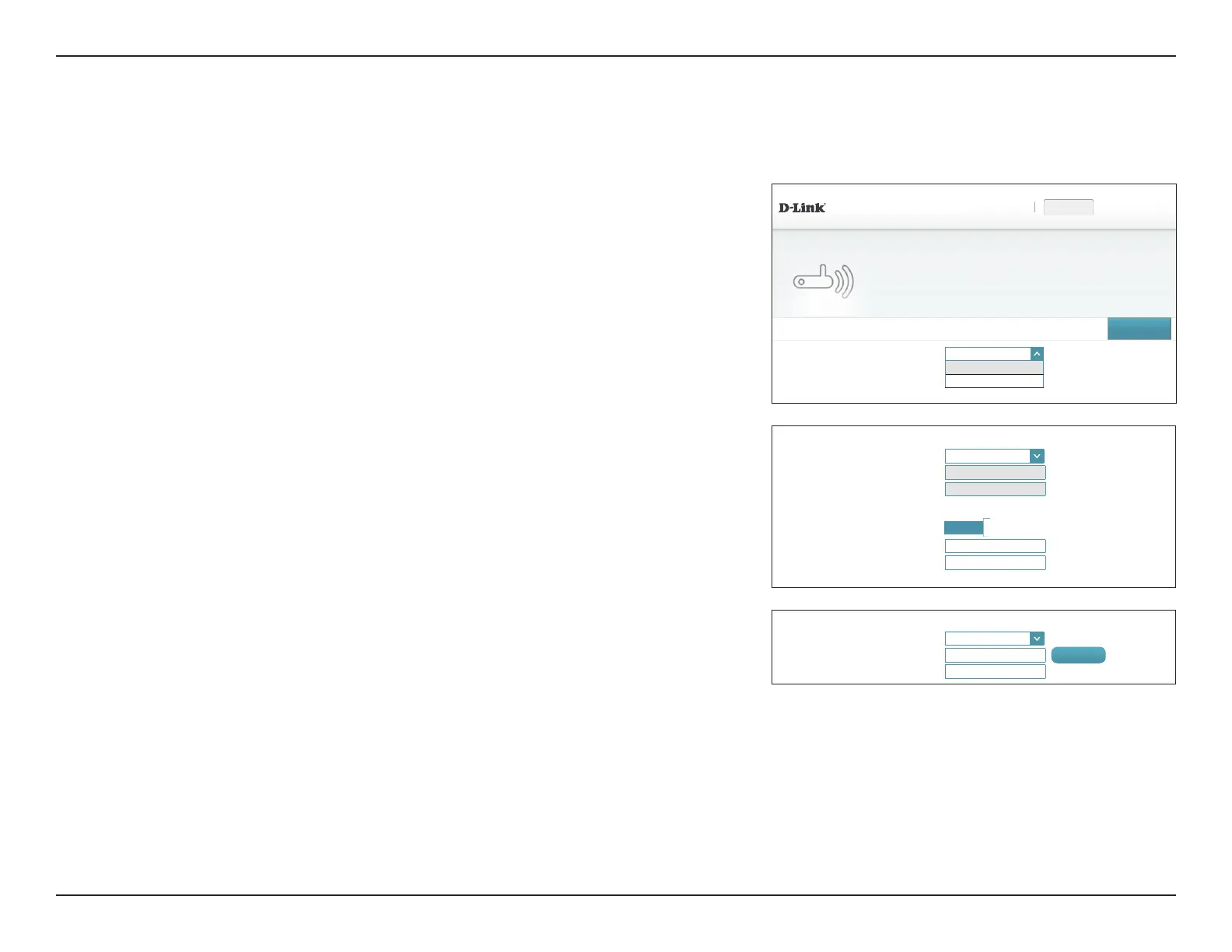
In the Settings menu on the bar on the top of the page, click Extender to see the extender
mode conguration options. You may congure the Extender to operate as either an Access
Point or Media Bridge from this page.
Existing Network:
Ethernet
⌵
Ethernet
Media Bridge
DIR-895L HW:A1 FW:1.12
Settings >> Extender
Save
Extender
Use this section to congure the wireless settings for your D-Link Router. Please ensure you press Save
after any changes made in this section it to take effect.
SettingsHome Management
Existing Network
Existing Network: Ethernet
⌵
Wi-Fi Name (SSID):
Security:
Smart Connect
Smart Connect:
Enabled
Wi-Fi Name (SSID): Your_Wi-Fi_Network
Password:
A_Str0nG_P@ssW0rd!%!
Advanced Settings ...
Existing Network
Existing Network: Media Bridge
⌵
Wi-Fi Name (SSID): Your_Wi-Fi_Network
Scan
Security: A_Str0nG_P@ssW0rd!%!
Existing Network
Existing Network: Select either Ethernet (Access Point) or Media Bridge.
If you select Ethernet (Access Point Mode) refer to Wireless on page 107.
If you select Media Bridge congure the following options:
Wi-Fi Name (SSID): You may manually enter the SSID of the wireless network you would
like to connect to or click the Scan button to search for available
nearby networks.
Security: Select the type of security the uplink network uses. Only None and
WPA/WPA2-Personal are supported.
If Security is set to WPA/WPA2-Personal, enter the uplink network password:
Password: Enter the password for the uplink network.
Click Save when you are done. Please note that the DIR-895L's IP
address may change, requiring you to log in again.


 To Next Page