AP20 Installation and Operating Guide Page 100
AP20 Installation & Operating Guide Document # 9301H39200 Ver. 1.25
o GPO – Select a GPO to set (GPO 1-20 or Projector) by touching the dropdown menu
next to “Set”. Then select an action for that GPO from the dropdown menu next to
“To”. Selections are Pulse, Low, and High. When Pulse is selected, the pulse width
can be set between 100ms and 1000ms in 5ms increments, using the front panel
adjustment knob.
o Input – Select from the “Change Input To:” drop down menu.
o Network – Type in the IP Address, TCP Port and Data information by touching the
associated box to bring up the keyboard screen.
o Run Macro – This event can be used to nest macros, i.e. run a separate macro from
within a macro. Up to 5 levels of macros can be nested.
Tap/touch the Macro Name white box that appears on the right and a keyboard will
appear. Type Macro Name and select OK when finished.
o Mute – Select between on and off.
o Volume control – The master volume control can be either Set to a specified value,
or it can be incremented or decremented (Adjust) through automation.
o Serial – A specified string of characters can be transmitted on the serial port as an
automation action.
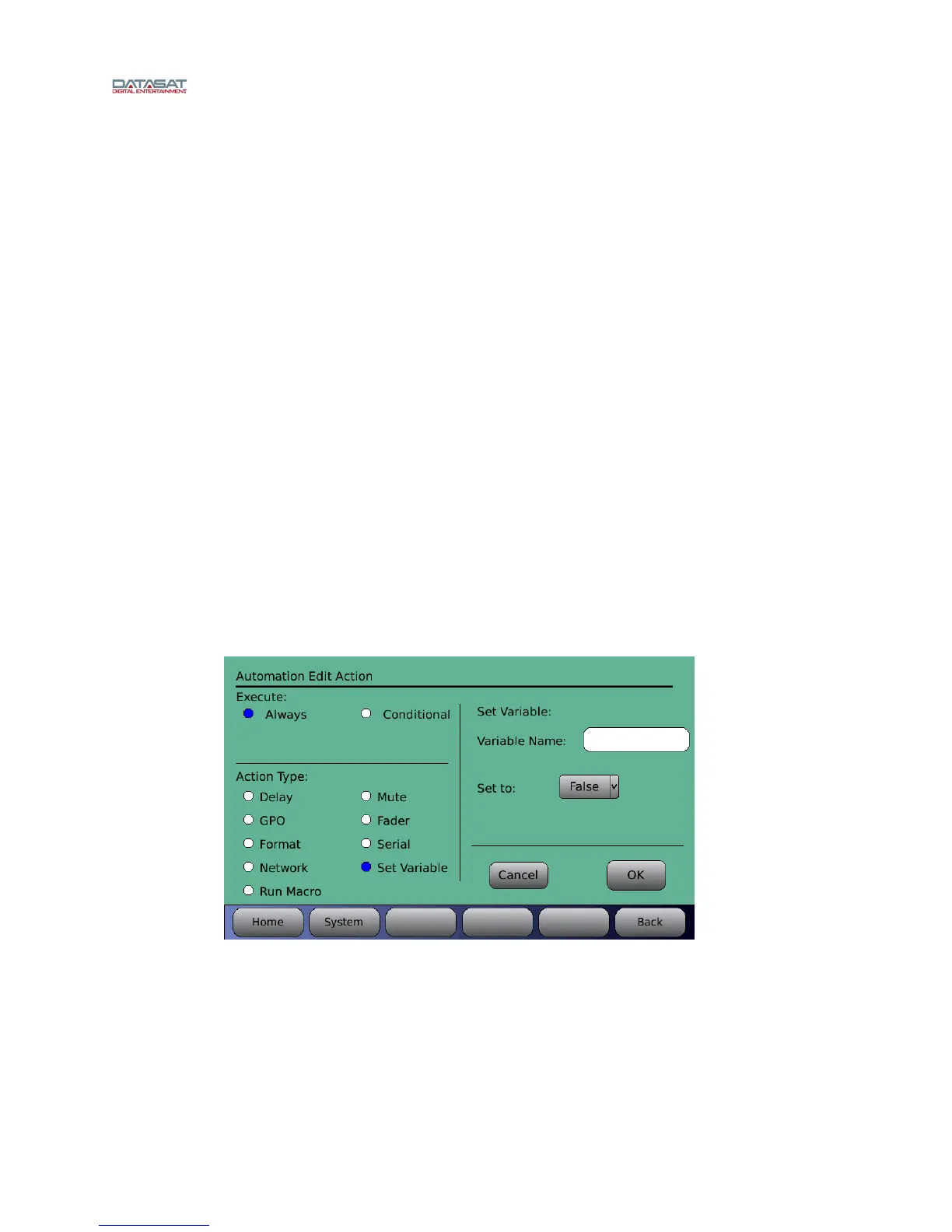
o Set Variable – Enter the Variable Name and set the variable to either True or False
Touch OK when finished, or touch Cancel to cancel this task.
Setting up a Conditional Action Execute:
The following describes the steps to implement a conditional action.
A variable with an arbitrary name can be set to the value TRUE or FALSE based on an
action. In Figure 82 below the variable Test_A is set to TRUE.
Figure 82. Automation Edit Action screen – Set Variable
A subsequent action is defined in a separate Automation Edit Action screen and the option
Conditional is selected. Then enter the previously defined variable name and whether it
should be TRUE or FALSE before the action is executed.
This is shown in Figure 83. The Action to pulse GPO-1 will occur only if the variable
Test_A has been set as FALSE.


 To Next Page