AP20 Installation and Operating Guide Page 74
AP20 Installation & Operating Guide Document # 9301H39200 Ver. 1.25
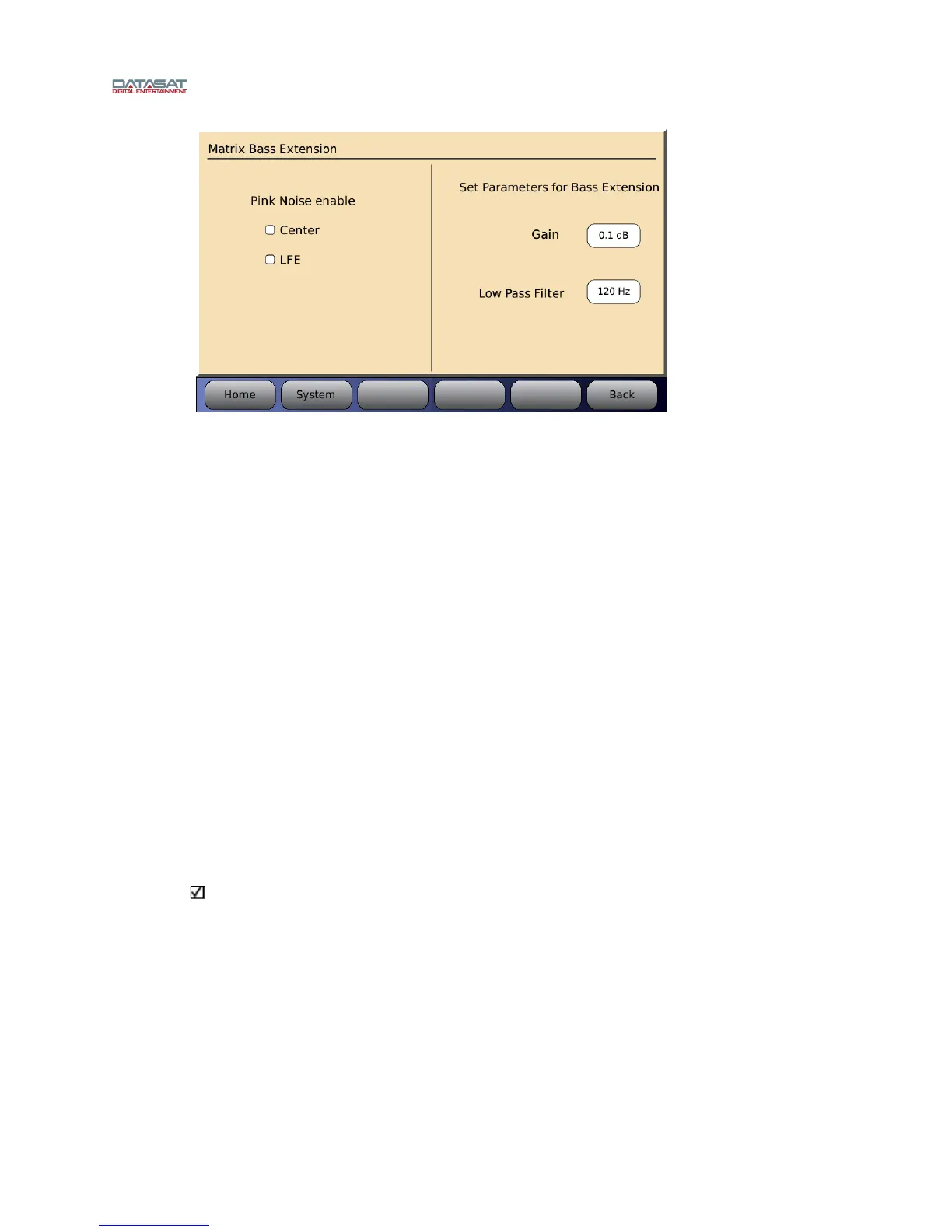
Figure 49. Matrix Bass Extension
The left half of the screen allows you to enable pink noise on Center and/or LFE channels.
The right half of the screen provides settings for the parameters of optical bass gain and low
pass filter frequency
Gain allows you to set the gain for the matrix bass. Press the button with the number
displayed and rotate the main fader to adjust for the desired level.
Low Pass Filter allows you to choose the frequency of the filter. Press the button with the
number displayed and rotate the main fader to adjust the desired frequency.
When adjusting the Matrix Bass Extension, set up a microphone in the auditorium. It is best
to use a single microphone, or if using a multiplexer select single microphone only, and
connect it to the RTA.
Select an optical format on the AP20, enable pink noise on the center channel, and note the
level and low frequency roll off displayed on the RTA. Select the appropriate Low Pass
Filter setting by pressing that button and using the fader knob to make any changes required
to match the low pass filter to the roll off measured.
Next turn on the subwoofer channel, enable pink noise on the LFE channel, then select the
Matrix Bass Gain by pressing the <Gain> button. Use the AP20 fader knob, or up and down
keys when using a laptop, to adjust the Matrix Bass Gain to match the Center channel level
previously noted on the RTA display. The Matrix Bass Gain range is -10dB to +10dB.
Note: Matrix Bass Extension parameters are global, and if enabled, will affect both
nonsync and optical formats (in cases where the optical option card is installed).


 To Next Page