SENTINEL 3 36
7.2 PREPARE YOUR COMPUTER
Following these steps will allow your computer to view the video.
Before starting to set-up your network connection, you have to be sure that your computer is able to
view the footage from the DVR. If you are running Windows XP, you will most likely have
this pre-installed.
NOTE: You will need to do this to any computer that you want to view the footage from.
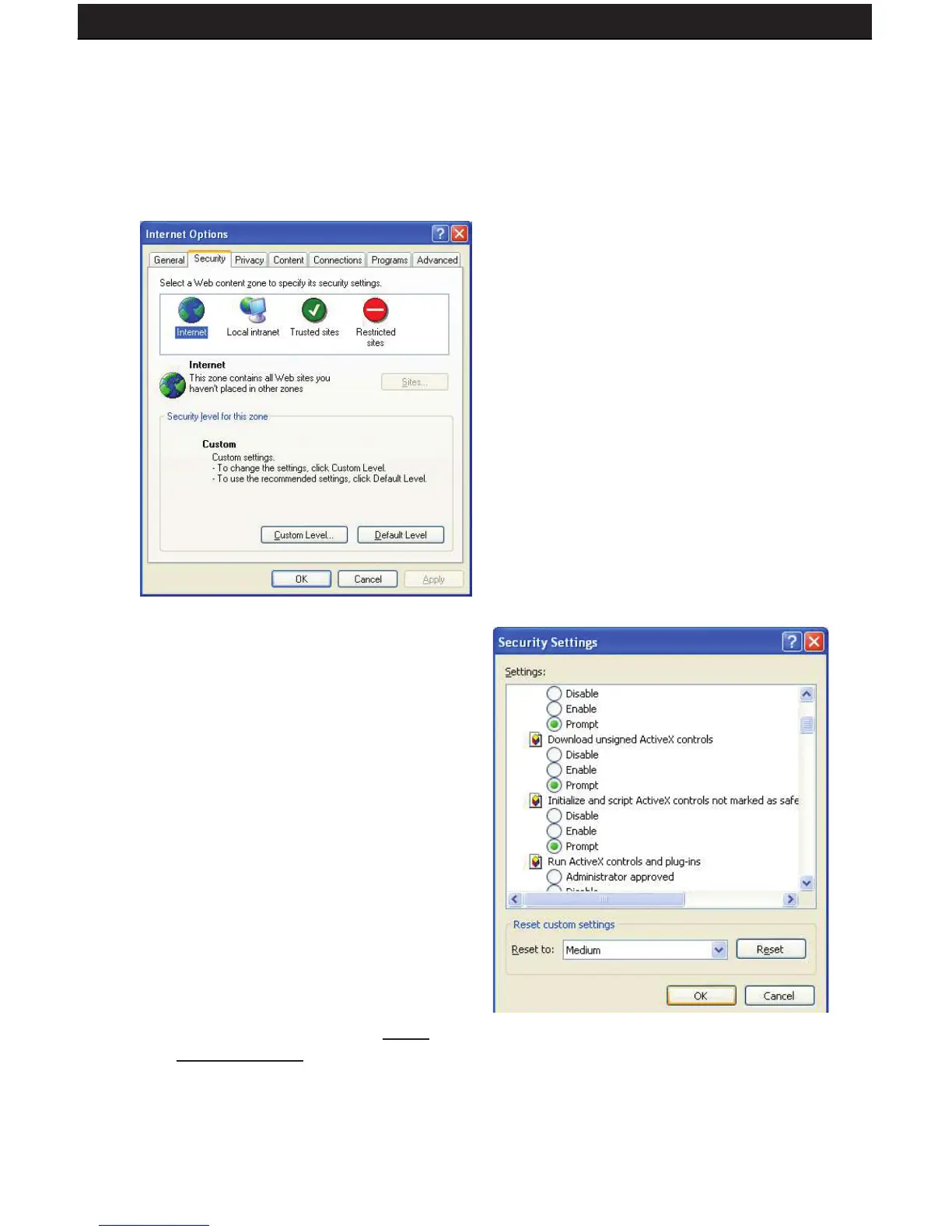
1. Open Internet Explorer. Go to the
drop down menu in the TOOLS
area and select INTERNET
OPTIONS. A screen will open.
2. Select the SECURITY tab, then
click on the CUSTOM
LEVEL button in this tab.
3. Change the ActiveX settings to the
ones seen in the images.
• Download signed ActiveX
controls: PROMPT
• Download unsigned ActiveX
controls: PROMPT
• Initialize and script ActiveX controls
not marked as safe: PROMPT
• Run ActiveX controls and
plug-ins: ENABLE
• Script ActiveX controls marked safe
for scripting: ENABLE
if it is an option:
• Allow automatic prompting for le
and code downloads: ENABLE
NOTE: If you do not have ActiveX
installed and the previous step
did not download it, go to www.
download.com and search for
ActiveX. Download the ActiveX
Download Control.
Your computer is now able to view the feed from the DVR.



 To Next Page