Understanding Your Printer Software 333
FILE LOCATION: C:\Users\fxstdpc-
admin\Desktop\0630_UG??\Mioga_SFP_UG_FM\Mioga_SFP_UG_FM\section20.fm
DELL CONFIDENTIAL – PRELIMINARY 9/13/10 - FOR PROOF ONLY
• USB 2.0 and 1.1 (When connecting with multiple printers of the same model
via USB cables, only the printer recognized first can be monitored in the
Status Monitor Widget
.)
Installing the Status Monitor Widget
1
Double-click the
Status Monitor Installer
icon in the
Finder
window.
2
Follow the on-screen instructions.
When the
Install Succeeded
screen appears, the installation is complete.
NOTE: Entering the administrative login name and password are required
during the installation process.
Opening and Closing the Status Monitor Widget
Opening the Status Monitor Widget
1
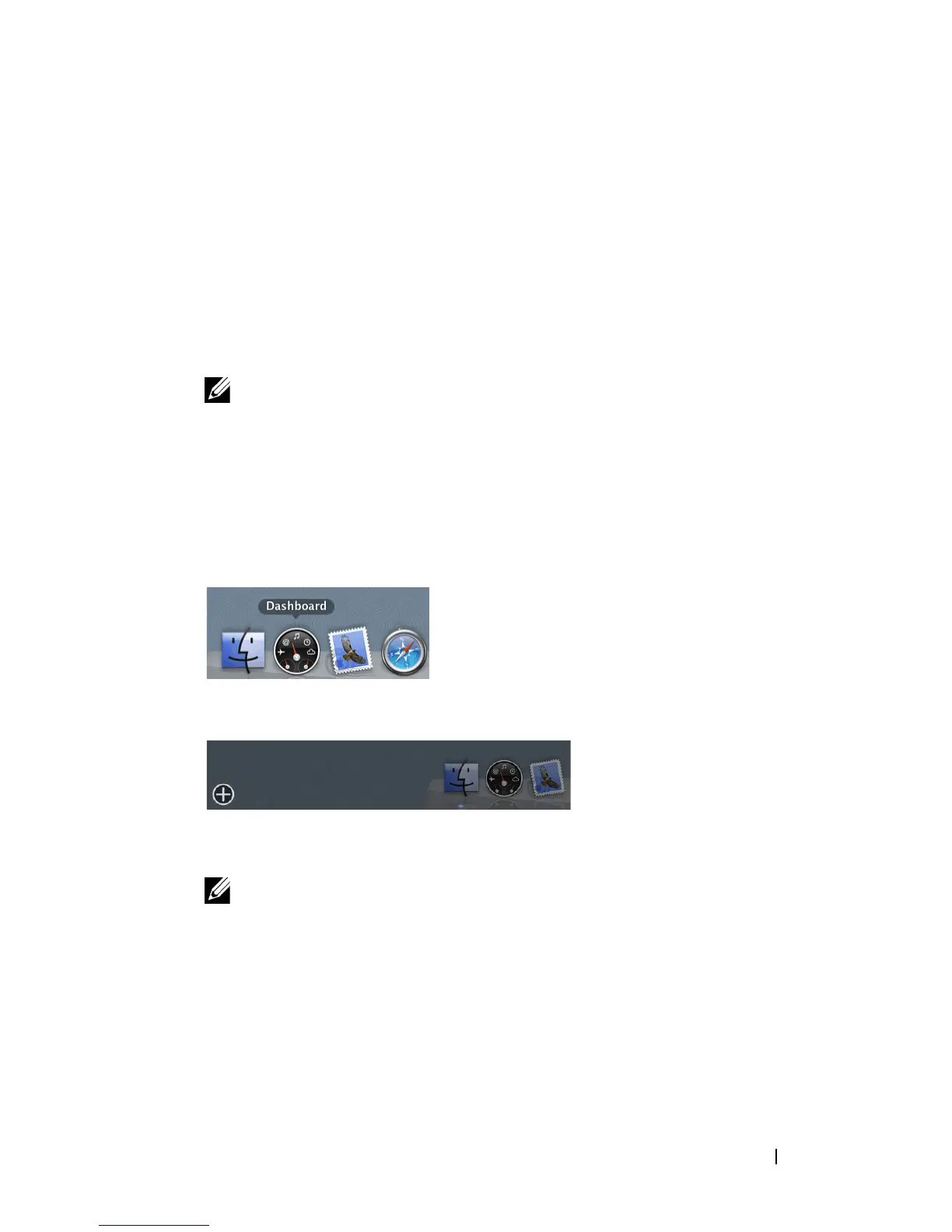
Click the Dashboard icon in the Dock to launch Dashboard.
2
Click the Plus (+) sign to display the Widget Bar.
3
Click the icon of
Status Monitor
in the Widget Bar. The
Printer Status
window appears.
NOTE: If the message Select a printer is displayed, select your printer in
Preferences. (For more information on Preferences, see "Preferences.")











 To Next Page