NOTE: The Status Monitor Console is available when the printer is connected to a network (LPR or Socket 9100). USB
connection is not supported.
Distributions
•Red Hat
®
Enterprise Linux
®
5 Desktop
• Red Hat Enterprise Linux 6 Desktop
•SUSE
®
Linux Enterprise Desktop 10
• SUSE Linux Enterprise Desktop 11
Printing system
• CUPS (Common Unix Printing System)
Installing the Status Monitor Console
1
Activate the terminal, and log in as a super user.
2
Type the following rpm command in the terminal window.
# rpm -ivh (Type the package file name)
Starting the Status Monitor Console
1
Click
Dell Printers
→
Status Monitor Console
The
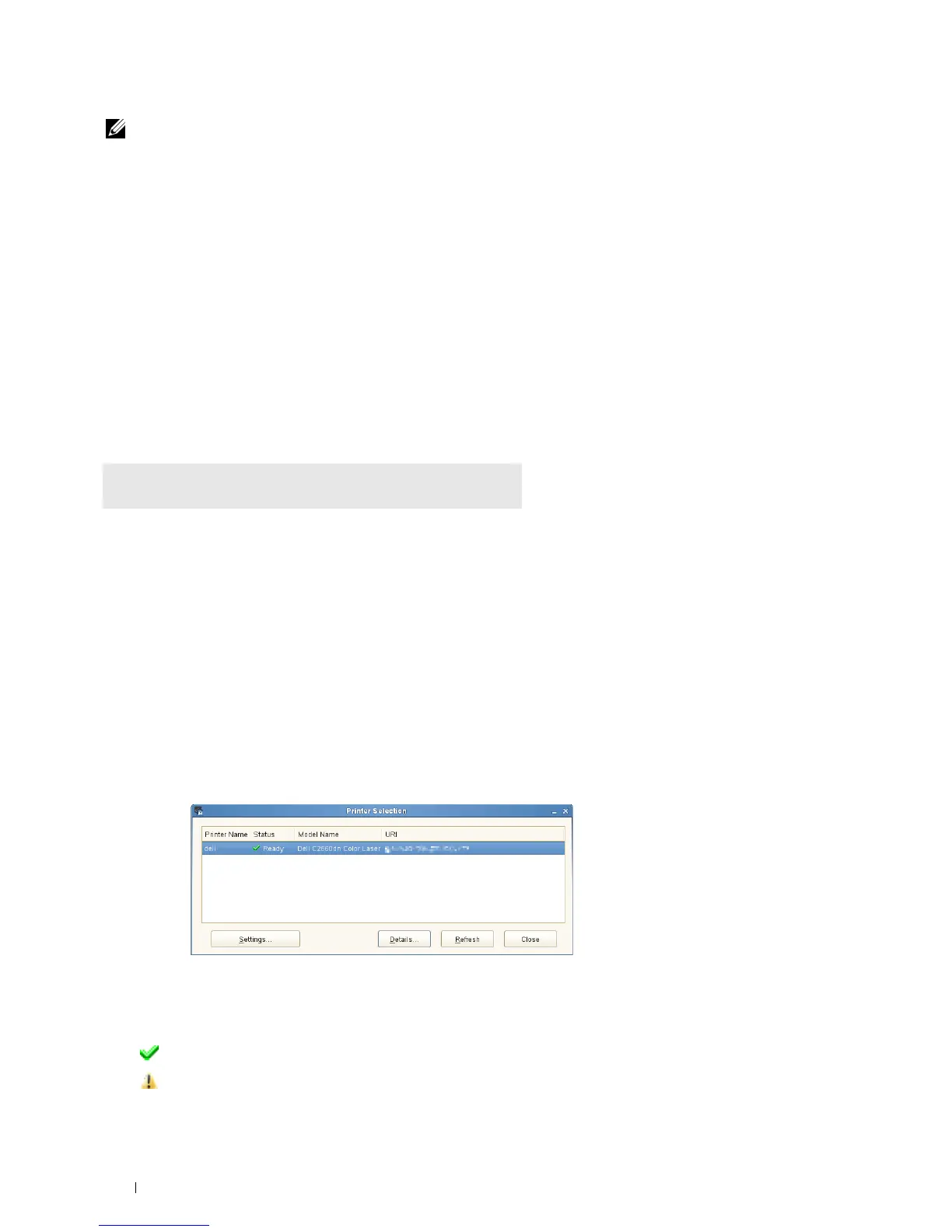
Printer Selection
window appears.
For more information on Printer Selection window, see "Printer Selection Window."
2
Select your printer.
The
Printer Status
window appears.
For more information on
Printer Status
window, see "Printer Status Window."
• You can order supplies from the
Dell Supplies Management System
window. See "Dell Supplies Management
System Window."
Printer Selection Window
Printers list
All the printers registered in the CUPS (Common UNIX Printing System) are displayed in a list.
• Status icons:
Ready
Unknown/Offline/Toner Low/Paper Low
Understanding Your Printer Software 240











 To Next Page