© 2013 DHD Deubner Hoffmann Digital GmbH
30
Series 52 - 52/DX Compact Mixing Console Manual
Specifications and design are subject to change without notice. The content of this document is for information only. The information presented in this document does not form part
of any quotation or contract, is believed to be accurate and reliable and may be changed without notice. No liability will be accepted by the publisher for any consequence of its use.
Publication thereof does neither convey nor imply any license under patent rights or other industrial or intellectual property rights.
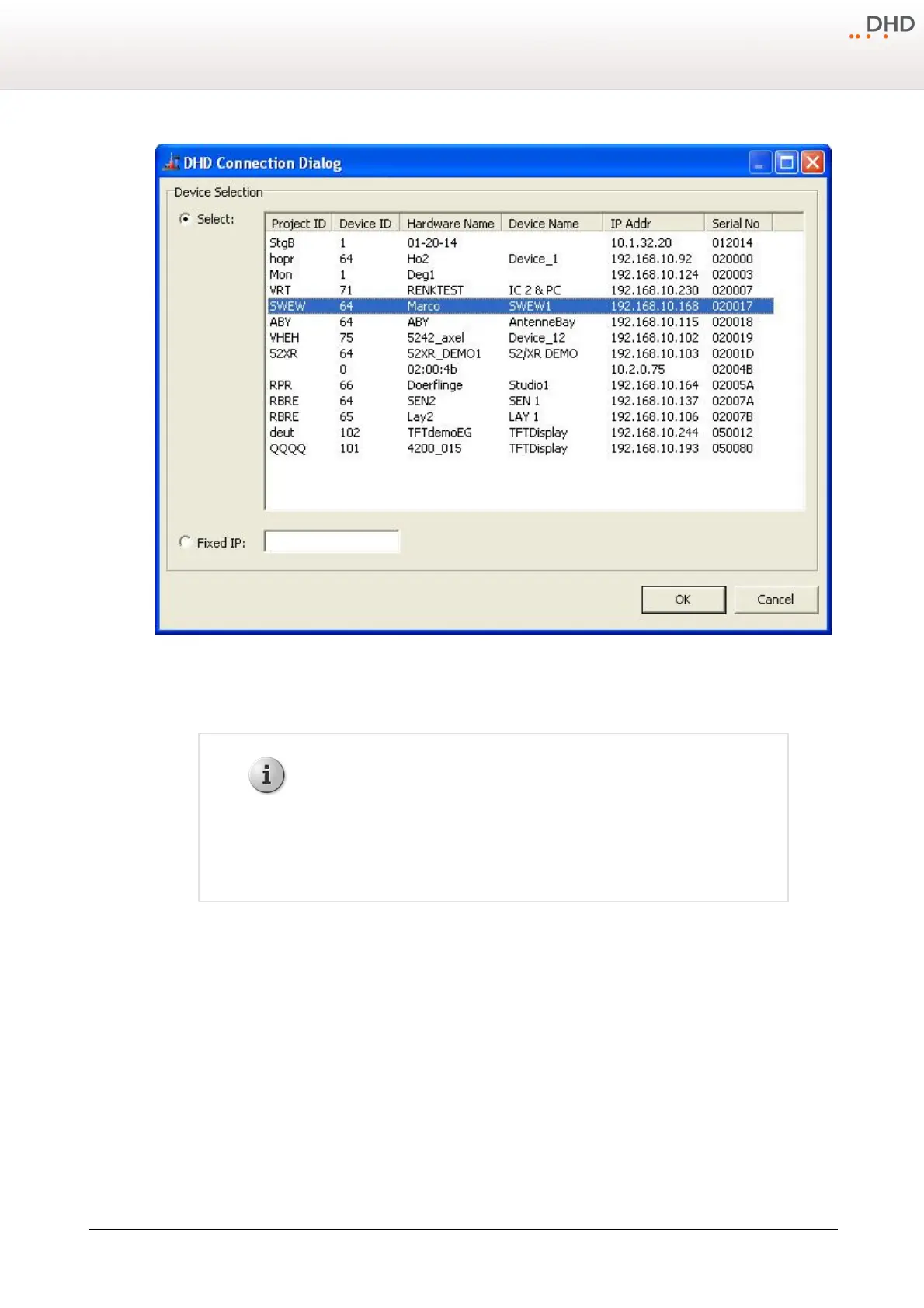
DHD Connection Dialog window for connections with the device.
The devices use the UDP protocol to announce their availability in the network. This requires that UDP packets can be
transferred between the DSP frames and the configuration PC. This is not always possible in all networks.
If no UDP packets are transferred between the DXConfig software and the
devices, the list of all available DHD systems is not shown in the
DHD
Connection Dialog
. In this case, you have to know exactly, which IP
addresses belong to which device, and enter them manually in the
Fixed IP
box.
If the configuration PC and the devices can communicate via the UDP protocol, the list in the
DHD Connection Dialog
window shows all available systems. You can now select the desired destination from the list.
After transferring a Config to a device, in the status bar of the DXConfig window the message
Project modified
is
shown. During the transfer, a time stamp is set in the file that is also transferred to the device. According to this time
stamp, the DXConfig software can recognize, whether the Config in the device differs from the one in the file. The data
stamp of the file or the time of the last transfer are shown under
<Device>/Options
in the
Last changed
box. If
the Config has never been transferred to a device,
no timestamp
is shown.
There are the following options for setting up a connection:
·
Select
: In the list, all devices connected to the IP network segment are listed. This list is created automatically via
UDP broadcast messages that are received from the devices. For each device, the appropriate project ID, device ID and
the hardware and device name are shown, as well as the IP address. The
Serial No
column shows the serial
number of the device which is identical with the company-specific bytes of the Ethernet MAC address of the device.
Select the desired device by mouse clicking.


 To Next Page