Version 1.2.0 - 04.02.2013
31
Configuration
Specifications and design are subject to change without notice. The content of this document is for information only. The information presented in this document does not form part
of any quotation or contract, is believed to be accurate and reliable and may be changed without notice. No liability will be accepted by the publisher for any consequence of its use.
Publication thereof does neither convey nor imply any license under patent rights or other industrial or intellectual property rights.
·
Fixed IP
: Here, you can enter the IP address of the device directly. This may be necessary if no UDP packets can be
received, if the configuration PC and the device are located in different network segments. For remote servicing of
systems this option might be helpful as well.
If you want to connect the device directly to the configuration PC with an ethernet cable, a twisted ethernet patch cable
(X-cable, cross cable) has to be used. Assign static IP addresses on both sides (no DHCP). The first 3 bytes of the address
must be identical, the last byte must differ, like the following example:
IP address of DXConfig-PC
Note on the Configuration of IP addresses
Each device needs an unambiguous IP address that is either set statically or assigned by a DHCP server. The appropriate
setting can be found under
Network Configuration
in
the Maintenance Window
. (See also Maintenance
Window - Servicing Modules)
If the devices are not constantly connected to an IP network, you should use static IP addresses. Do not assign any of the
IP addresses twice. Don't operate devices with DHCP enabled if no DHCP server is available on the network.
10.1.3.1 Load to Device
This command copies the current Config from the DXConfig software to the selected device. To do this, use the command
Load to Device
. The
DHD Connection Dialog
window opens, in which you can select the desired device. (See
figure DHD Connection Dialog window for connections with the device) After confirming the selection, the new Config is
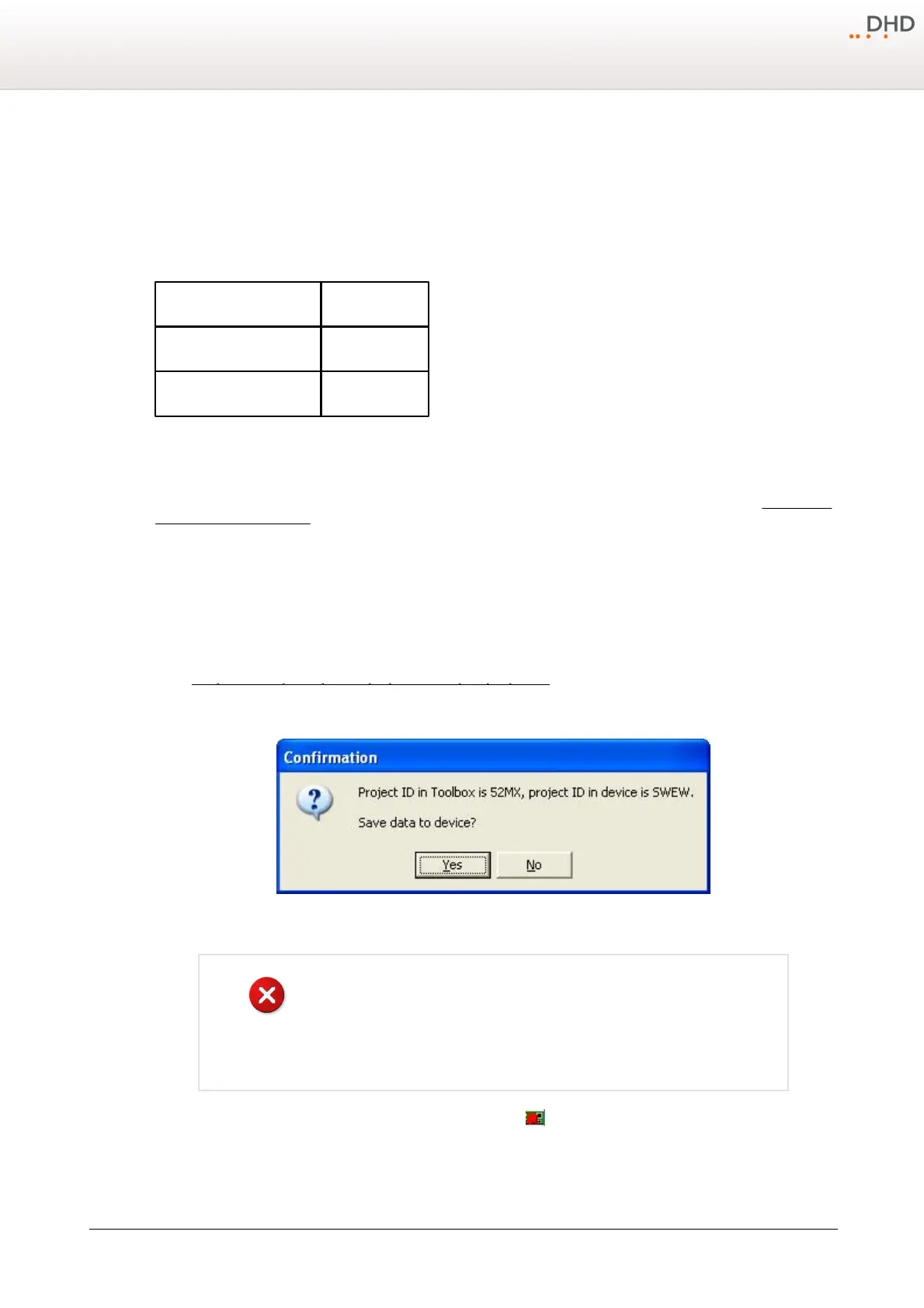
transferred. If the name of the device in the project and the one of the device selected in the network should not be
identical, the following message is shown:
Confirmation window if the project IDs in the DXConfig software and the
device are not identical when uploading a Config.
Loading a new Config overwrites a Config already existing in the device.
Therefore, if in doubt, save the current Config before making any changes using
the
Load from Device
command and save it to a file.
The command
Load to Device
can also be executed by clicking in the toolbar.


 To Next Page