© 2013 DHD Deubner Hoffmann Digital GmbH
16
Series 52 - 52/DX Compact Mixing Console Manual
Specifications and design are subject to change without notice. The content of this document is for information only. The information presented in this document does not form part
of any quotation or contract, is believed to be accurate and reliable and may be changed without notice. No liability will be accepted by the publisher for any consequence of its use.
Publication thereof does neither convey nor imply any license under patent rights or other industrial or intellectual property rights.
6.3.1 52/DX control module
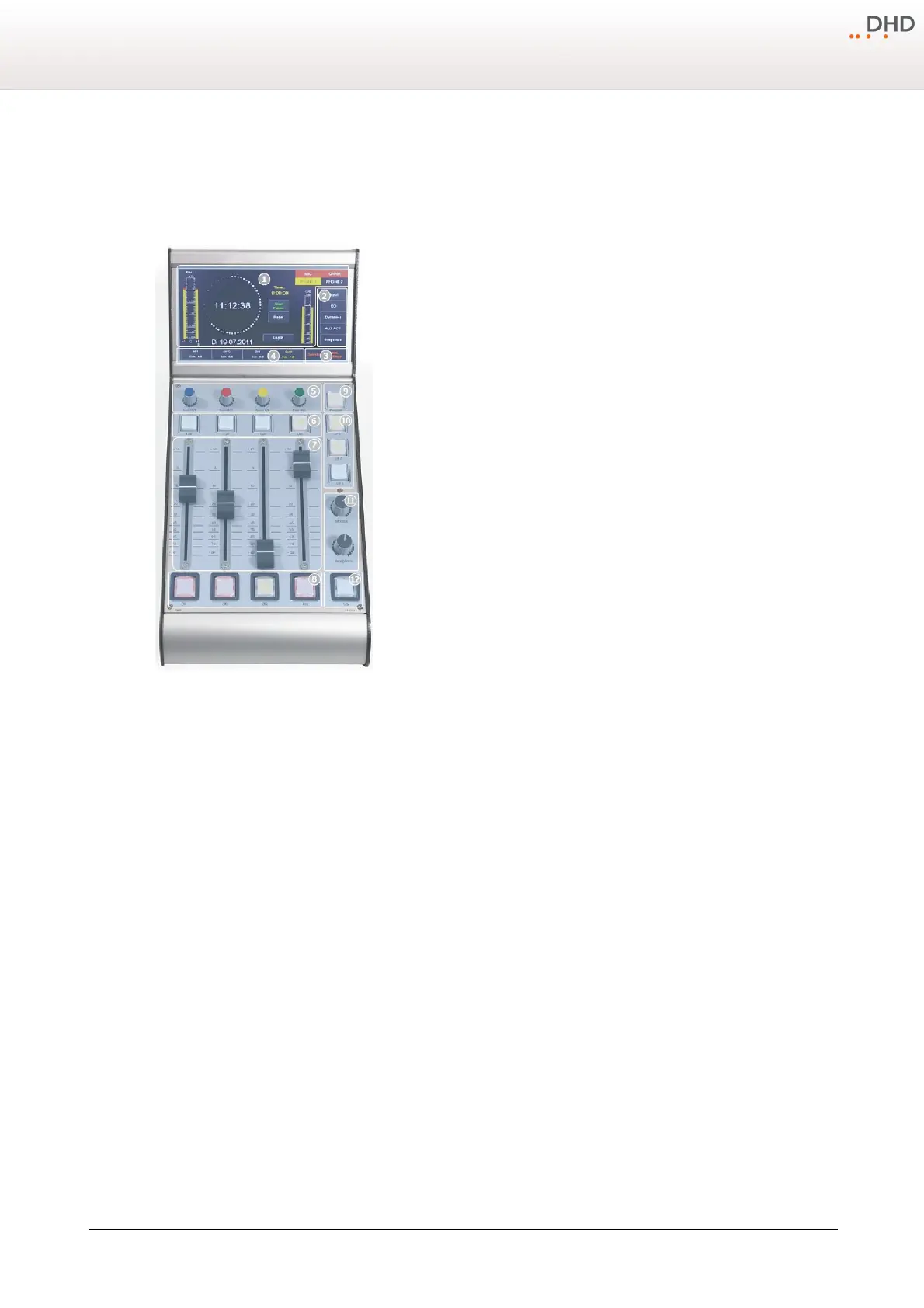
The 52/DX control module 52-1104 is a table top module including a 7" TFT Touch Display, 4 faders, push buttons,
encoder and potentiometers.
The TFT/Touch Display shows diverse pre-set TFT pages. These pages show,
for example peak meters, correlation display, clock, stopwatch and setting of
EQ, dynamics unit, snapshots and other parameters. The main page can be
changed to other preset pages in the configuration software.
This TFT display is not only able to show information. Due to it is sensitive to
touch, you can use views with buttons to control functions via the TFT screens.
To change parameters of a selected channel, press the
Input
,
EQ
,
Dynamic
or
Aux
button to switch between the TFT pages. To save or load Snapshots
press the Snapshot button.
When a channel is selected, you can use these TFT buttons to navigate
between the
Input
,
EQ
,
Dynamic
or
Aux
TFT pages. When no channel is
selected, you have access to the
Selector
view and the
add. Settings
view.
Access button on TFT Touch display.
With this button you can select a channel, on which you want to make further
settings. If the button is pushed, and a TFT settings page is selected, you can
see the associated settings, for example EQ settings on the TFT display. All
changes belong to the selected fader channels. To deselect the fader channel,
push the
Select
key again or select another fader channel by pushing the
associated select key.
This Access button also provides additional information about the channel
below, these are: the channel name, the used DSP functions, an input meter
and the current gain value.
Encoder section for control of gain, EQs, dynamics and other settings.
The 52-1104 has four coloured encoders. These have two function modes:
· In case of no channel is selected by an access button, the encoders work as gain control for the fader channel
below. On channels with a Microphone input source, you can change the encoder function to analog gain control
(AGain) by pushing the encoder.
· When a channel is selected, by pressing an access button, the encoders work as control for parameters for EQ,
dynamics, Aux etc. on the TFT/Touch display. You can see a coloured frame around the parameters on the TFT/
Touch display, this colour shows, which encoder controls which parameter.
The
Cue
key is similar to a PFL key. Push this key to route the pre fader signal of a fader channel to the PFL bus.
Use the fader to control the audio level from -oo to 0 dB with an additional gain of +10 dB.
Push the
ON
key to switch the fader channel on or off. If the key lights up, the fader channel is on.
Program
monitor selector key, expanded by touch-display selector. When this key is pressed, the PGM bus signal will
be switched to the monitor 1 bus. The preselected audio source of monitor bus 1 will be monitored again, when the
Program
key is off. (see Configuration - Console)
You can use these
GP
keys (General Purpose keys) to switch GPOs and get status signalisation from a GPI, or any
other available logic source. (see Configuration - Console)
Professional high-grade volume potentiometers.
It is possible to configure this talk key for a simple talkback, for example to a sound booth or an additional mixing
console. (see Configuration - Console)


 To Next Page