Locks
33
Locking and Unlocking Your Receiver
1
2
3
4
5
6
7
8
9
10
11
R
1
2
3
4
5
7
8
9
10
R
11
5
Press SELECT.
6
Enter the new password using the NUMBER PAD. Select OK.
7
Enter the new password again for confirmati
on, using the NUMBER PAD. The receiver
displays stars (*) as you enter the digits of the password. Select OK.
8
Memorize the new password. From now on, yo
u must enter this pa
ssword to lock or
unlock the receiver. If you forget your pa
ssword, you will need to
speak with a Customer
Service Representative.
LOCKING
AND
U
NLOCKING
YOUR
R
ECEIVER
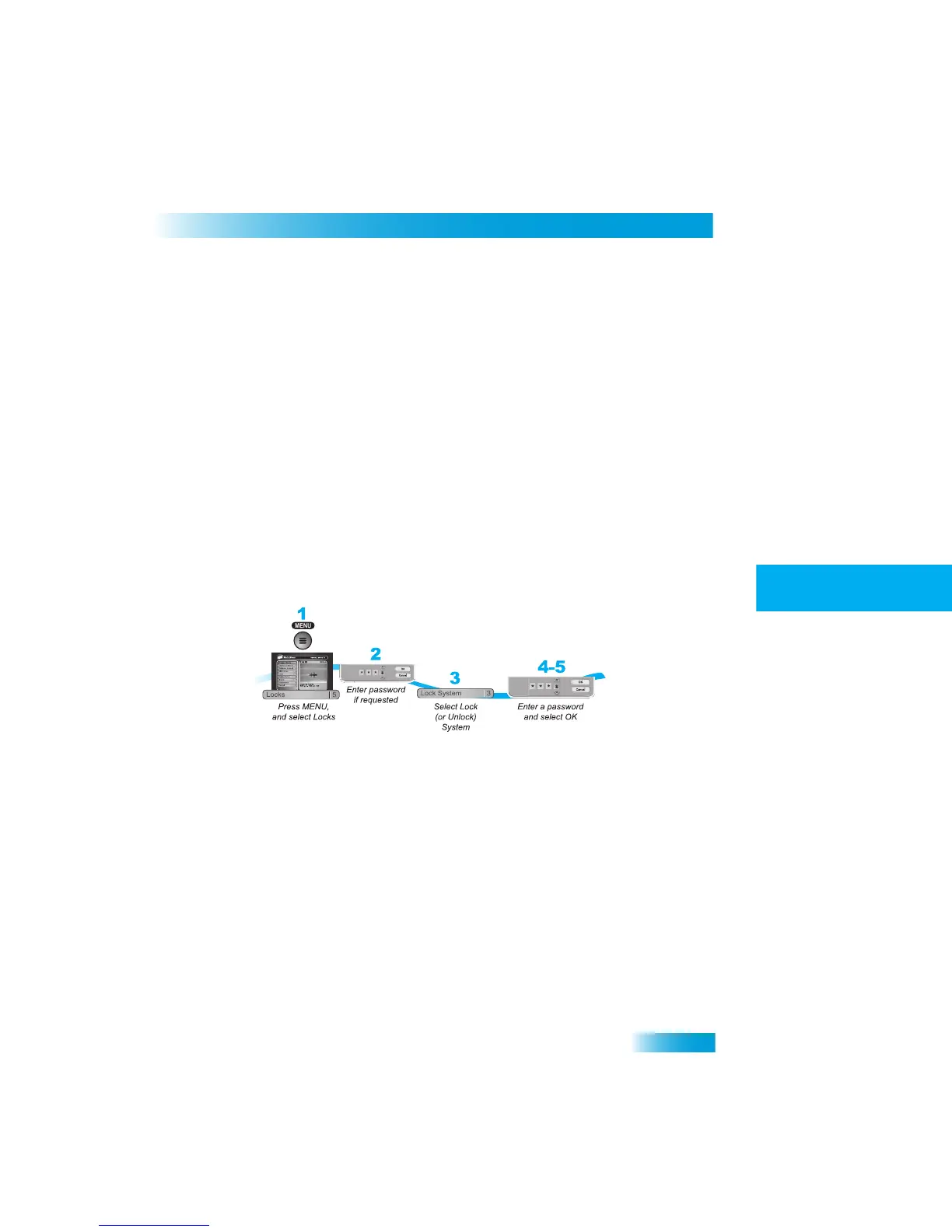
You must lock the receiver for any receiver
locks you set to take effect. To lock the
receiver, you must first create a password (see Creating or Changing a Pa
ssword in the
previous section). Be sure to
refer to this sect
ion whenever you set any lock on your
receiver.
1
Press MENU and select Locks (5).
2
If the receiver is locked, enter the passw
ord using the NUMBER PAD. The receiver
displays stars (*) as you enter the digits of the password. Select OK.
3
Select Lock System or Unlock System (3). If
you are locking the receiver, the receiver
displays a message prompting you to enter a password.
4
Enter a password, using the NUMBER PAD. The receiver displays st
ars (*) as you enter
the digits of the password. Select OK.
5
Confirm the password by re-entering it. Select OK. All the locks you ha
ve set are now in
effect.


 To Next Page