102
Applications
Using play list
Use play list to play songs in your desired order.
Create a play list
1
On the data list screen, “Play list”
2
“Create new” → Enter a title → “OK”
3
“Add songs to playlist” → Select songs
·
Tap “Artists”/“Albums” to search from artists or albums.
4
“Apply” → “Save” → “OK”
Playing/Editing/Deleting a play list
1
On the data list screen, “Play list”
■ Playing a play list
Tap a play list you want to play
Tap a song
■ Editing a play list
Tap a play list you want to edit
“Edit”
Edit title, add/delete songs, change order, etc. “Save” “OK”
■ Deleting a play list
On the play list screen, “Edit”
Tap a play list you want to delete “Save” “OK”
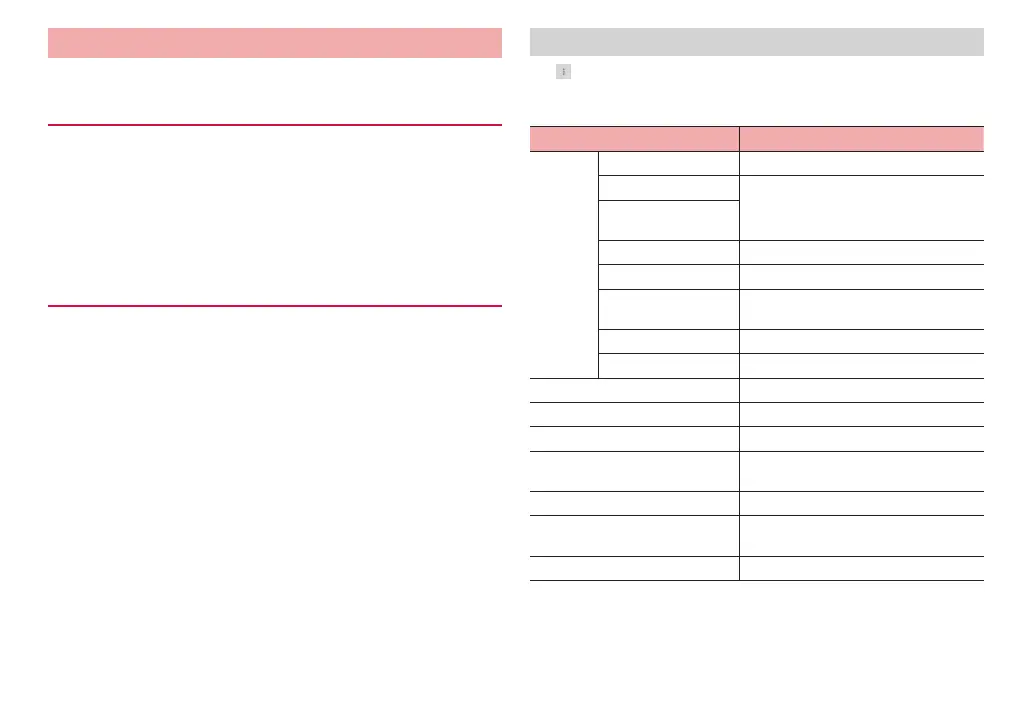
Menu of the Media Player
Tap on the data list screen or playing screen of the Media Player to
show the following menu items.
·
Available menu options vary depending on screens.
Icon Description
Settings Audio effect settings Set effects.
Ringtone settings Set as ringtone.
Ringtone settings
(Now listening)
Movie sort settings Set sorting methods for videos.
Delete contents Delete songs/videos.
Arrange icons Change icons at the left of the data list
screen.
Update database Update data list.
Reset Settings Reset settings.
Sort Change data order.
Playlist/Thumbnail Switch list view/thumbnail vie
w of data.
Search Connect dmenu to sear
ch.
About contents Show detailed information of playing
content.
Help Show Media Player Help.
About Show detailed information of Media
Player.
Exit End Media Player.



 To Next Page